How to Show Battery Percentage in Ubuntu Linux

You can easily show your exact battery percentage in Ubuntu Linux by enabling a specific setting.
This feature displays the precise remaining charge, replacing the generic battery icon with a clear numerical value.
Starting with Ubuntu 22.04 LTS, this customization is built directly into the operating system, allowing you to quickly gauge your power status.
Knowing your exact battery percentage helps you manage your laptop’s power more effectively and estimate your remaining usage time accurately.
Open Settings, navigate to the Power section, and toggle “Show Battery Percentage” to On. This will display the exact battery percentage in the system menu bar.
How to change battery status as a percentage in Ubuntu Linux
As we mentioned, Ubuntu Linux by default shows a battery icon with a lightning bolt on the system menu bar (the bar at the top of your screen).
This icon doesn’t show how much charge is left or when the battery might run out. However, if the battery status is shown as a percentage, you’ll have a better idea of how long you have before the battery runs out or is fully charged.
Here’s how the battery status looks on the System menu.
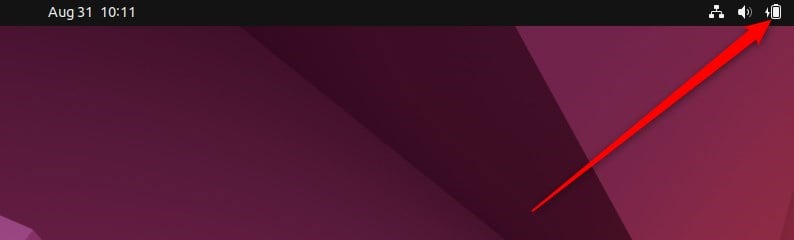
To change the battery status to percentage, use the steps below.
Ubuntu Linux keeps most of your settings in one place: the System Settings panel. Here, you can manage everything from system configurations to user accounts and updates.
To open System Settings, go to the Activities overview and type ‘Settings’.

You can also click the System menu in the top-right corner of your desktop and select ‘Settings’.
On the System menu, select Settings, as highlighted below.

In the Settings app, click on the Power tile. Then, in the Suspend & Power Button section, set Show Battery Percentage to On or Off to enable or disable it.
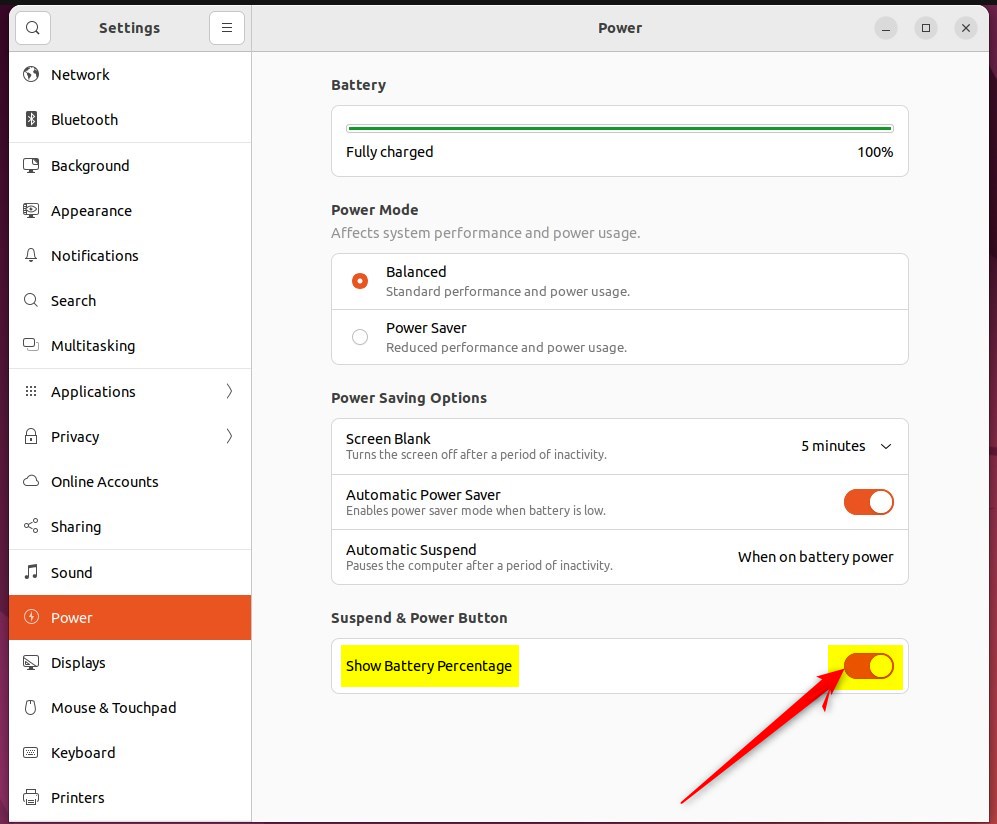
That should do it! You can now close the settings app.
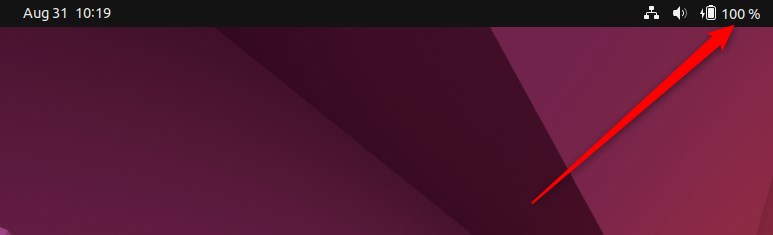
Conclusion:
- Changing the battery status to a percentage in Ubuntu Linux indicates the remaining battery charge.
- By following the simple steps outlined above, users can easily enable or disable the battery percentage display on the system menu bar.
- Understanding the battery charge level or how long it takes for the battery to run out becomes more convenient with the percentage display.
Was this guide helpful?

About the Author
Richard
Tech Writer, IT Professional
Richard, a writer for Geek Rewind, is a tech enthusiast who loves breaking down complex IT topics into simple, easy-to-understand ideas. With years of hands-on experience in system administration and enterprise IT operations, he’s developed a knack for offering practical tips and solutions. Richard aims to make technology more accessible and actionable. He's deeply committed to the Geek Rewind community, always ready to answer questions and engage in discussions.



No comments yet — be the first to share your thoughts!