How to Change “All File Access” on linked Mobile Device for Phone Link

You change the “All File Access” setting on your linked mobile device for Phone Link to control what your PC can see and manage. Phone Link, Microsoft’s app, allows seamless integration between your Android phone and Windows PC.
This feature lets you access files directly from your computer. Understanding how to adjust permissions ensures your data remains secure while maximizing Phone Link’s utility.
For example, if you don’t want your PC to access all your photos, you can modify this setting through Phone Link’s connection settings.
Why Control File Access?
Think of “All File Access” as a master key for your PC to your phone’s storage. It’s essential for features like browsing your phone’s files directly in File Explorer or transferring large amounts of data. However, you might have reasons to limit it. Perhaps you’re more privacy-conscious, or you only need specific types of files to sync. Understanding how to manage this permission gives you more control over your data.
How to Change “All File Access” on Your Linked Samsung Device
You manage the ‘All File Access’ setting directly on your Samsung phone, not your PC. This involves navigating your phone’s settings and the ‘Link to Windows’ app. Here’s a step-by-step guide:
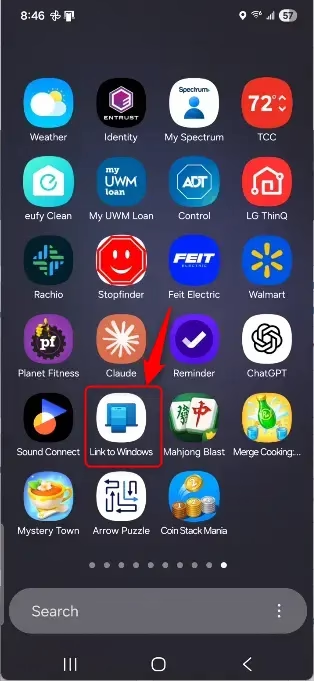
Open the “Link to Windows” App
Find the “Link to Windows” app on your Samsung phone. You might find it pre-installed, or you could have downloaded it from the Google Play Store or Samsung Galaxy Store. Tap to open it.Tip: If you can’t find the app, try searching for “Link to Windows” in your phone’s app drawer or settings. It’s usually represented by a Windows logo icon.
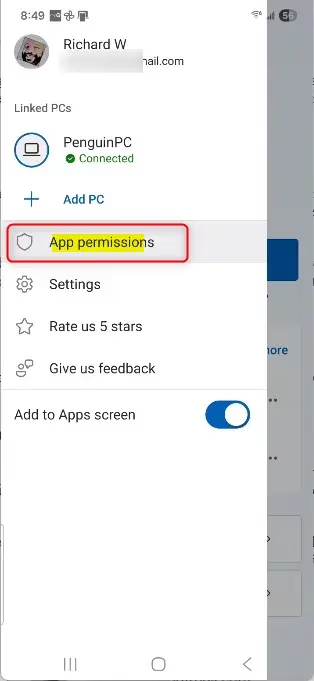
Navigate to Settings within the App
Once the “Link to Windows” app is open, look for a settings or preferences menu. This is often represented by a gear icon or found within a three-dot menu in the top or bottom corner of the app.Locate Permissions or Access Settings
Within the app’s settings, you’ll want to find an area that deals with permissions, access, or connected devices. The exact wording can vary slightly depending on your Samsung model and Android version.Warning: Be careful when navigating these settings. You’re managing how your phone interacts with your PC, so ensure you understand what each option does before changing it.
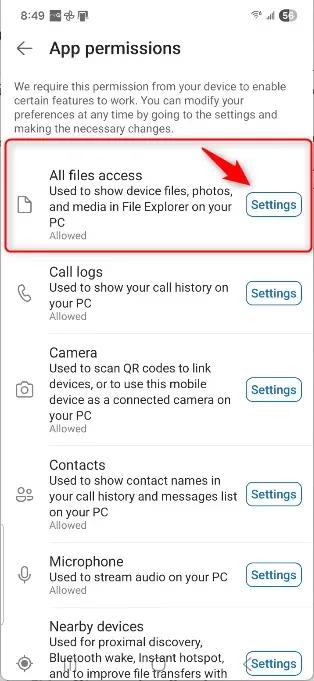
Find the “All File Access” or Storage Permission
Look for an option specifically related to file access, storage, or “All Files Access.” This might be a toggle switch or a setting that you can tap into for more detail. If you don’t see “All File Access” directly, it might be under a broader “Storage” permission category.Adjust the Permission
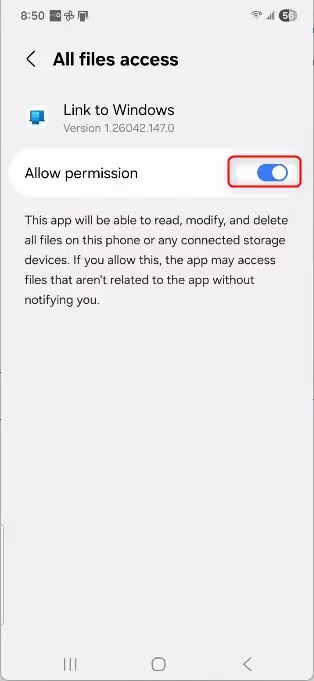
If “All File Access” is currently enabled, you’ll likely see an option to turn it off or change it to a more restricted level. If you’re presented with multiple options, choose the one that best suits your needs. For instance, you might be able to grant access only to specific folders or media types instead of all files.Practical Tip: If you’re disabling “All File Access,” consider what features you might lose. For example, browsing your entire phone’s file system on your PC might become limited. However, core features like messages, notifications, and calls should still work.
Confirm Your Changes
After you’ve made your selection, the app might ask you to confirm your changes. Follow any on-screen prompts to save your new permission settings.Restart or Re-sync (Optional but Recommended)
Sometimes, changes to permissions don’t take effect immediately. To be safe, you might want to close and reopen the “Link to Windows” app on your phone. You could also try restarting the Phone Link app on your PC, or even rebooting both devices, to ensure the updated permissions are recognized.Warning: If you encounter issues after changing permissions, such as certain features not working, revisit these settings and re-enable the necessary permissions. The “Link to Windows” app requires certain access levels to function fully.
Understanding Android’s Permission System
It’s helpful to know that Android has a robust permission system designed to protect your data. When an app like ‘Link to Windows’ asks for permissions, it’s requesting access to specific parts of your phone’s features or data. ‘All File Access,’ sometimes called ‘Manage all files’ in newer Android versions (like Android 11 and up), is a special permission giving an app wide-ranging access to read and write files on your device’s storage.
When you initially set up Phone Link, you’re prompted to grant these permissions to allow seamless integration. If you want to revoke or modify them later, you’ll typically do so through the app itself or through your phone’s main system settings. On your Samsung phone, you can often find these under:
- Settings > Apps > Link to Windows > Permissions
Here, you’ll see a list of all the permissions the “Link to Windows” app has requested, including access to Storage, Notifications, Contacts, etc. You can then tap into each permission to enable or disable it.
Reference:
Conclusion
Managing “All File Access” on your linked Samsung device through the “Link to Windows” app gives you granular control over your phone’s data. While granting broad access enables the most features, understanding how to adjust these permissions ensures your privacy and data security. By following these steps, you can confidently manage how your PC interacts with your Samsung phone’s files, striking the right balance between convenience and control.
Was this guide helpful?

About the Author
Richard
Tech Writer, IT Professional
Richard, a writer for Geek Rewind, is a tech enthusiast who loves breaking down complex IT topics into simple, easy-to-understand ideas. With years of hands-on experience in system administration and enterprise IT operations, he’s developed a knack for offering practical tips and solutions. Richard aims to make technology more accessible and actionable. He's deeply committed to the Geek Rewind community, always ready to answer questions and engage in discussions.
No comments yet — be the first to share your thoughts!