How to Change Account Lockout Duration in Windows 11

This guide will show you how to change the Account lockout duration in Windows 11 or Windows 10.
Why Account Lockout Matters
When someone tries many wrong passwords to log into your computer, they might be trying to hack your account. Windows keeps track of failed login attempts. You can set it to lock an account for a set amount of time after too many wrong password tries. This helps protect your computer from attacks.
Understanding Account Lockout Settings
Account lockout threshold: This is how many times someone can fail to log in before the account locks. You can set it from 1 to 999 attempts, or set it to 0 to never lock the account.
Account lockout duration: This is how many minutes the account stays locked before it automatically unlocks. An admin can also unlock it manually.
Reset account lockout counter after: This is how many minutes must pass after a failed login before the counter resets to zero.
Allow Administrator account lockout: This controls whether the main Administrator account can be locked out.
Default Settings in Windows 11
Starting with Windows 11 build 22528 and newer, the defaults are:
- Account lockout threshold: 10 failed attempts
- Account lockout duration: 10 minutes
- Allow Administrator account lockout: Enabled
- Reset account lockout counter after: 10 minutes
⚠️ Admin Required: You must be signed in as an administrator to change these settings.
Important Notes
Be careful when setting account lockout. A hacker could try to lock out all accounts in your organization by attempting many wrong passwords on multiple accounts.
Option One: Using Local Security Policy
Note: Local Security Policy is only available in Windows Pro, Enterprise, and Education editions. All editions can use Option Two.
- Open Local Security Policy. Type
secpol.mscin the search box and press Enter. - In the left pane, double-click Account Policies to expand it, then click Account Lockout Policy.
- In the right pane, double-click Account lockout duration to open it.
- Type a number between 0 and 99999 minutes. This is how long the account stays locked. Click OK.
- 0 = The account stays locked until an admin unlocks it
- 10 = The default setting
- If Account lockout duration is lower than Reset account lockout counter after, you will see suggested values. Click OK to accept them.
- If you want, you can also change the Account lockout threshold, Allow Administrator account lockout, and Reset account lockout counter after settings.
- Close Local Security Policy when done.
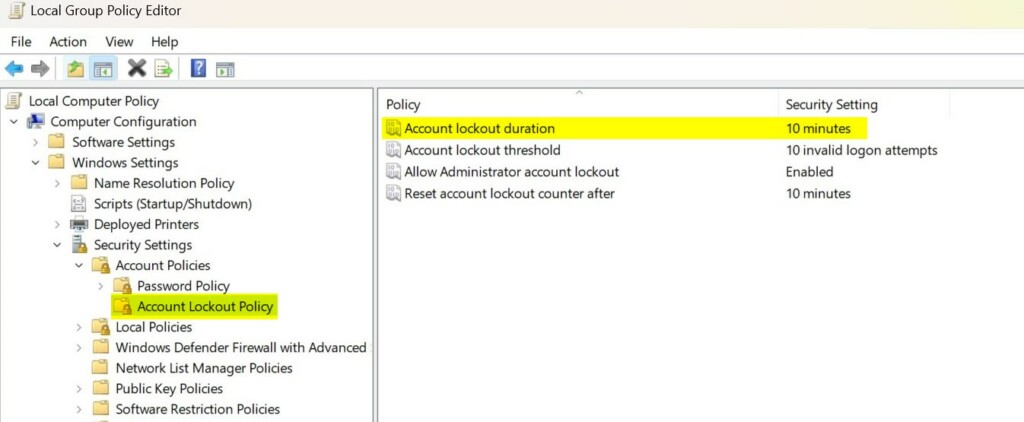
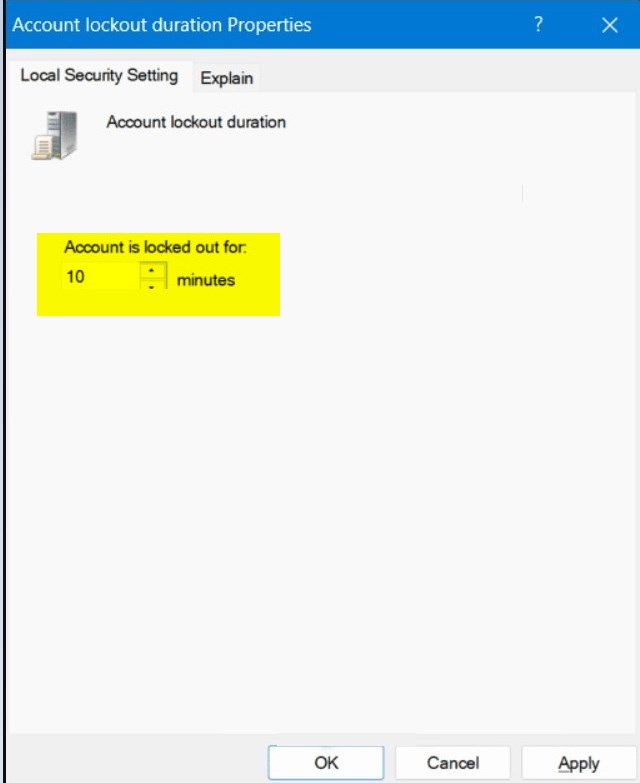
Important: Account lockout threshold must be enabled first. Account lockout duration must be greater than or equal to Reset account lockout counter after.
Option Two: Using Windows Terminal
⚠️ Admin Required: This method requires opening Windows Terminal as an administrator.
- Right-click the Start menu and select Terminal (Admin), or search for Windows Terminal and run it as admin. Choose either powershell-execution-policy-in-windows-11/" class="sal-link" rel="noopener" target="_blank" data-sal-id="32759">Windows PowerShell or Command Prompt.
- Copy and paste this command, then press Enter to see your current lockout duration:
net accountsLook for the line that says “Lockout duration (minutes)”.
- Type this command and press Enter:
net accounts /lockoutduration:<number>Replace <number> with a value between 0 and 99999 minutes. For example:
net accounts /lockoutduration:10 - If you want, you can also change other settings using these commands:
- Account lockout threshold:
net accounts /lockoutthreshold:<number> - Reset account lockout counter:
net accounts /lockoutwindow:<number>
- Account lockout threshold:
- Close Windows Terminal when done.
Important: Account lockout threshold must be enabled first. Lockout duration must be greater than or equal to Lockout observation window.
Summary
You can change how long an account stays locked after too many failed login attempts. Use Local Security Policy (Option One) if you have Windows Pro, Enterprise, or Education edition. Use Windows Terminal (Option Two) for any Windows 11 or Windows 10 edition. Remember that both the lockout duration and the lockout observation window work together, so set them carefully. An admin can always unlock an account manually if needed.
References
Account Lockout Policy – Windows 10 – Describes the Account Lockout Policy settings and links to information about each policy setting.
Account lockout duration – Windows 10 – Describes the best practices, location, values, and security considerations for the Account lockout duration security policy setting.
Was this guide helpful?

About the Author
Richard
Tech Writer, IT Professional
Richard, a writer for Geek Rewind, is a tech enthusiast who loves breaking down complex IT topics into simple, easy-to-understand ideas. With years of hands-on experience in system administration and enterprise IT operations, he’s developed a knack for offering practical tips and solutions. Richard aims to make technology more accessible and actionable. He's deeply committed to the Geek Rewind community, always ready to answer questions and engage in discussions.

No comments yet — be the first to share your thoughts!