How to Capture Game Audio in Windows 11

Do you like recording your games on Windows 11? You can make your recordings even better by adding game audio. This guide will show you how to turn game sound on or off when you record.
Quick Tip: How to Record a Game Clip
To quickly record a game clip in Windows 11 when something exciting happens, use the keyboard shortcut Windows key + Alt+G.
Windows key + Alt + G
This saves the last few moments of your game as a video clip.
Your recorded clips are saved in the Videos folder on your PC by default. You can also change where these clips are saved if you want.
Why Capture Game Audio?
Game audio includes music, sound effects, and character voices. Capturing this sound makes your videos much more enjoyable to watch. When you share clips with friends or online, the audio helps show what the game feels like. Your recordings become more complete and exciting with sound.
How to Turn Game Audio Capture On or Off in 🪟 Windows 11
You can easily turn game audio capture on or off in Windows 11 by opening the Settings app and going to Gaming, then Captures.- Open Settings by clicking the Start button and selecting Settings, or press
Windows key + Ion your keyboard. - In the Settings window, click on Gaming from the left menu.
Windows 11 Settings app with Gaming button highlighted - Click on Captures on the right side.

Windows 11 Gaming Captures settings - Find the option called “Capture audio when recording a game”.
- Toggle the switch to On if you want to record game sounds, or to Off if you don’t.
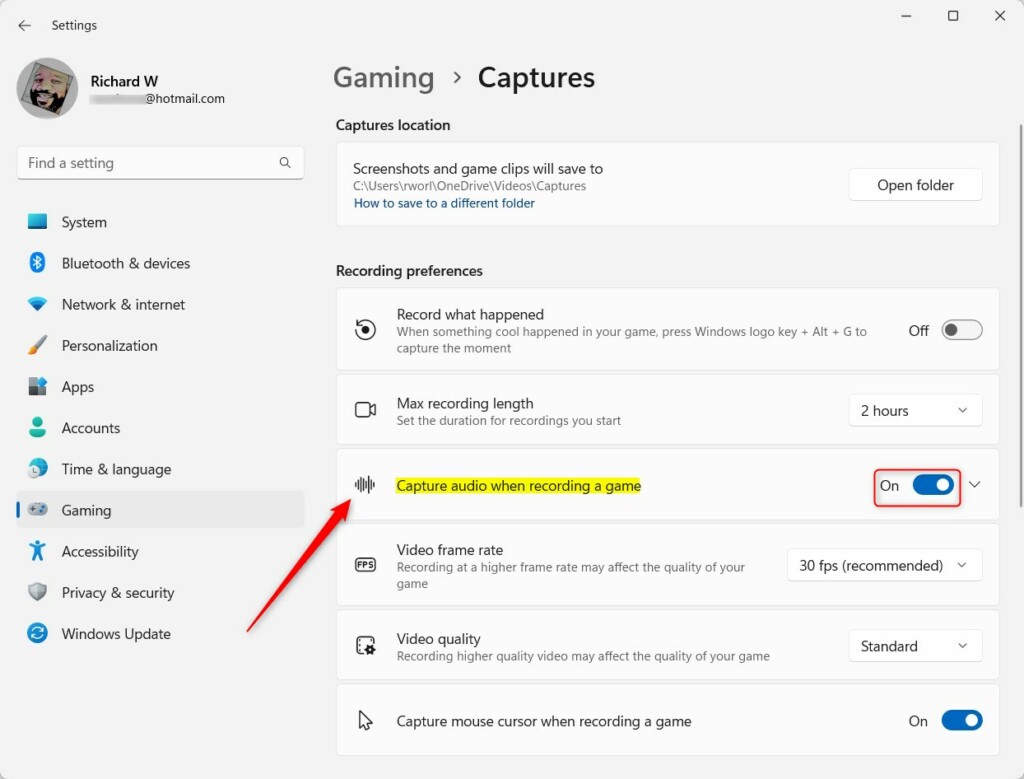
Toggle capture audio on or off in Windows 11 - If you turn it on, click the arrow next to the toggle to see more settings like:
- Audio recording quality – how clear the sound will be
- Microphone volume – if you want to add your voice
- System volume – controls the game sounds volume
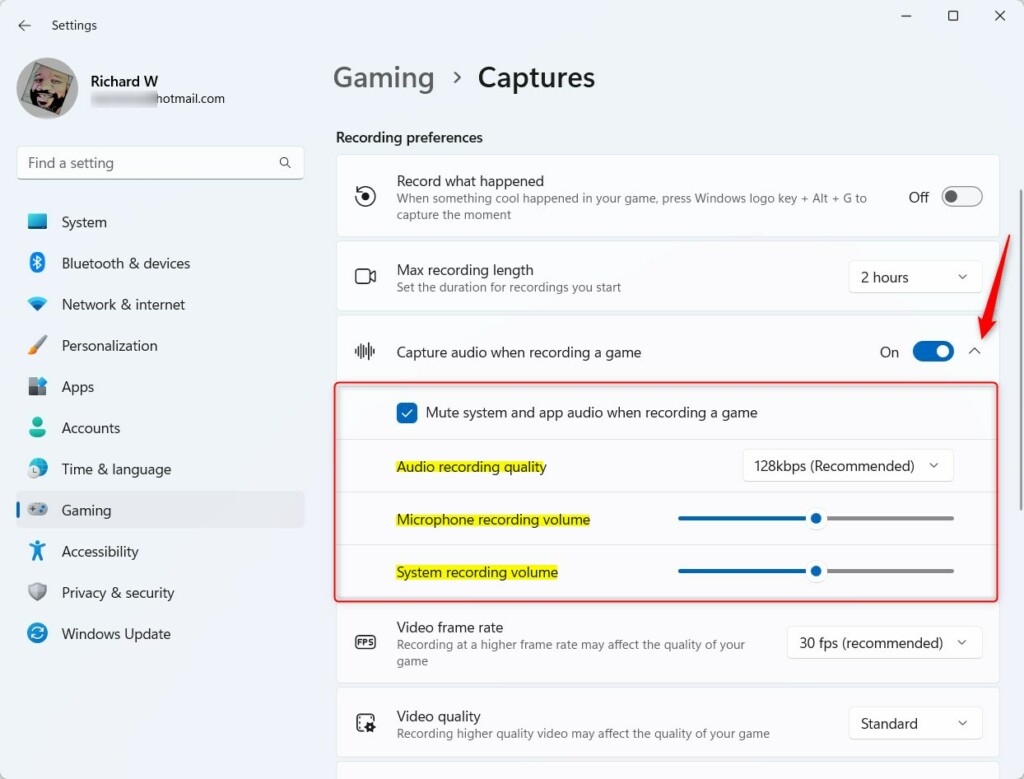
Additional audio capture settings in Windows 11 - When done, close the Settings app.
Summary
Turning on game audio capture in Windows 11 makes your recorded game clips much better by including background music, sound effects, and voices.
Does Windows game capture Record audio?
Recorded audio settings You can turn on the option to also record audio when capturing a game clip. You can choose whether you want to also record system and mic audio when recording a game clip.
Does the 🪟 Windows 11 Snipping Tool Record audio?
Many Windows users are familiar with the Snipping Tool, which captures snapshots of their screen in real-time. However, fewer users are aware that the Windows 11 Snipping Tool has evolved to include a screen recording feature with the capability to capture system audio.
Was this guide helpful?

About the Author
Richard
Tech Writer, IT Professional
Richard, a writer for Geek Rewind, is a tech enthusiast who loves breaking down complex IT topics into simple, easy-to-understand ideas. With years of hands-on experience in system administration and enterprise IT operations, he’s developed a knack for offering practical tips and solutions. Richard aims to make technology more accessible and actionable. He's deeply committed to the Geek Rewind community, always ready to answer questions and engage in discussions.




No comments yet — be the first to share your thoughts!