How to Calibrate HDR Display in Windows 11 for Video

Calibrating an HDR display in Windows 11 fixes washed-out colors and incorrect brightness when you watch HDR videos. The process tells Windows the real light limits of your screen, so movies show deep shadows and bright highlights accurately instead of clipping them.
You need Windows 11 version 22H2 or newer to run the official HDR calibration tool. It is the Windows HDR Calibration app, and Windows may ask you to install it from the Microsoft Store the first time you click Calibrate. Setup takes about five minutes. It works the same on Home and Pro, and you do not need to restart. The result changes how HDR video looks across your media apps on a monitor or laptop screen.
Open the Windows HDR Calibration app and follow the on-screen instructions to adjust luminance sliders for dark, bright, and color saturation patterns. The app will save these settings to your display profile for optimized HDR visuals.
What is HDR Video and Why Calibrate It?
HDR video uses high dynamic range technology to show brighter brights and darker darks than standard video. When you calibrate, you adjust the screen so movies and shows get the right balance of light and shadow. That lets you see hidden detail in both very bright and very dark areas of the picture.
Standard Dynamic Range (SDR) video has limits. It struggles to show the brightest and darkest parts of a scene with full detail at the same time. Intense sunlight and deep shadows in one frame, for example, will lose detail at one end or the other.
High Dynamic Range (HDR) allows your screen to display a much wider range of colors and brightness levels. Here is what that gives you:
- Brighter Brights: Sunlight, explosions and bright lights look much more intense and real.
- Darker Darks: Deep shadows in a night scene can be truly dark, and you still see detail inside them.
- More Vivid Colors: HDR can show more colors, so they look richer and more lifelike.
- Better Detail: You can often see detail in the very bright and very dark areas of the same picture at once, which SDR struggles with.
Calibration fine-tunes your screen's HDR picture beyond its factory settings. You control how the screen handles its extreme bright and dark areas, so you can favor detail in bright scenes or in dark ones. There is no single right answer. You pick the balance that suits your eyes and your room.
How to Calibrate Your Built-in HDR Display
Let's get started. These steps calibrate your Windows 11 laptop's built-in screen for HDR video. They are written for the laptop's integrated display. An external HDR monitor works the same way, and you pick it from a list in a later step.
Step 1Open Display Settings
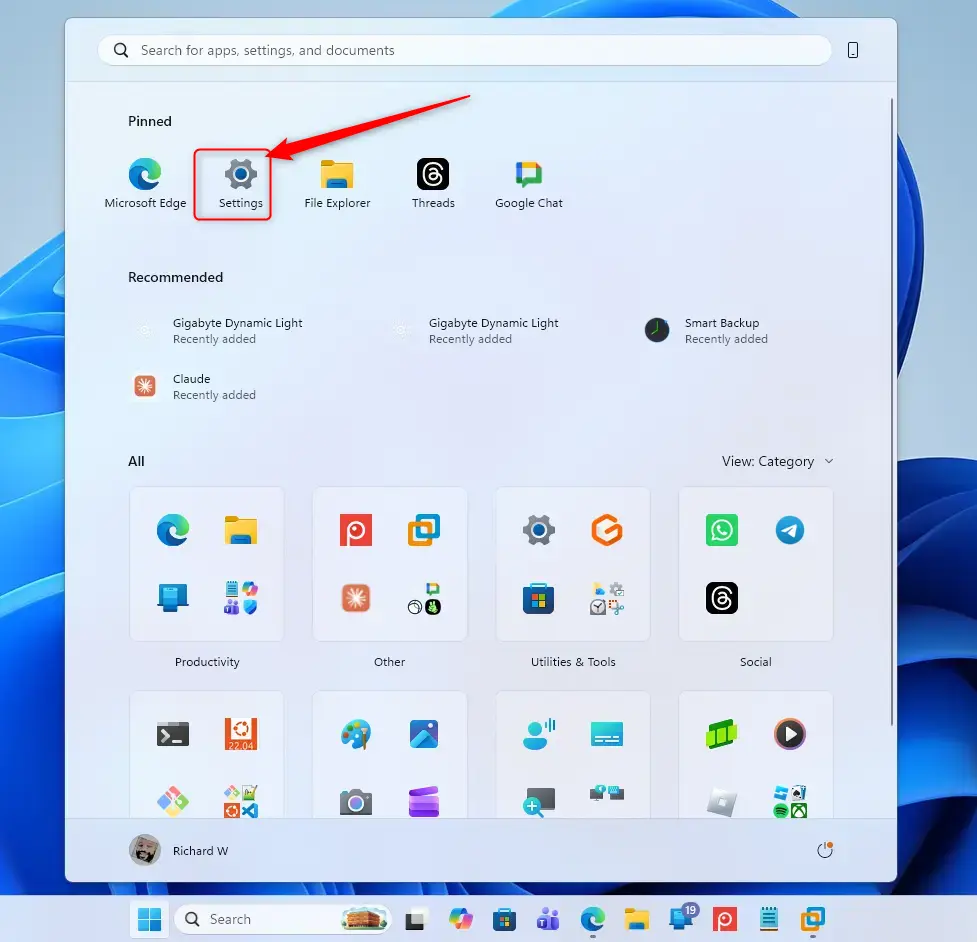
- Press Windows key + I to open the Settings app.
- Or click the Start button and then select the Settings gear icon.
You should now see the Settings window with a list of categories on the left.
Step 2Go to Display Settings
- In the left-hand pane of Settings, click System.
- On the right-hand side, click Display.
You should now see your display options, such as brightness, scale and resolution.
Step 3Find the HDR Settings
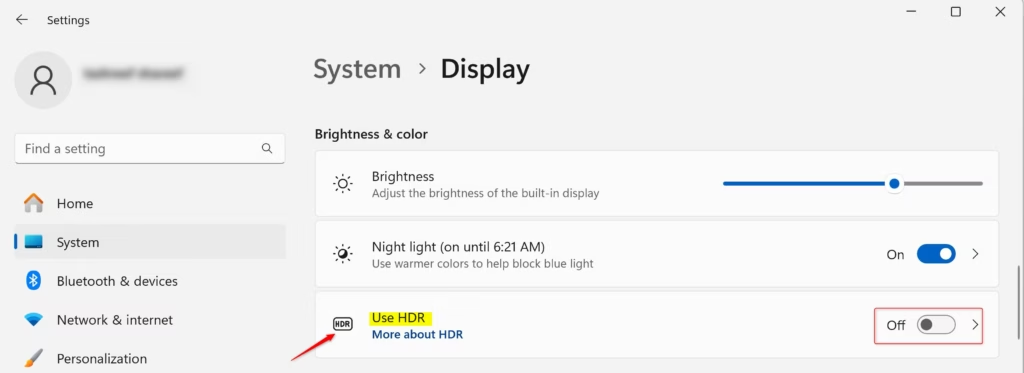
The HDR controls sit on the main display page. Windows 11 lets you reach them through a few clicks, and the calibration tool depends on the state of the HDR switch.
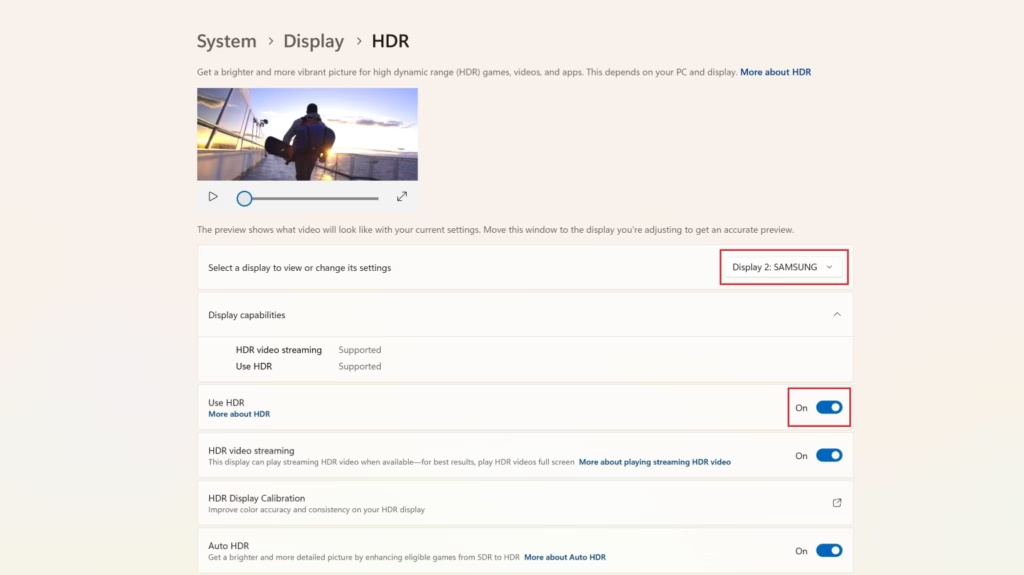
- Go to Settings System Display
- Click HDR.
- Check the Use HDR switch. If it is on, turn it off temporarily.
The reason for this step is that the calibration option is meant to appear only while HDR is off. If the Use HDR row is missing altogether, your display or its driver is not reporting HDR support. Check that the graphics driver is up to date and that the display is connected with a cable and port that support HDR.
Step 4Select Your Built-in Display (If Needed)
Selecting the correct display matters when you have more than one screen connected. Otherwise you can end up calibrating the wrong one.
- Click the drop-down menu at the top of the Windows HDR Calibration app.
- Choose your laptop screen or your primary monitor.
Do this before you adjust any brightness or color levels, so the changes apply to the screen you are looking at.
If you only see your laptop's built-in display, the HDR calibration option may not appear. This is normal when the laptop is not connected to an external HDR monitor, and no action is needed. A built-in screen that supports HDR should still list the calibration option, so if yours does not, check the Use HDR row from the previous step.
Step 5Open the Calibration Tool
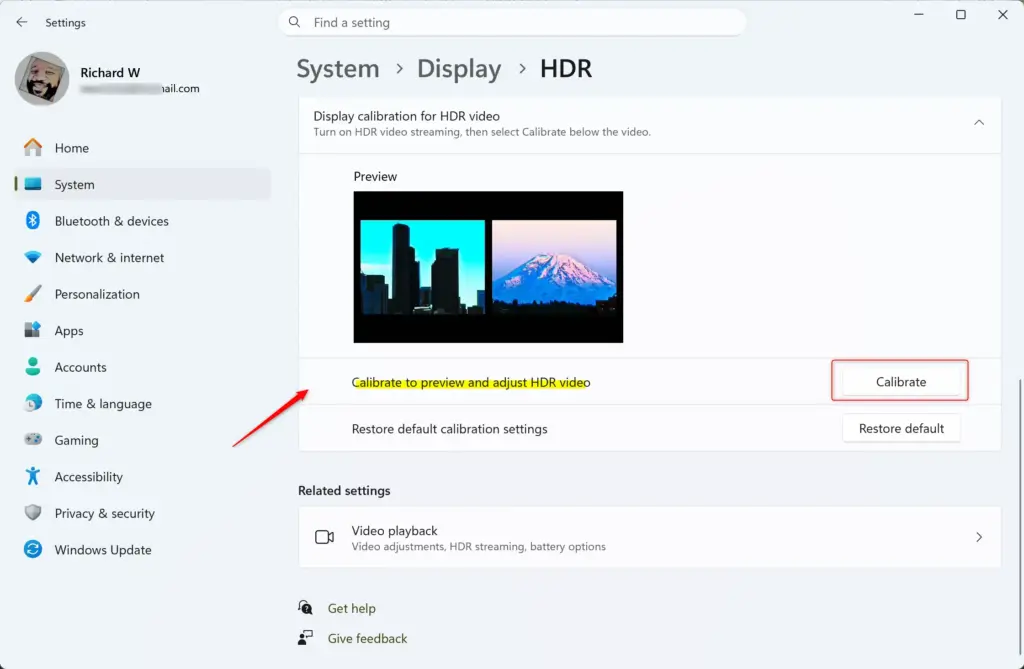
- Under Display calibration for HDR video, click Calibrate.
The Windows HDR Calibration app opens and shows a full-screen test pattern. If Windows asks you to install the app first, accept and wait for it to finish.
Keep in mind that the Calibrate button appears only when Use HDR is off. Otherwise it will be greyed out or absent. If it is still missing with HDR off, try turning Use HDR on and look again. Some builds only offer the tool while HDR is active.
Step 6Calibrate Your Display
The tool shows a series of test patterns and uses your answers to set the light output of your screen.
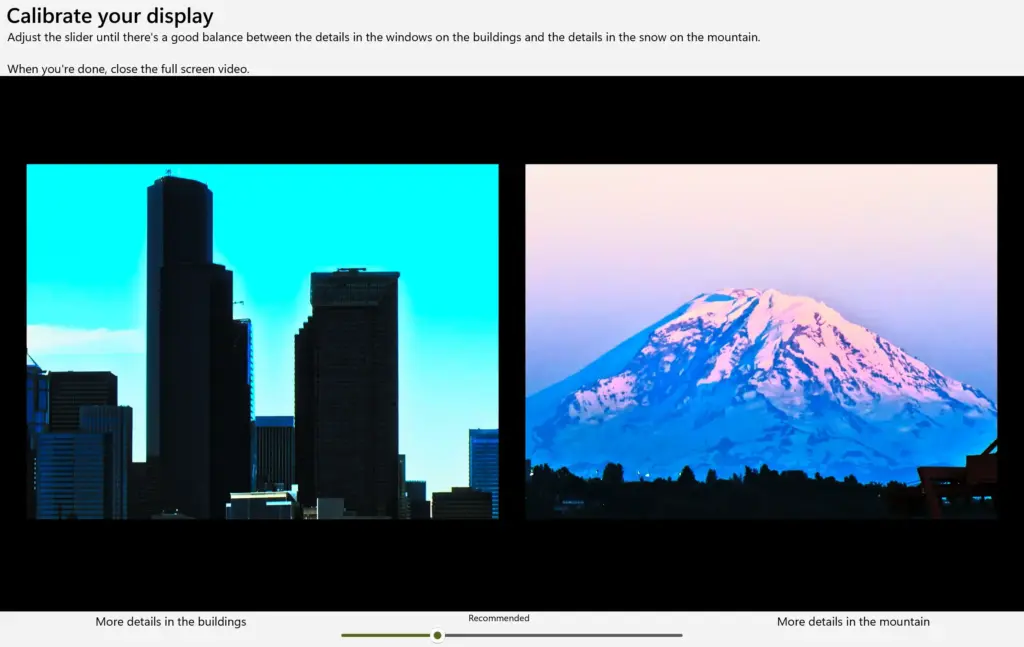
- Drag the slider at the bottom of the Windows HDR Calibration app.
- Watch the test pattern until you can see clear detail in both the bright clouds and the dark shadows.
The slider controls how bright the brightest parts of your HDR video appear. Move it until the image looks its best to you, so videos look natural and balanced:
- To show more detail in bright areas, move the slider to the right.
- To show more detail in dark areas, move the slider to the left.
Make small moves and pause between them. Large jumps make it hard to tell which setting looks better.
Look closely at the image and notice how detail appears and disappears as you move the slider. Settle on what looks most pleasing to your eyes. There is no single correct answer, because calibration depends on personal preference and on the room you watch in. You are telling Windows how to handle brightness in different parts of HDR content.
If you can, calibrate in the lighting you normally watch in. A setting that looks right in a bright room can look too dark at night.
Step 7Exit the Calibration Tool
- When you are happy with the balance, find the icon in the bottom-right corner of the full-screen image. It usually looks like a square or an "exit full screen" symbol.
- Click it to close the tool.
You should be back in the Settings app, on the Display page.
Step 8Turn HDR Back On (Optional but Recommended)
Turning HDR back on applies your new calibration to supported apps and videos.
- Go back to Settings System Display
- Click HDR.
- Switch the Use HDR toggle to On.
The screen may flicker or go dark for a second while Windows switches modes. This is normal. Open an HDR video to check the result.
Step 9Close Settings
That's it! You have calibrated your built-in HDR display. You can close the Settings window and enjoy your improved HDR video.
Resetting Default HDR Calibration Settings
Sometimes you will want to go back to the default HDR calibration. Maybe you made adjustments you are not happy with, or you want to start fresh. Windows gives you a simple way to reset your HDR calibration.
Step 1Open Display Settings
- Press Windows key + I to open Settings.
- Go to System Display
Step 2Access HDR Settings
- Click HDR (or Use HDR, depending on your build).
Remember that the calibration button is only visible when Use HDR is turned off.
Step 3Select Your Built-in Display (If Needed)
If you have several screens connected, make sure your laptop's built-in screen is the one selected. Otherwise you will reset the wrong display.
Step 4Restore Defaults
Restoring defaults removes your custom calibration and returns the screen to its normal HDR settings.
- Open the Display settings and click HDR.
- Click the Restore default button next to the display calibration option.
Use this if your picture looks wrong or you want to run the setup again from scratch. The label can differ slightly between Windows 11 builds. If you do not see a reset button, run the calibration again and set the slider to a point you like.
This puts your HDR calibration back to its original state, as it was when Windows was first set up or when your display drivers were last updated. Switch Use HDR back on if it was on before.
Step 5Close Settings
The HDR calibration for your built-in display is now back at its default configuration. You can close the Settings app to finish.
Summary
Calibrating your built-in HDR display in Windows 11 fixes washed-out colors and restores shadow detail in movies and games. In short: open Settings System Display HDR, run the Windows HDR Calibration tool, adjust the test patterns with the slider, and turn Use HDR back on. That gets you the most accurate picture your screen can give. If you ever dislike the result, reset to defaults or run the calibration again.
Have a question about this guide?
Answered by AI from this guide. Good questions may be added to this page — please don't include personal details.
Did this guide fix your problem?

About the Author
Richard
Tech Writer, IT Professional
Richard is a writer at Geek Rewind who turns complex IT tasks into clear, step-by-step guides. He draws on years of hands-on experience in system administration and enterprise IT operations, focusing on Windows, Linux and WordPress: the problems people actually run into, and the fixes that work. His server and WordPress guides come from systems he runs himself. Richard builds and maintains the platform behind Geek Rewind, from its Ubuntu servers and Nginx configuration to its custom WordPress plugins. Many new tutorials start with readers' questions, and he's always glad to answer them in the comments.
[…] can run the HDR Calibration app for best picture […]