How to Use Kids Mode in Microsoft Edge

Kids Mode in Microsoft Edge provides a safe and controlled browsing experience for children.
This mode restricts access to specific websites and content, allowing you to set up a secure online environment for your kids right within the Edge browser, which is built into Windows 11.
With Kids Mode, you can create individual profiles for each child, granting them access only to pre-approved sites, ensuring their online safety without constant supervision.
Click the profile icon in the top-right corner of Microsoft Edge and select “Browse in Kids Mode.” Choose an age range to start, which restricts access to pre-approved websites and blocks adult content.
Why use Kids Mode?
But why use it? Kids Mode creates a safe digital space for your child to explore the internet. It protects them from inappropriate websites and content.
What happens when done?
Once you turn on Kids Mode, Edge only lets your child visit pre-approved websites. It also automatically blocks adult content and turns off AI features like Copilot for a safer experience.
Kids Mode is currently available in US English for Windows and macOS users.
Use Kids Mode with Microsoft Edge
Turning on Kids Mode in Microsoft Edge is simple and doesn’t require a separate child account.
- Click the profile icon in the top-right corner.
- Select Browse in Kids Mode from the menu.
If this is your first time, a welcome screen will appear, explaining the features.
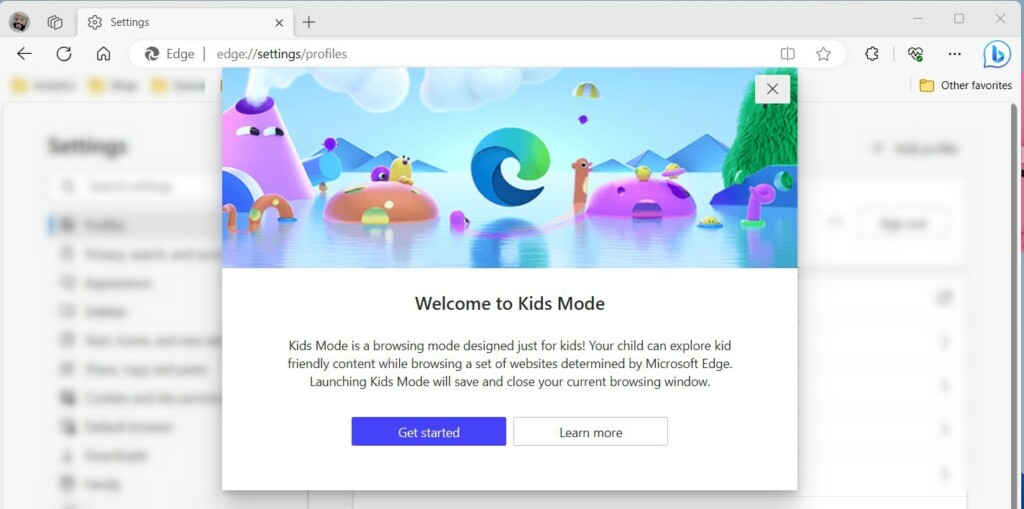
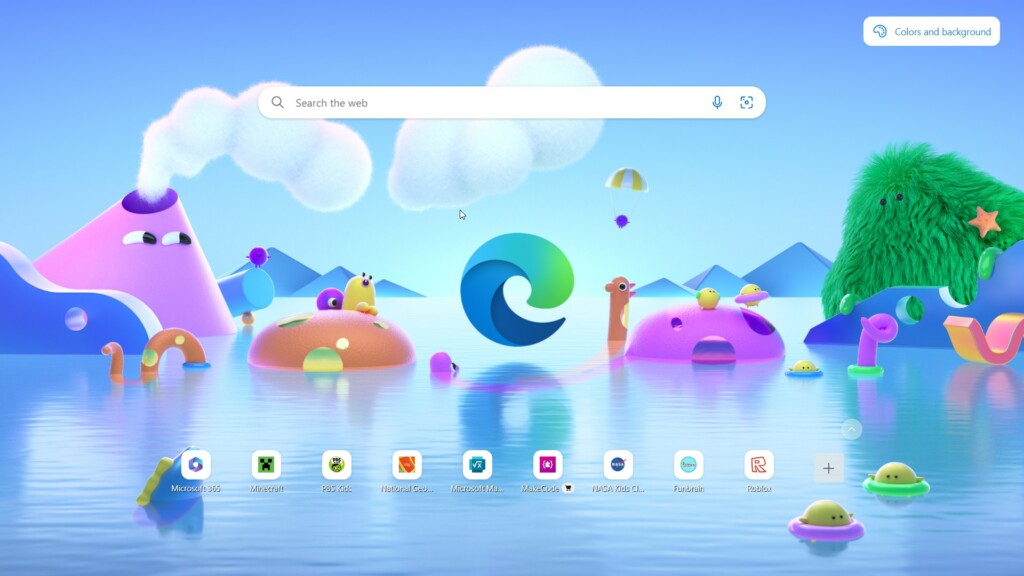
Click the Get started button. Then, choose the age range for your child. The browser will open in full-screen mode.
Managing Permissions and Screen Time
You can manage your child’s browsing experience and set screen time limits using the Microsoft Family Safety dashboard for Kids Mode.
- Set specific screen time limits for browsing.
- Review activity reports to see which sites your child visited.
- Manually add or remove websites from the allowed list.
Keep in mind that AI tools and Copilot features are automatically turned off or limited in Kids Mode to ensure a simpler, safer browsing experience.
Reference:
Conclusion
Microsoft Edge’s Kids Mode makes it safe and simple for children to browse the web. By following these steps, parents can feel confident about their child’s online activity. Signing in to your account ensures these settings stay consistent across all your devices.
Was this guide helpful?

About the Author
Richard
Tech Writer, IT Professional
Richard, a writer for Geek Rewind, is a tech enthusiast who loves breaking down complex IT topics into simple, easy-to-understand ideas. With years of hands-on experience in system administration and enterprise IT operations, he’s developed a knack for offering practical tips and solutions. Richard aims to make technology more accessible and actionable. He's deeply committed to the Geek Rewind community, always ready to answer questions and engage in discussions.
📚 Related Tutorials



No comments yet — be the first to share your thoughts!