How to Automatically Start Programs When You Turn On Windows 11

You can make specific programs automatically launch when Windows 11 starts.
This feature is called the Startup folder, and it’s a hidden system folder that allows you to designate applications to run immediately after you log in.
Adding a program to the Startup folder is straightforward, and you can easily manage which applications launch on boot. For example, you can add your preferred web browser or a frequently used productivity tool.
Knowing how to utilize the Startup folder helps you save time and streamline your workflow by having your essential applications ready to go the moment you power on your PC.
Why Make Programs Start Automatically?
Some programs, like your web browser or email app, you use a lot. It’s handy if they open right away when you turn on your computer.
Also, programs like antivirus or backup tools run quietly in the background and keep you safe. Starting them automatically means you don’t have to remember to open them yourself.
Step 1Find the Program You Want to Start
First, you need to find where your program is on your computer.
For example, if you want Microsoft Edge (the web browser) to start automatically, here’s how to find it:
- Look for the program icon (like Edge) on your desktop or in the Start menu.
- Right-click on the icon, then choose Properties.
- In the window that opens, click the Shortcut tab.
- Look at the Target box. This shows the path where the program is located.
- You can also click Open File Location to see the program’s folder.
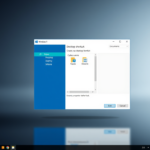
Here is an example of the Properties window for Microsoft Edge:
The Target might look like this:
"C:\Program Files (x86)\Microsoft\Edge\Applicationmsedge.exe"
Step 2Open the Startup Folder
Next, you need to add a shortcut of the program to the Startup folder. Here’s how:
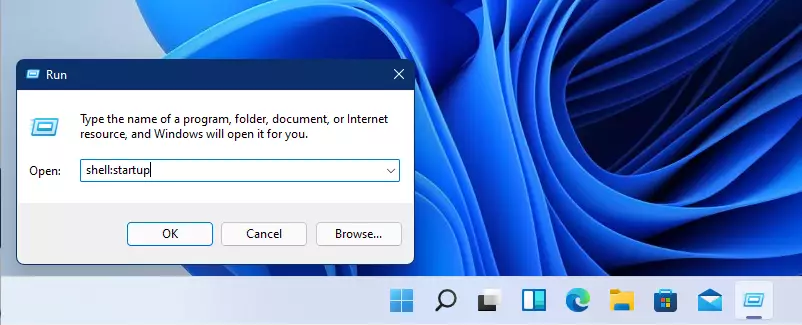
- Press the Windows key + R on your keyboard at the same time. This opens a small box called Run.
- Type
shell:startupin the box and press Enter.
This will open the Startup folder where Windows looks for programs to start automatically.
Step 3Add Your Program to Startup
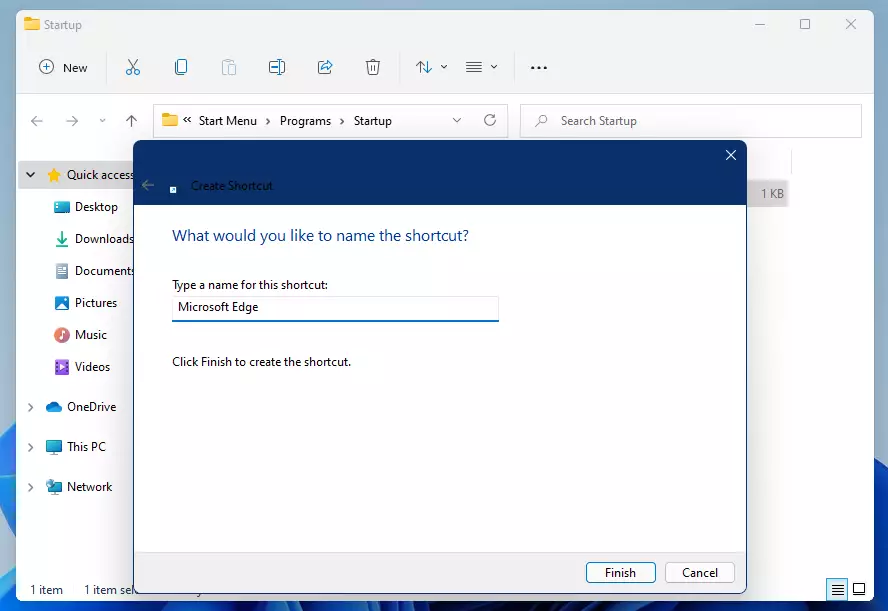
- Inside the Startup folder, right-click on any empty space.
- Choose New > Shortcut.
- In the box that appears, paste the program path you copied from the Target box earlier.
- Click Next.
- Give the shortcut a name you will recognize, like “Microsoft Edge”.
- Click Finish.
Now, your program shortcut is in the Startup folder!
Step 4Test It Out
Restart your computer or log out and log back in. Your program should open by itself!
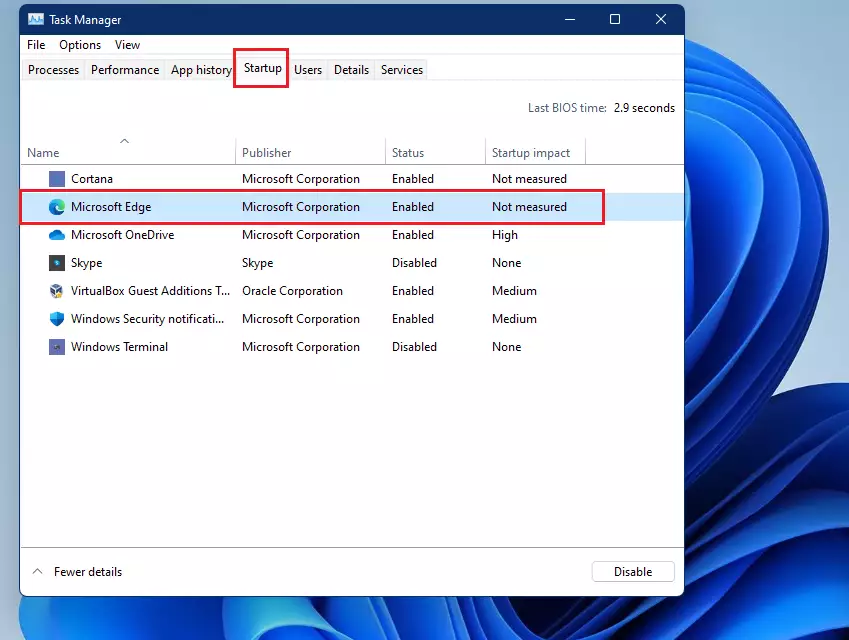
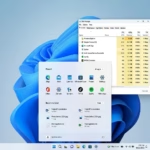
To check, you can open the Task Manager by pressing Ctrl+Shift+Esc, then click the Startup tab. You’ll see the programs that start automatically here.
Alternative: Use Task Manager to Add Startup Programs
You can also add programs to start automatically using Task Manager:
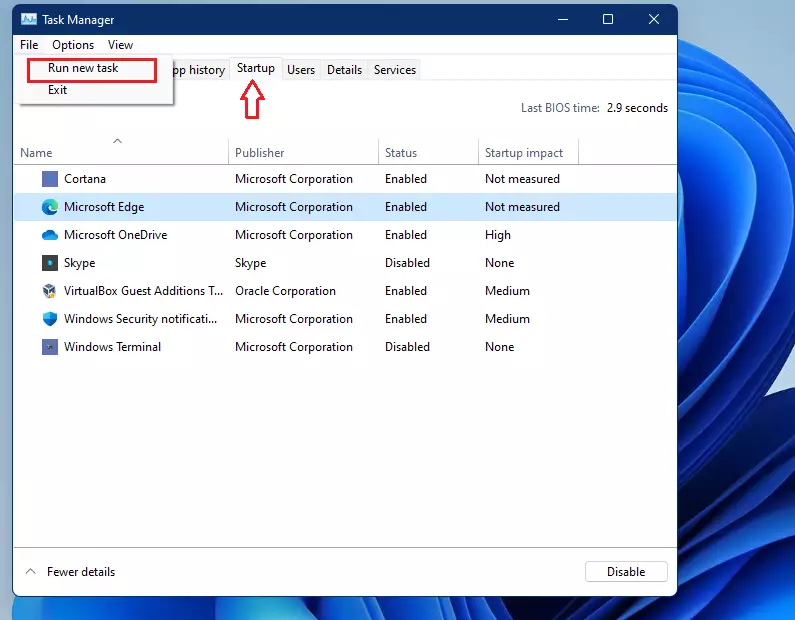
- Right-click the Start button and select Task Manager.
- Click the File menu, then choose Run new task.
- Type
shell:startupand check Create this task with administrative privileges if you want. - Click OK to open the Startup folder and add shortcuts as shown above.
Summary
- Starting programs automatically saves you time and makes your computer ready when you log in.
- You can add shortcuts to your favorite programs in the Startup folder.
- Use the Run box (
Windows + R) and typeshell:startupto open this folder quickly. - Task Manager is another way to manage startup programs.
- This is helpful for programs you use often or need running in the background.
Now you know how to make programs start automatically on Windows 11! Happy computing!
Was this guide helpful?

About the Author
Richard
Tech Writer, IT Professional
Richard, a writer for Geek Rewind, is a tech enthusiast who loves breaking down complex IT topics into simple, easy-to-understand ideas. With years of hands-on experience in system administration and enterprise IT operations, he’s developed a knack for offering practical tips and solutions. Richard aims to make technology more accessible and actionable. He's deeply committed to the Geek Rewind community, always ready to answer questions and engage in discussions.


No comments yet — be the first to share your thoughts!