

This article describes steps to change the desktop background wallpaper in Windows 11 automatically.
Windows 11 has two ways to change the desktop background wallpaper automatically. One is to use its slideshow feature, where you select a folder with pictures to change at intervals. The other is to use Windows Spotlight.
Windows Spotlight lets users set up their desktop background to automatically connect to Microsoft servers to discover and download random images worldwide.
These two features come with the Themes settings on the Personalization page.
Below is how to set up your desktop background to automatically change with images you choose or ones selected by Microsoft from around the world to display on your desktop.
How to change desktop background automatically in Windows 11
As mentioned above, Windows 11 has two ways to change the desktop background wallpaper automatically. One is to use its slideshow feature, where you select a folder with pictures to change at intervals. The other is to use Windows Spotlight.
Below is how to do that.
Change background wallpaper automatically with Windows Spotlight
If you don’t have images to display as your background wallpaper, you can allow Microsoft to select images from around the world to display on your desktop.
This can be done with Windows Spotlight.
To do that, click on the Start menu, and select the Settings app.

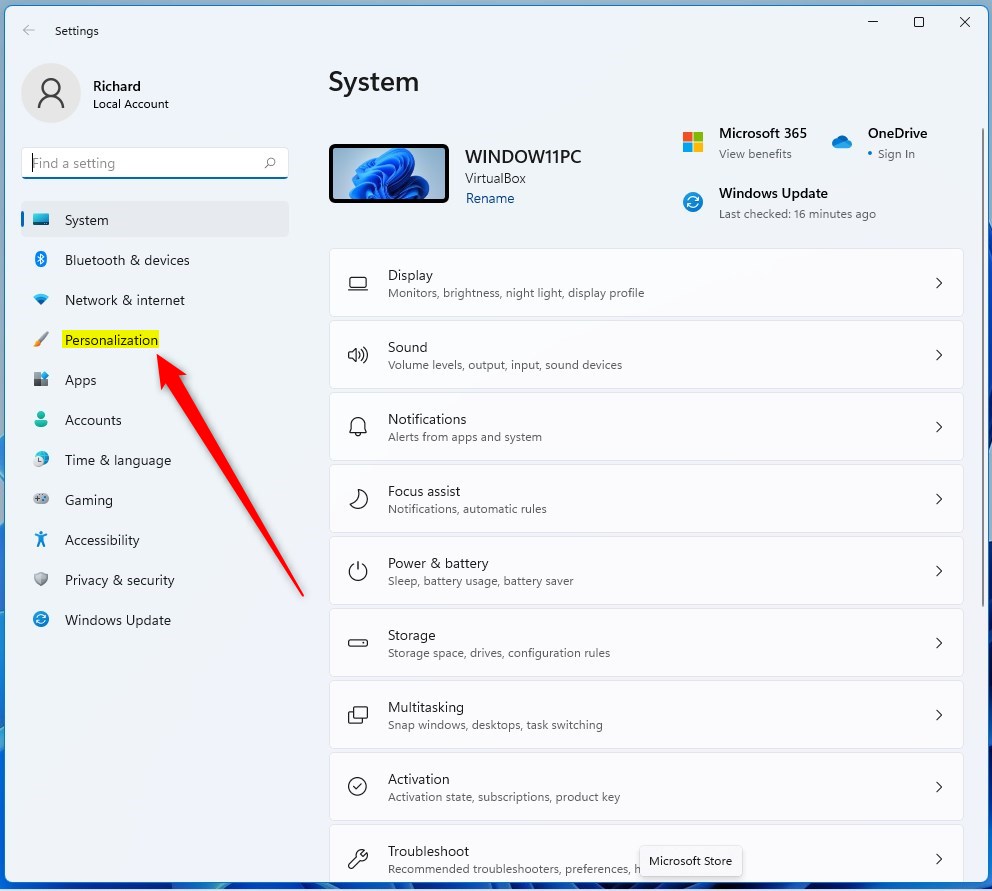
Within the Settings app, click the Personalization button on the left.
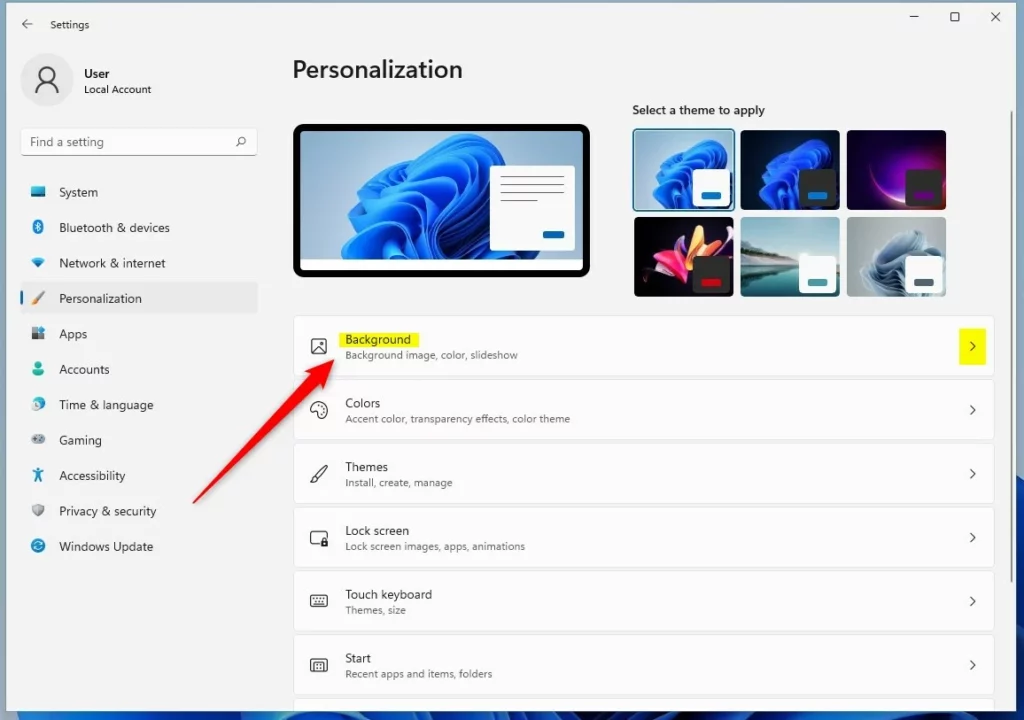
On the right, select the Background tile to expand.
On the Personalization -> Background settings tile, choose Windows spotlight, as highlighted in the image below.
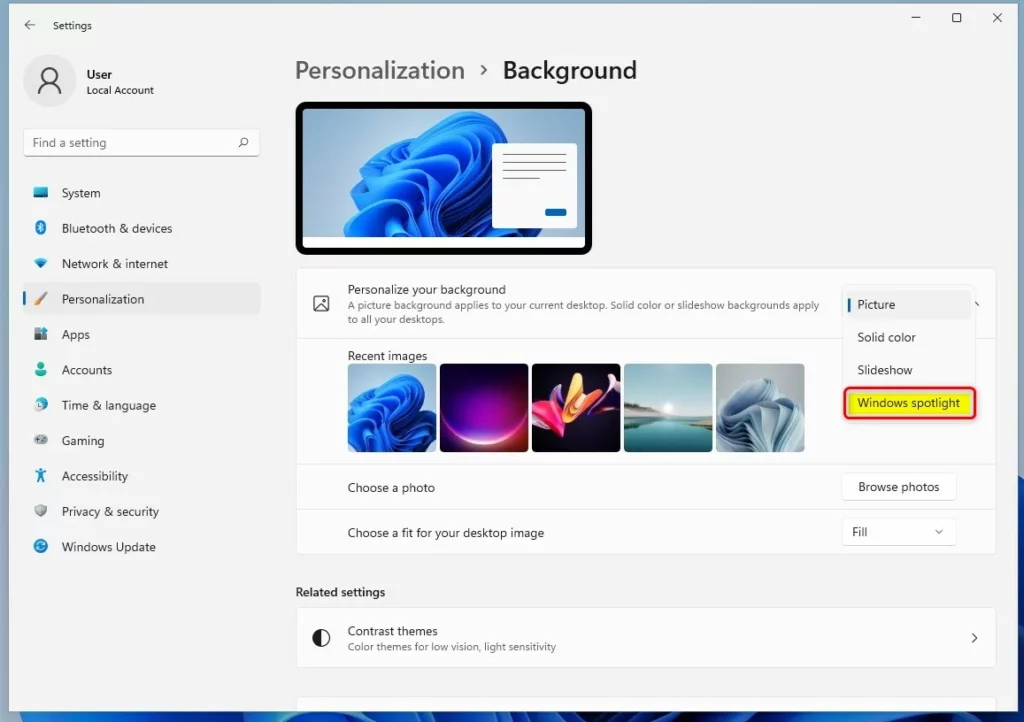
Once you do that, Windows will change the background immediately and automatically during the day.
Change background wallpaper automatically via Slideshow
Alternatively, you can choose what images are displayed on your desktop background. Instead of Microsoft selecting and displaying random images from around the world, you can select a folder that contains your pictures to display.
Click on the Start menu -> Settings -> Personalization – Background tile to expand.
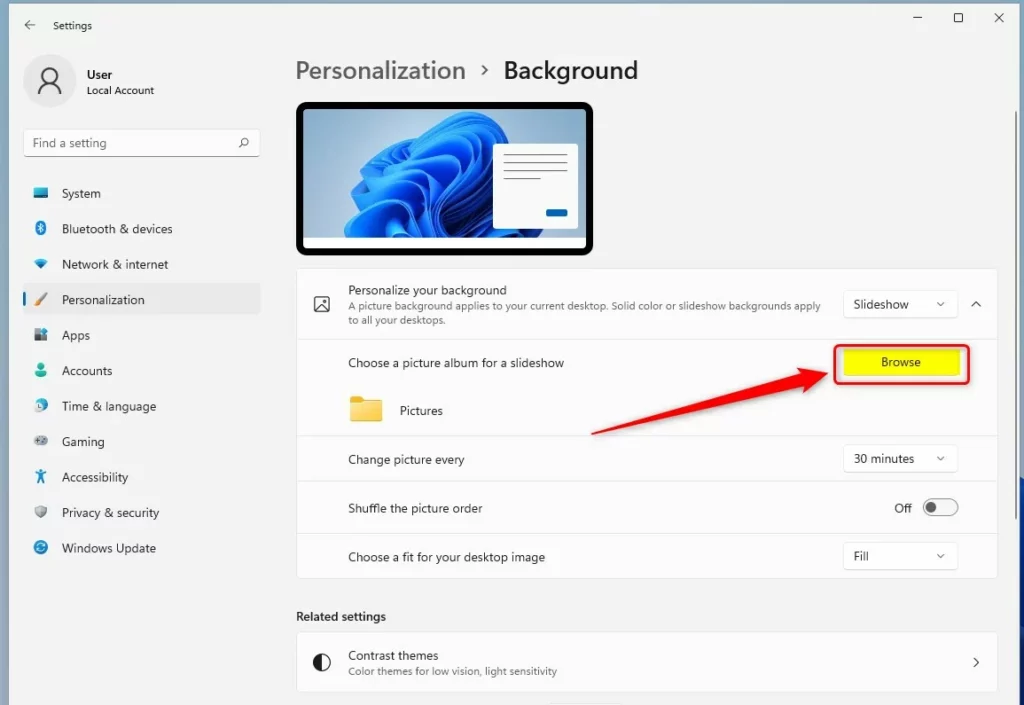
On the expanded background tile, choose Slideshow, as highlighted below.
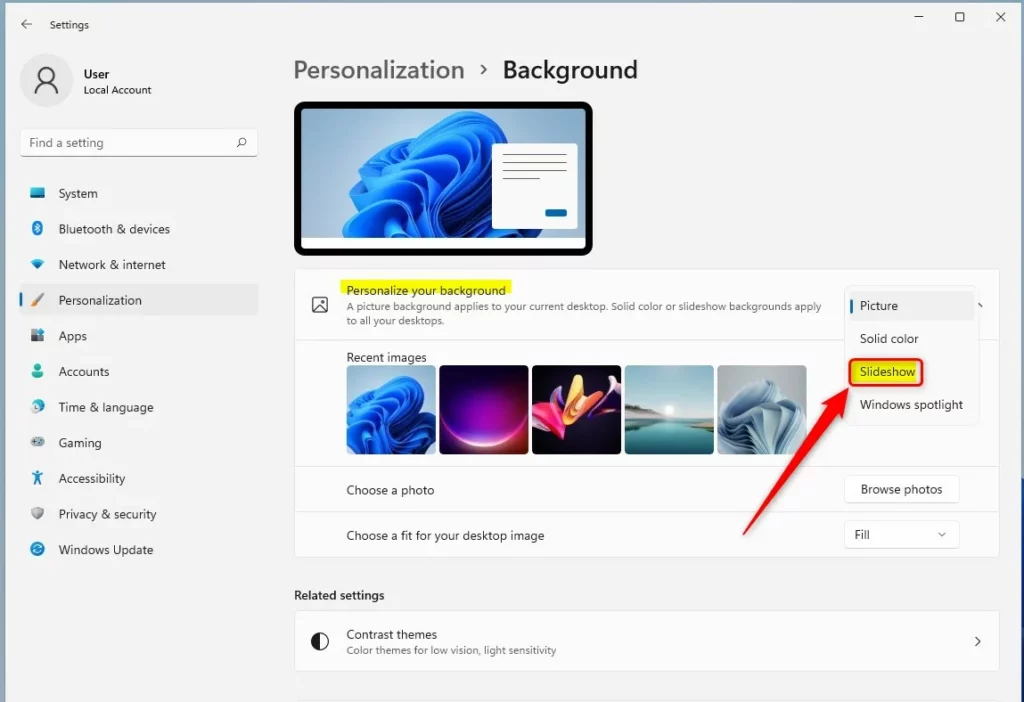
Once you select Slideshow, you can click the Browse button to browse the folder containing your images.
Choose the folder with your images, and you’re done.
You can also choose to enable the Shuffle the picture order toggle button.
That should do it!
Conclusion:
- Windows 11 offers two methods to change the desktop background automatically: the Slideshow feature and Windows Spotlight.
- With Slideshow, users can select a folder with pictures to display on a rotating basis, while Windows Spotlight enables the system to fetch random images from around the world and set them as the background.
- Users can easily configure these settings through the Personalization section in the Windows 11 Settings app.
- Whether users prefer a personal collection of images or curated global pictures, Windows 11 provides a seamless way to keep the desktop background dynamic.


Leave a Reply to A Guide to Saving Windows Spotlight Images on Windows 11 – Geek Rewind Cancel reply