

This article explains adjusting the voice speed for the Read Aloud feature in Copilot on Windows 11.
Copilot in Windows is generative AI assistance that allows users to interact with the chatbot using natural language to change system settings and work across multiple applications.
For computers that have Copilot added, a new Copilot button will appear on the Taskbar. Clicking the button or using the keyboard shortcut (Windows key + C) will appear as a flyout interface.
Starting with the most recent Windows builds, the Copilot app was redesigned to work like a regular Windows app that will be pinned to the taskbar with the benefits of a traditional app experience, including the ability to resize, move, and snap the window.
By default, Copilot will automatically read its responses to your voice input aloud when voice chat with Copilot is enabled. You can change Copilot’s voice speed to make it read responses aloud slower or faster.
Adjust “Read aloud” voice speed in Copilot
As mentioned, you can change Copilot’s voice speed to make it read responses aloud slower or faster.
Here’s how to do it.
First, open the Copilot app.
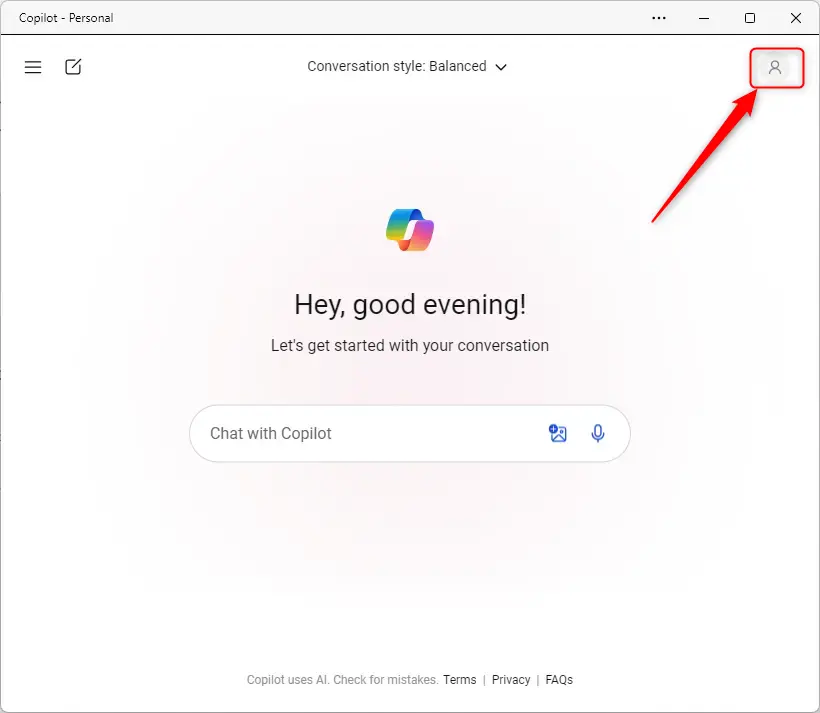
Then, click the Sign in or profile picture at the top right corner.
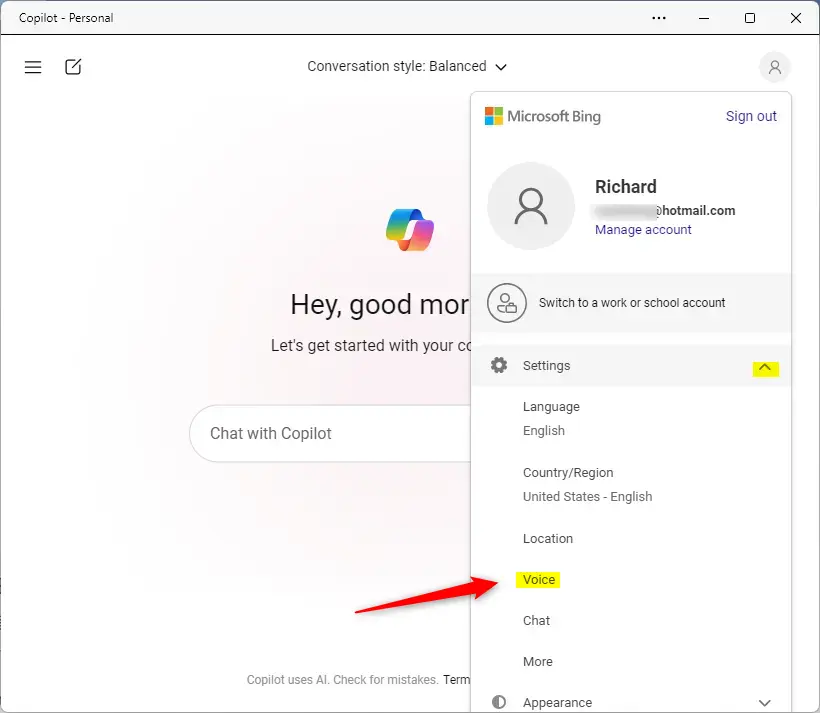
On the drop-down menu, select and expand Settings. Then, click on Voice.
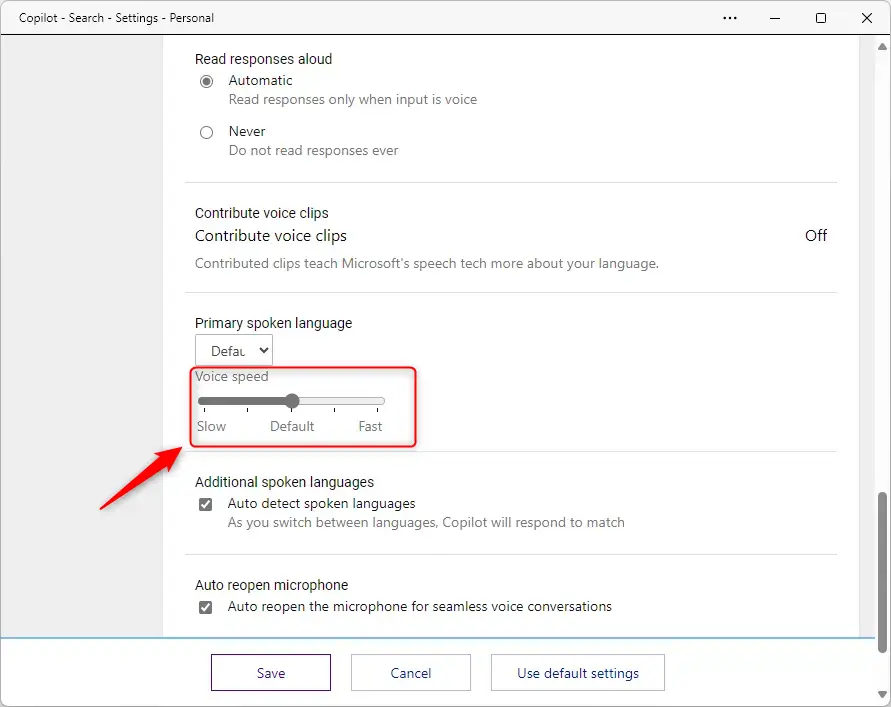
On the Settings page, under Voice, select and adjust the Voice speed slider to speak fast or slow.
Click the Save button when you’re done to apply your changes.
That should do it!
Reference:
Conclusion:
- Copilot is a powerful generative AI assistance tool in Windows 11, designed to assist users with natural language interactions and system settings adjustment.
- The Read Aloud feature in Copilot automatically reads responses aloud, but users can adjust the voice speed to their preference for a better experience.
- Users can easily customize the voice speed by following simple steps within the Copilot app settings, enhancing their interaction with the AI tool.
- The redesigned Copilot app provides a seamless and customizable experience, akin to traditional Windows applications, with added flexibility in resizing and movement.
- With the ability to fine-tune voice speed and the convenience of a pinned taskbar button, Copilot offers a user-friendly and tailored interaction experience.

Leave a Reply