How to Add Phone Link to Windows 11 Start Menu

You add the Phone Link app directly to your Windows 11 Start menu by pinning it.
Phone Link is a Microsoft application that bridges your smartphone and Windows PC, allowing you to access mobile features like texts, photos, and notifications directly from your computer.
Starting with Windows 11, you can integrate this functionality for quicker access, especially for users running the latest stable release.
By pinning Phone Link, you ensure your phone’s capabilities are always just a click away on your primary Windows interface.
Open Settings, go to Personalization, then Start, and toggle “Show mobile device in Start” on. Alternatively, edit the Windows Registry at Computer\🗝️HKEY_CURRENT_USER\Software\Microsoft\Windows\CurrentVersion\Start\Companions\Microsoft.YourPhone_8wekyb3d8bbwe and set the IsEnabled value to 1.
Add or Remove Phone Link from the Start Menu
You can add or remove the Phone Link app from your Windows 11 Start menu right from the Settings app, making it super easy to quickly check your phone’s status.
1. Open the Settings app by clicking the Start menu or pressing the Windows key + I.
2. Select Personalization from the left-hand menu.
3. Click on the Start option on the right side.
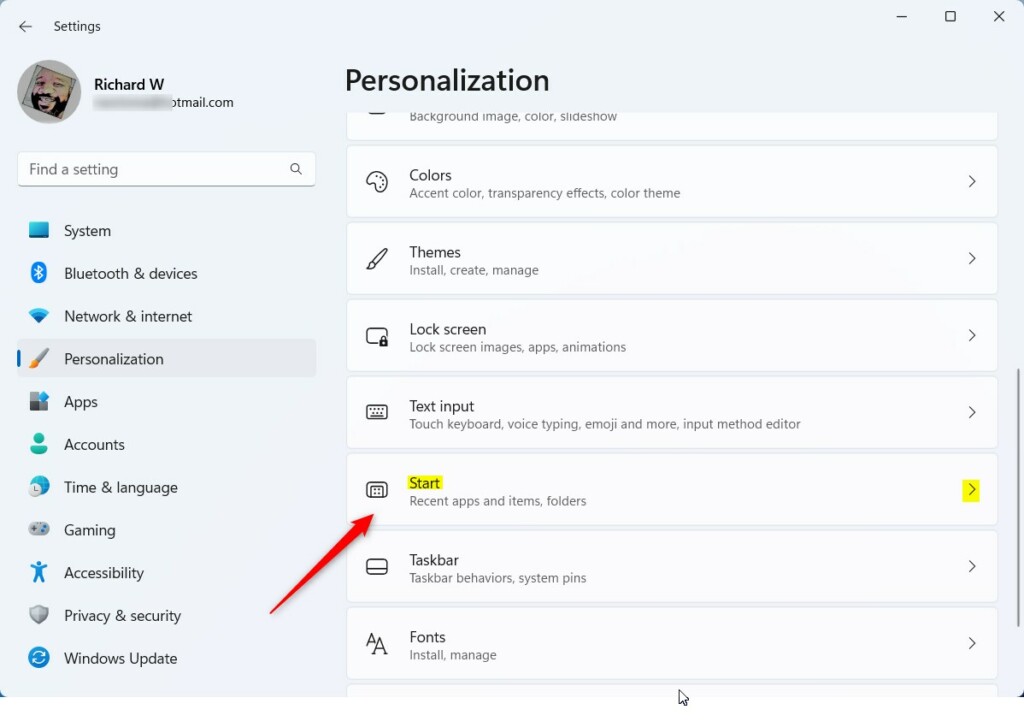
4. Look for Show mobile device in Start and toggle the switch to On or Off.
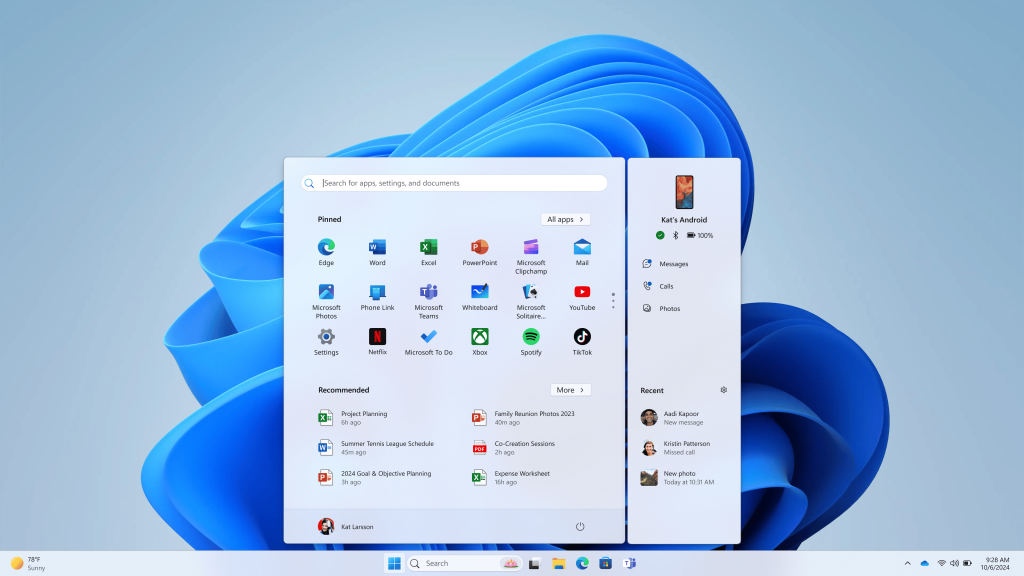
What happens when you turn this on? Your phone appears as a shortcut in your Start menu, giving you instant access to your apps and notifications.
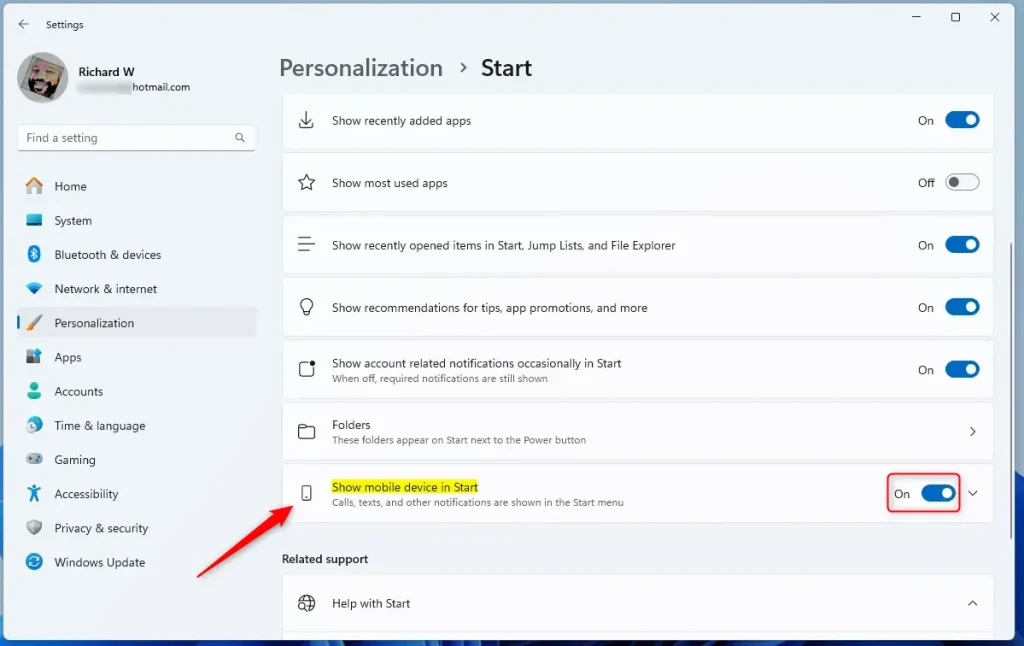
Using the Windows Registry (Advanced)
If you’re comfortable with advanced settings, you can change if Phone Link shows up in your Start menu by editing the Windows Registry, but be careful as this needs administrator rights.
- Open the Windows Registry by searching for it in the Start menu.
- Navigate to this path in the Registry Editor:
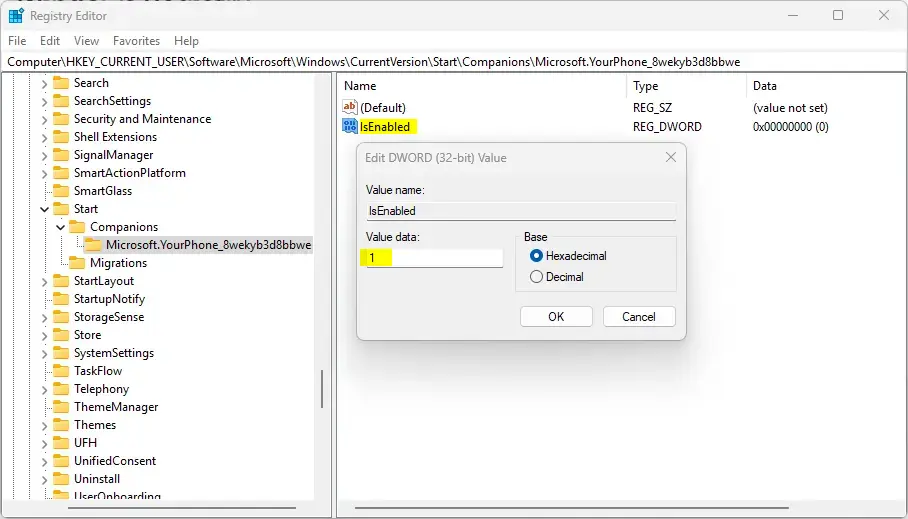
Computer\HKEY_CURRENT_USER\Software\Microsoft\Windows\CurrentVersion\Start\Companions\Microsoft.YourPhone_8wekyb3d8bbwe
3. Look for the IsEnabled value in the right-hand pane. If it’s not there, right-click in the empty space, choose New, then DWORD (32-bit) Value, and name it IsEnabled.
4. Double-click IsEnabled and change the value to 1 to turn it on, or 0 to turn it off.
Warning: Editing the registry can be risky. Back up your computer before making changes.
5. Restart your computer to apply the changes.
Summary
Adding Phone Link to your Windows 11 Start menu helps your phone and PC work better together, and you can manage this setting using either the Settings app or the Registry Editor.
Reference: Microsoft.com
Why is my PC not detecting my phone through USB?
Check whether the USB debugging function is turned on in the phone settings. Go to Settings > About phone > Android version. Click 'Build Number' continuously. After 'You are now in developer mode' appears, go to Settings > System > Developer options > USB debugging to enable USB debugging.
How to set up a Phone Link?
And select continue enter the code follow the prompts. And voila you're connected finally pair it by selecting setup. And match the code on your PC to your phone.
How do I connect my phone to my PC 🪟 Windows 11?
Connecting your phone to your PC in Windows 11 is simple because the Phone Link app usually comes preinstalled; just search for ‘Phone Link’ in your Start menu.
How do I transfer files from Android to 🪟 Windows 11 USB?
With a USB cable, connect your device to your computer. On your device, tap the "Charging this device via USB" notification. Under "Use USB for," select File Transfer. A file transfer window will open on your computer.
Was this guide helpful?

About the Author
Richard
Tech Writer, IT Professional
Richard, a writer for Geek Rewind, is a tech enthusiast who loves breaking down complex IT topics into simple, easy-to-understand ideas. With years of hands-on experience in system administration and enterprise IT operations, he’s developed a knack for offering practical tips and solutions. Richard aims to make technology more accessible and actionable. He's deeply committed to the Geek Rewind community, always ready to answer questions and engage in discussions.




No comments yet — be the first to share your thoughts!