How to Add or Remove Suggested Apps in Share dialog in Windows 11

The Windows Share menu helps you send files or links to apps, email, or nearby devices. Recently, Microsoft added a feature that suggests apps you might want to install directly in this menu. This guide explains how to manage these suggestions.
Why manage suggested apps?
You might want to remove these suggestions to keep your menu clean and focused on apps you already use. Removing them helps you avoid accidental clicks on promotional content.
What happens when you change these settings?
When you turn off suggestions, the Share dialog will only show apps you have already installed on your computer. This makes the menu faster and less cluttered.
Method 1: Using Settings (Easiest)
1. Open Settings by pressing Win+I on your keyboard.
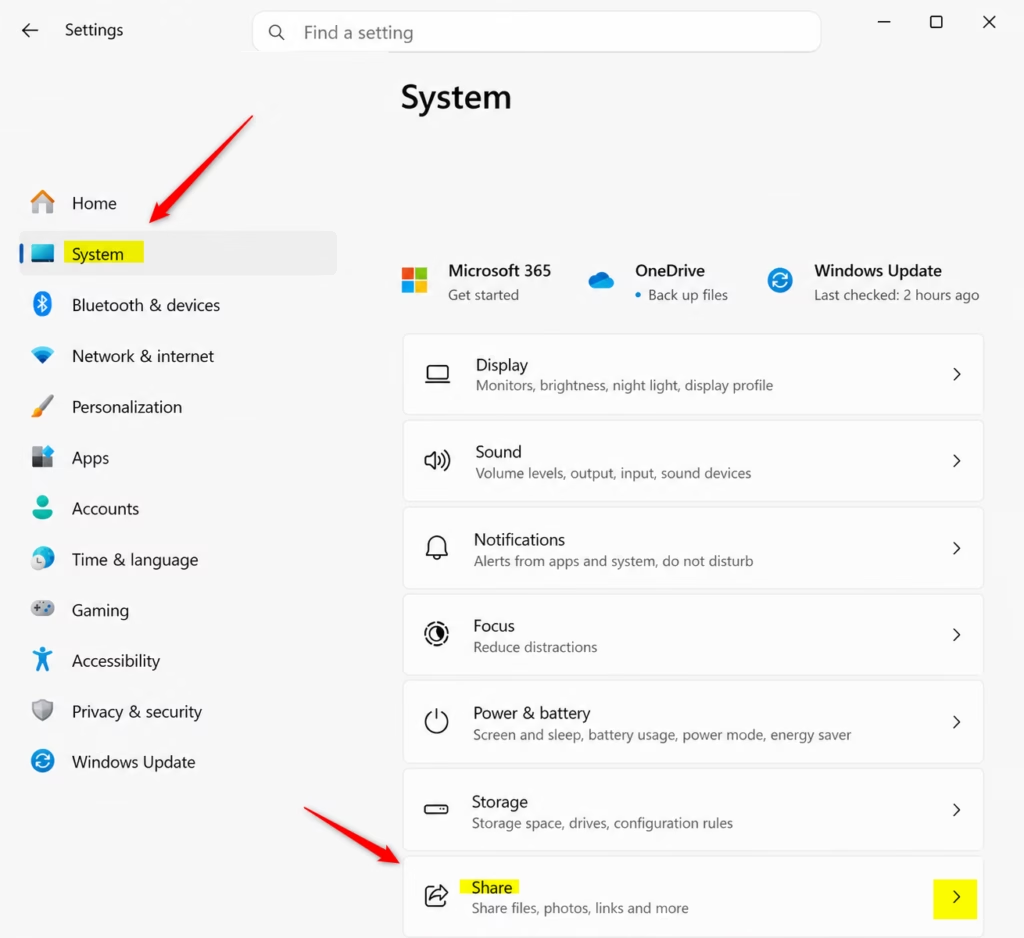
2. Click System on the left, then select Share on the right. Open Share settings.
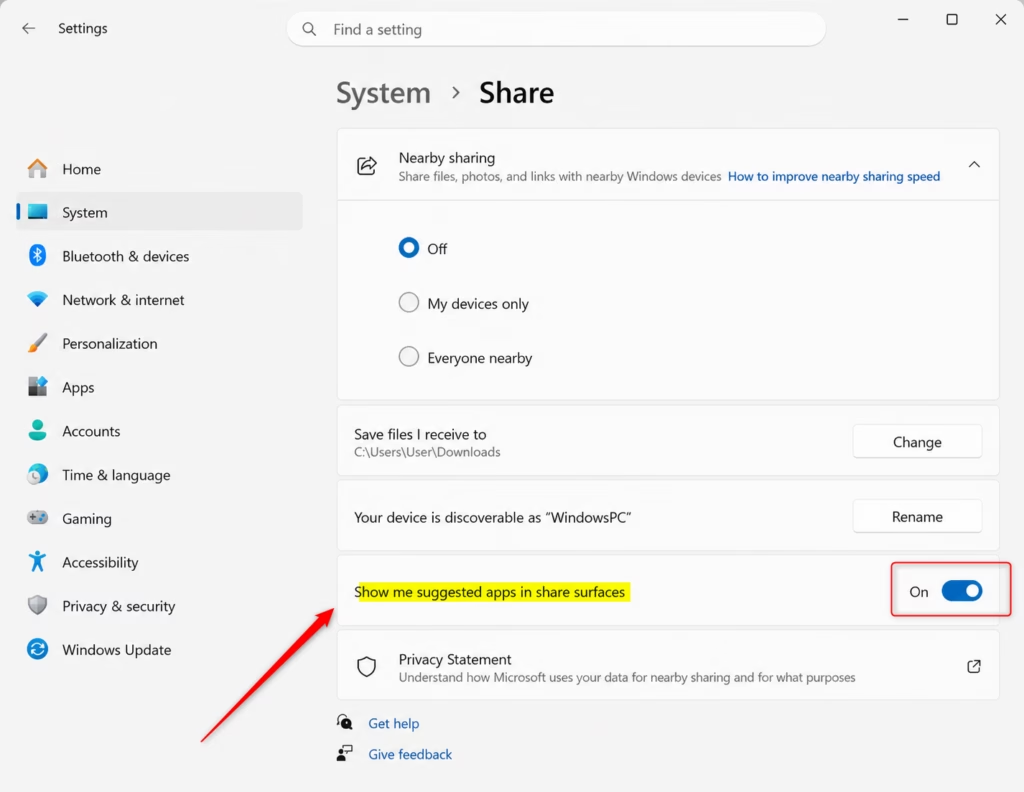
3. Toggle Show me suggested apps in share surfaces to On or Off based on your preference.
Method 2: Using Registry Editor (Advanced)
Warning: Editing the registry can cause system issues if done incorrectly. Always back up your registry before making changes.
1. Press Win+R, type regedit, and press Enter. [Requires Admin Privileges]
2. Navigate to: HKEY_CURRENT_USER\Software\Microsoft\Windows\CurrentVersion\CDP
3. Right-click in the right pane, select New > DWORD (32-bit) Value, and name it EnablePromotionalAppsForShare.
4. Double-click the value and set it to 1 to show apps or 0 to hide them.
Method 3: Using Group Policy (Enterprise)
For Windows 11 Pro or Enterprise users, you can manage this for all users using the Group Policy Editor.
1. Press Win+R, type gpedit.msc, and press Enter. [Requires Admin Privileges]
2. Go to Computer Configuration > Administrative Templates > Windows Components > Share Experience.
3. Find Turn off suggested apps in share experience and set it to Enabled to remove them.
Summary
Managing suggested apps in the Windows 11 Share dialog is simple. You can use the Settings app for a quick fix, or use the Registry Editor and Group Policy for more advanced control. By following these steps, you can keep your sharing experience clean and free of unwanted recommendations. For more details, visit the official Microsoft documentation.
Does disabling suggested apps improve Windows 11 performance?
Disabling suggested apps does not significantly change your computer’s processing speed. However, it does declutter the user interface, which can make your workflow feel faster and more organized by removing unnecessary promotional distractions from your daily sharing tasks.
Can I remove suggested apps on Windows 11 Home edition?
Yes, you can remove suggested apps on Windows 11 Home using the Settings app or the Registry Editor. The Group Policy Editor is only available on Pro and Enterprise editions, but the other two methods work perfectly on all versions of Windows 11.
Why do suggested apps reappear after a Windows update?
Sometimes, major Windows updates reset certain UI preferences to their default state. If you notice suggestions returning, simply revisit the Settings menu or your Registry configuration to re-apply your preferred settings. This is a common behavior for experimental features in newer Windows builds.
Was this guide helpful?




Leave a Reply Cancel reply