How to add Mobile Device in Start Menu on Windows 11

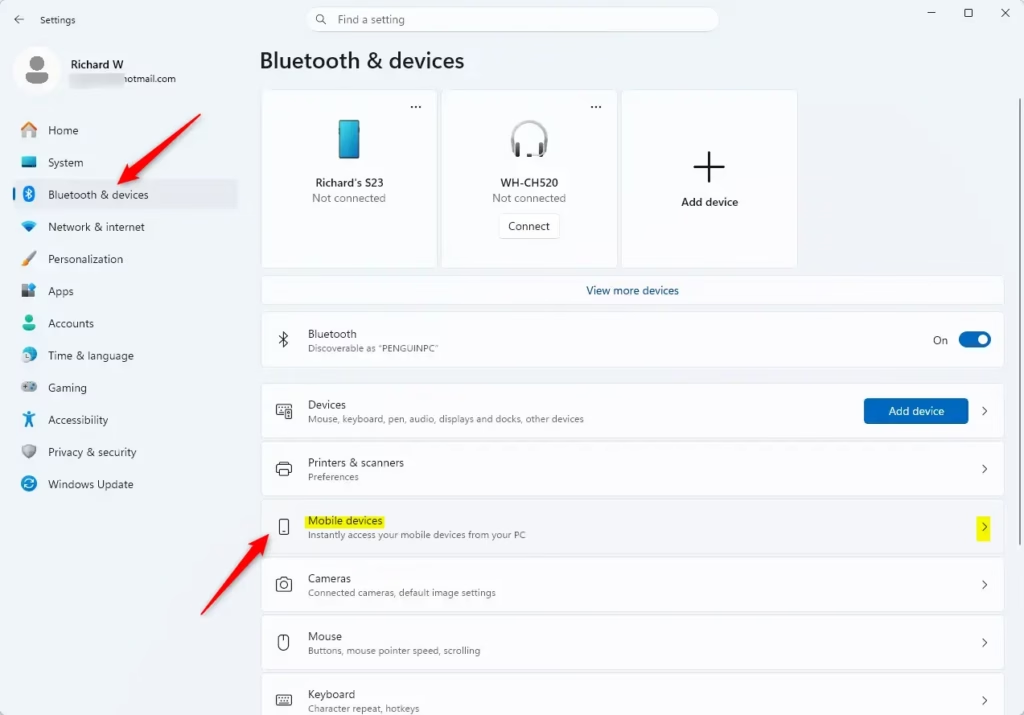
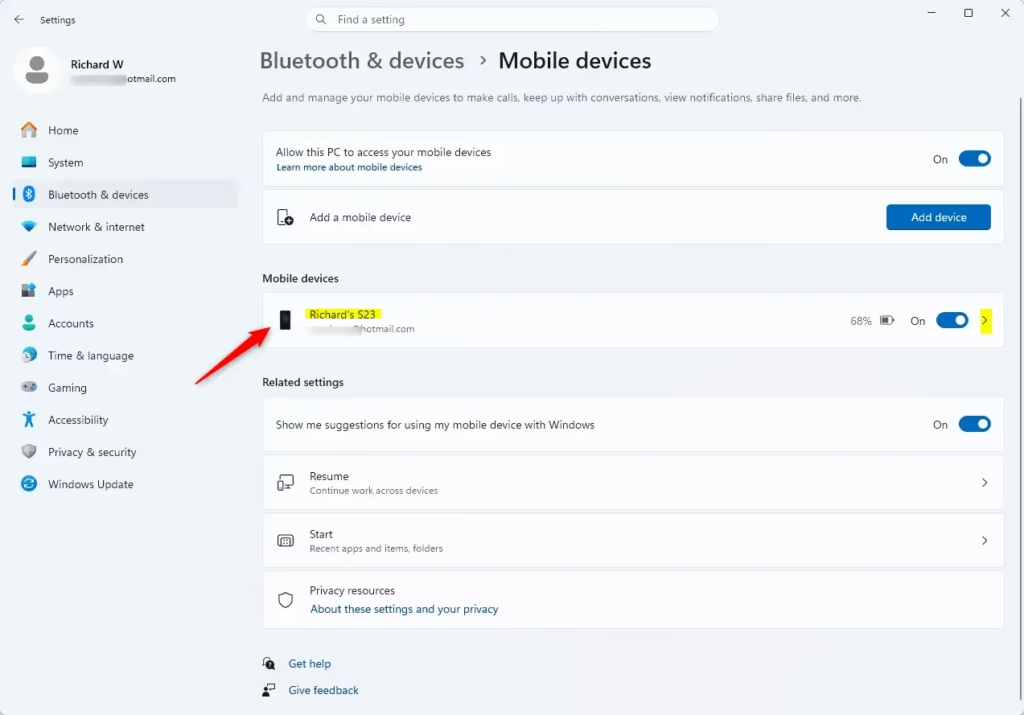
You can add your mobile device to the Windows 11 Start menu by connecting your Android or iPhone to your PC using the Phone Link app.
This integration allows you to access your phone’s notifications, messages, calls, and photos directly from your Windows desktop, streamlining your workflow.
Windows 11 version 22H2 and later offer enhanced capabilities for this phone-PC connection, letting you launch mobile apps directly on your computer.
This feature brings convenience by putting your essential mobile information just a click away, right in your Start menu or taskbar.
What Can You Do Once Your Phone is Connected?
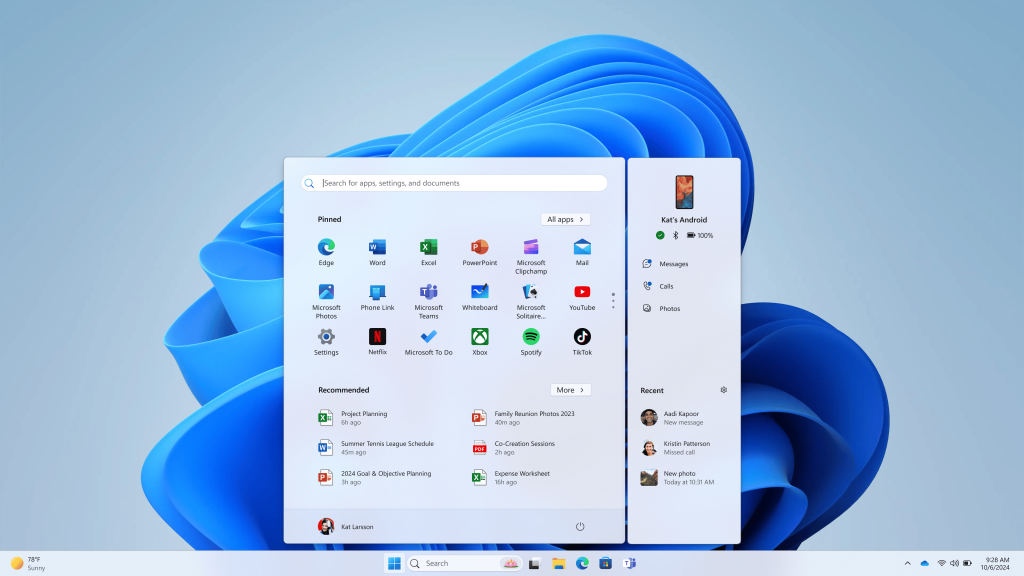
Once your phone is linked, the Start menu becomes a mini-control center for your mobile life. What you can do depends on whether you’re using an Android phone or an iPhone, but there are common features and device-specific perks.
Features for Android Users
Android users get a bit more functionality directly from the Start menu integration. You can see your phone’s battery level and connectivity status at a glance, which is super handy. Beyond that, you gain quick access to core phone functions, like Messages: Read and reply to your text messages without picking up your phone.
- Messages: Read and reply to your text messages without picking up your phone.
- Calls: Make and receive calls directly from your PC.
- Photos: View recent photos from your phone.
- Recent Activities: Get a snapshot of recent actions on your phone.
- Send Files: Easily transfer files between your phone and PC.
Features for iPhone Users
While iPhones don’t get the same depth of integration as Android devices through the Start menu, you still get valuable connectivity:
- Battery and Connectivity Status: Keep an eye on your iPhone’s battery life and connection status.
- Messages: Access and reply to your text messages.
- Calls: Make and receive calls through your PC.
- Recent Activities: See a summary of recent actions.
- Send Files: Transfer files between your iPhone and Windows PC.
Managing Mobile Device Visibility in the Start Menu
Not everyone wants their phone constantly showing up in the Start menu. Thankfully, Windows 11 gives you control over this setting.
Step 1: Open Windows Settings
The way to get here is to right-click your Start button and select “Settings” from the menu that pops up. Alternatively, you can press the Windows key + I on your keyboard.
Step 2: Navigate to Personalization
In the Settings window, look for “Personalization” in the left-hand sidebar and click on it.
Step 3: Go to the Start Menu Settings
Within the Personalization section, find and click on “Start.” This is where you can customize what appears when you click your Start button.
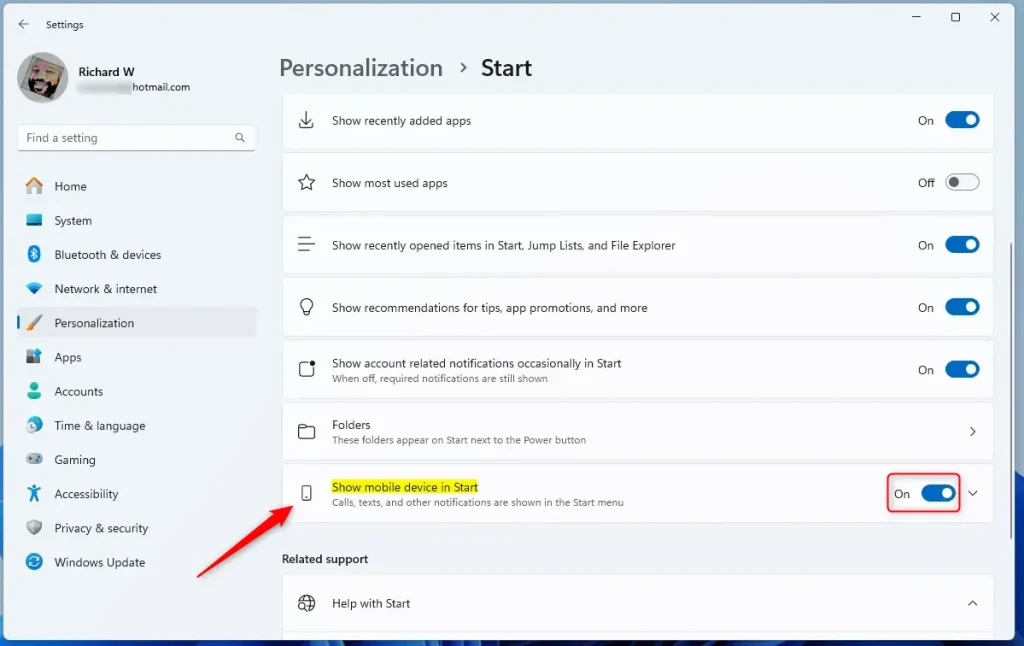
Step 4: Toggle Mobile Device Visibility
Scroll down the Start settings page. You should see a toggle switch labeled “Show mobile device” or something similar. You can switch this toggle to the “On” or “Off” position. Turn it on to see your connected phone in the Start menu, and turn it off to hide it.
Reference:
Conclusion
Integrating your mobile device into the Windows 11 Start menu is a great move by Microsoft, bringing convenience right to your fingertips. Whether you’re an Android user or an iPhone owner, having quick access to messages, calls, and file transfers can streamline your daily digital life. By following these steps, you can get connected, explore the available features, and manage your settings to suit your preferences. Happy connecting!
How to add a mobile device in Windows 11?
To add a mobile device in Windows 11, use the Phone Link app. Connect your Android or iPhone to your PC. This allows access to notifications, messages, calls, and photos directly from your Windows desktop, enhancing workflow and convenience.
How to show mobile device in start?
You can show your mobile device in the Start menu by linking it to your PC via the Phone Link app. Once connected, your phone's key features and notifications appear, making it accessible directly from your Windows 11 Start menu or taskbar.
What are mobile devices on startup in Windows 11?
Mobile devices on startup in Windows 11 refers to the integration of your smartphone with your PC using the Phone Link app. This feature allows quick access to your phone's functions, notifications, and apps directly from your Windows desktop upon startup.
How to add Phone Link to Start menu Windows 11?
To add Phone Link to your Windows 11 Start menu, first connect your mobile device using the Phone Link app. Once linked, the app and your phone's integrated features will be accessible directly from the Start menu for streamlined access.
Was this guide helpful?

About the Author
Richard
Tech Writer, IT Professional
Richard, a writer for Geek Rewind, is a tech enthusiast who loves breaking down complex IT topics into simple, easy-to-understand ideas. With years of hands-on experience in system administration and enterprise IT operations, he’s developed a knack for offering practical tips and solutions. Richard aims to make technology more accessible and actionable. He's deeply committed to the Geek Rewind community, always ready to answer questions and engage in discussions.




No comments yet — be the first to share your thoughts!