
Quick Access is a handy feature in File Explorer that lets you see your favorite folders right away. It’s part of the Home section in File Explorer (Win+E).
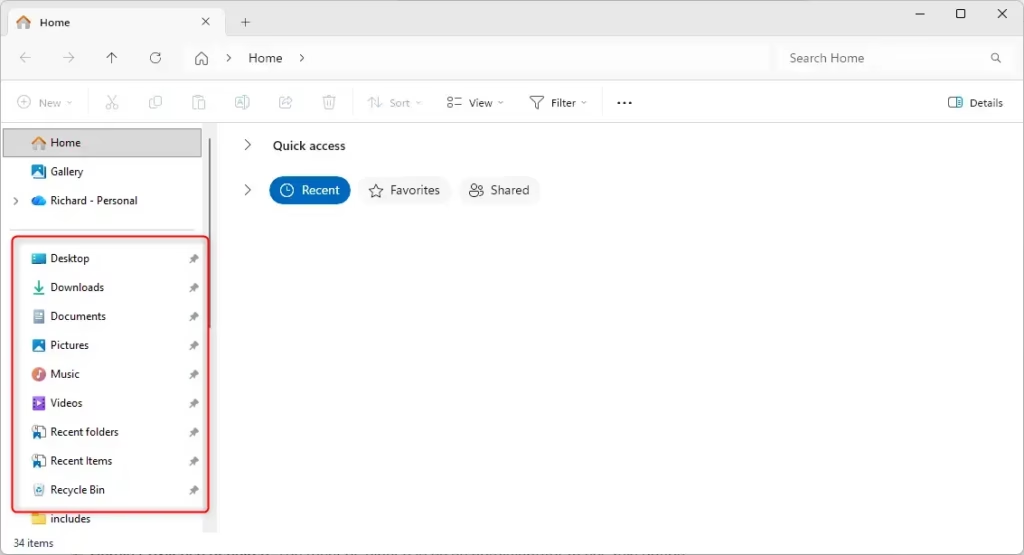
Quick Access shows your pinned folders and folders you use often. You can see them in Home and in the navigation pane on the left side of File Explorer when “Show all folders” is turned off.
Why would you want to remove Quick Access folders? If you don’t like seeing all your pinned and frequent folders in the navigation pane, you can remove them without losing Quick Access in Home.
What happens when you do this? The Quick Access folders will disappear from your File Explorer navigation pane, giving you a cleaner, less cluttered view.
Here’s How:
⚠️ Admin Privileges Required: You must be signed in as an administrator to use this option.
- Open the Windows Terminal app as administrator.
- Copy and paste the command you want to use below.
- Press Enter to run the command.
Add Quick Access Folders to Navigation Pane of File Explorer for All Users
This is the default setting.
reg add "HKEY_LOCAL_MACHINE\SOFTWARE\Microsoft\Windows\CurrentVersion\Explorer\Desktop\NameSpace\DelegateFolders{3936E9E4-D92C-4EEE-A85A-BC16D5EA0819}" /ve /d "CLSID_FrequentPlacesFolder" /fRemove Quick Access Folders from Navigation Pane of File Explorer for All Users
reg delete "HKEY_LOCAL_MACHINE\SOFTWARE\Microsoft\Windows\CurrentVersion\Explorer\Desktop\NameSpace\DelegateFolders{3936E9E4-D92C-4EEE-A85A-BC16D5EA0819}" /fThat should do it!
Summary
Quick Access in File Explorer helps you find your favorite folders quickly. If the Quick Access folders cluttering your navigation pane bother you, you can hide them using a simple Windows Terminal command. Just open Terminal as an administrator and run one of the commands above. The first command adds Quick Access back to the navigation pane. The second command removes it. Either way, your Quick Access section in Home stays the same.
Leave a Reply