How to Set Up a Passkey for Microsoft Account on Android

This article explains how to add a passkey for your Microsoft account on your Android phone.
What is a Passkey?
A passkey is a security tool that restricts access to your accounts and devices. Passkeys protect computers, smartphones, and other electronic devices. They keep your sensitive data safe and secure.
You can use a passkey to sign in to Microsoft apps and websites. This includes Microsoft 365 and Copilot on desktop. You can also use passkeys in mobile browsers. On your Microsoft account sign-in screen, choose Sign-in options and then select face, fingerprint, PIN, or security key.
Why Set Up a Passkey?
Setting up a passkey for your Microsoft account is an important security step. With a passkey, you must enter a unique code every time you access your Microsoft account on your phone. This adds extra protection.
Only you can access your account with a passkey. Your personal information stays safe from unwanted access by others. It’s simple but very effective.
How to Set Up a Passkey for Your Microsoft Account on Android
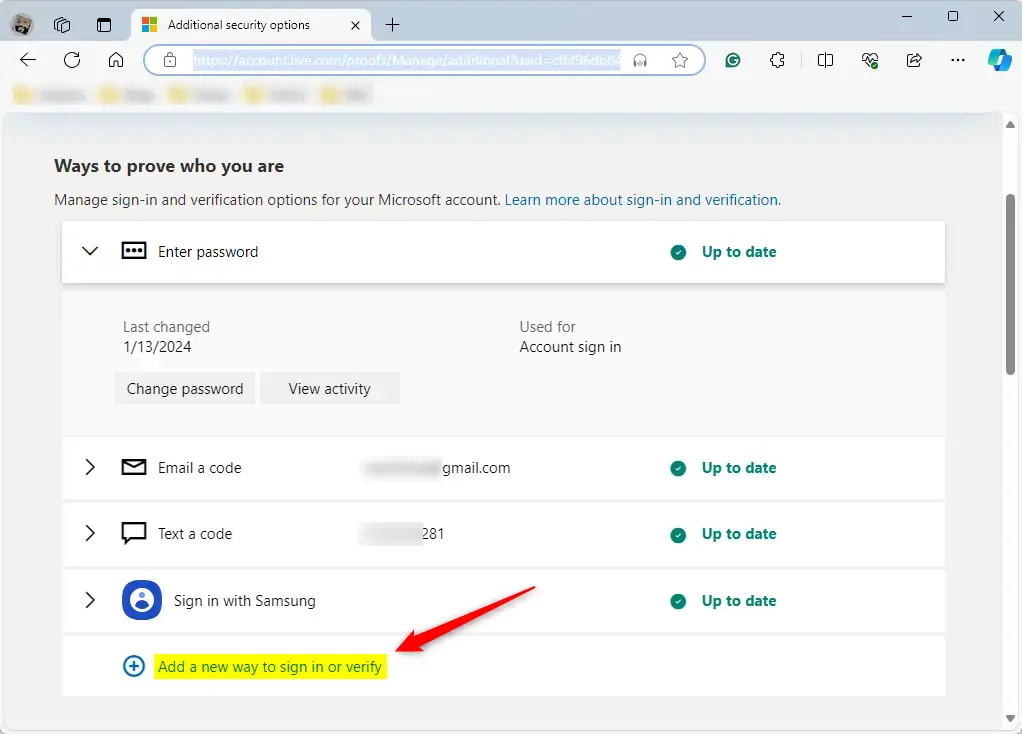
- Sign in to your Microsoft account. Go to the Advanced Security Options page. Click “Add a new way to sign in or verify.”
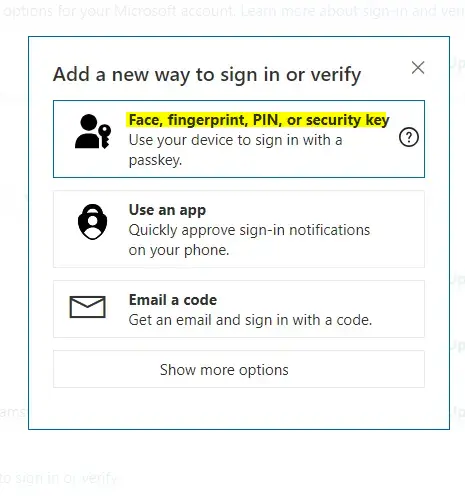
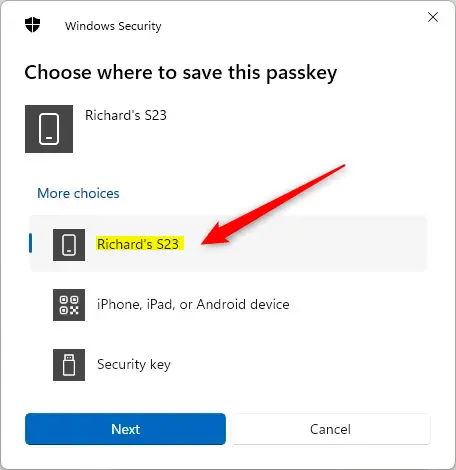
- Select “Face, fingerprint, PIN, or security key.” Then select your Android phone. Click Next to continue.
- Select “Save another way” when prompted. Then select “Google Password Manager” to save your passkey.
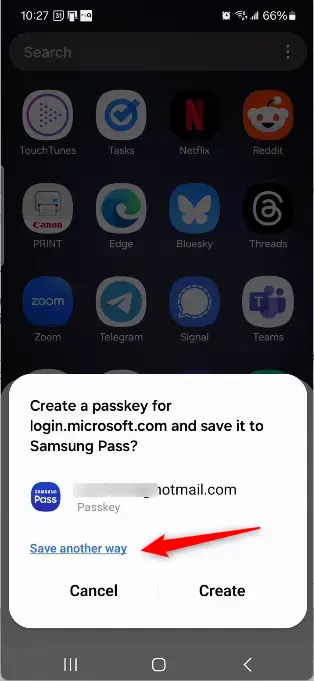
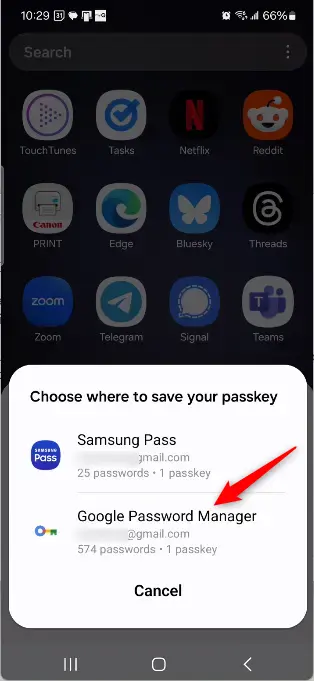
- Click “Use once” when prompted. Then click Create.
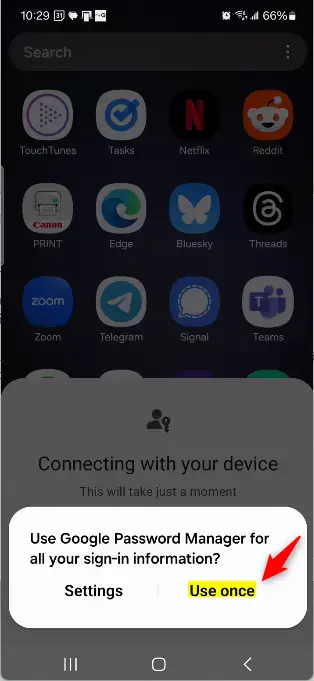
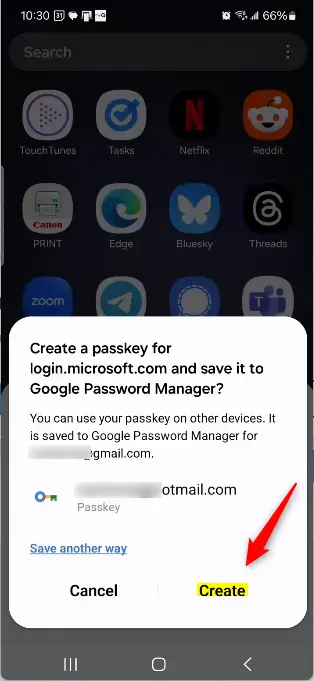
- Continue on your device to complete the setup.
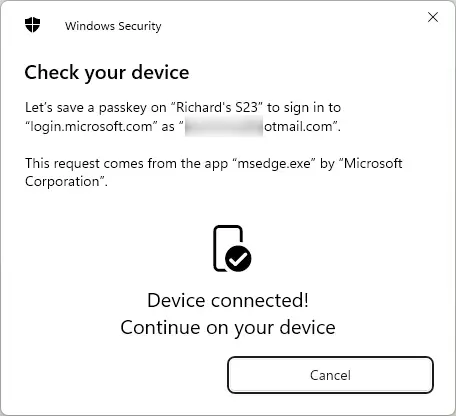
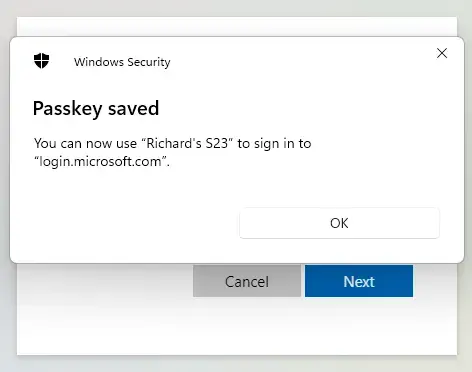
- Enter a name for your passkey. Click OK to finish.
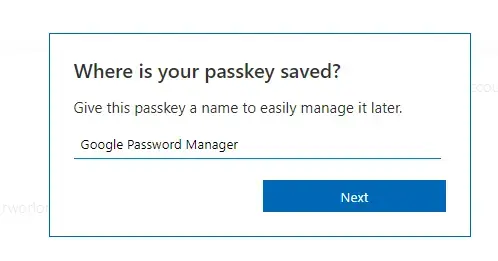
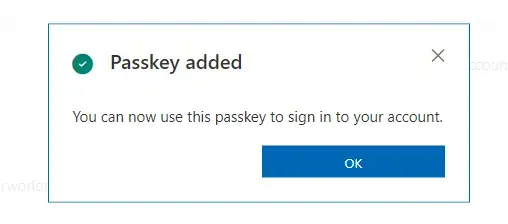
That’s it! Your passkey is now set up.
Summary
Setting up a passkey for your Microsoft account on your Android phone is an important security step. A passkey adds extra protection to your account. Only you can access your account with a passkey. By following these simple steps, you can secure your Microsoft account on your Android device. This keeps your personal information safe from unwanted access.
Frequently Asked Questions
What is a passkey for a Microsoft account?
How do I set up a passkey on my Android phone?
Can I use a passkey for Microsoft 365 on my phone?
What should I do if I forget my passkey?
Is setting up a passkey really necessary for my Microsoft account?
Was this guide helpful?

About the Author
Richard
Tech Writer, IT Professional
Richard, a writer for Geek Rewind, is a tech enthusiast who loves breaking down complex IT topics into simple, easy-to-understand ideas. With years of hands-on experience in system administration and enterprise IT operations, he’s developed a knack for offering practical tips and solutions. Richard aims to make technology more accessible and actionable. He's deeply committed to the Geek Rewind community, always ready to answer questions and engage in discussions.



No comments yet — be the first to share your thoughts!