

This article explains how to access your Android phone in File Explorer on Windows 11.
Windows Mobile devices (or Phone Link) allow you to access your mobile devices from your PC instantly. This feature comes in handy when transferring files, sending messages, or receiving notifications from your phone while working on your computer.
When you turn on Allow this PC to access your mobile devices, you can wirelessly browse through all your folders and files, including media on your Android phone. You can open them, copy them to your PC, copy PC files to your phone, rename files, move them, and delete them.
To use this feature, you’ll need to meet the following requirements:
- Your Android phone has at least Android 11 or higher.
- You are running the BETA version of Link to Windows app on your Android phone (version 1.24071 and higher).
- You are registered for the Windows Insider Program, your PC runs Windows 11, and your PC is opted into any of the 4 Insider Channels.
Enable or Disable Android Phone Access in File Explorer
As mentioned, a new Windows Mobile devices feature allows users to access their folders and files directly from their Android phones.
Here’s how to turn it on or off.
First, open the Windows Settings app.
You can do that by clicking on the Start menu and selecting Settings. Or press the keyboard shortcut (Windows key + I) to launch the Settings app.
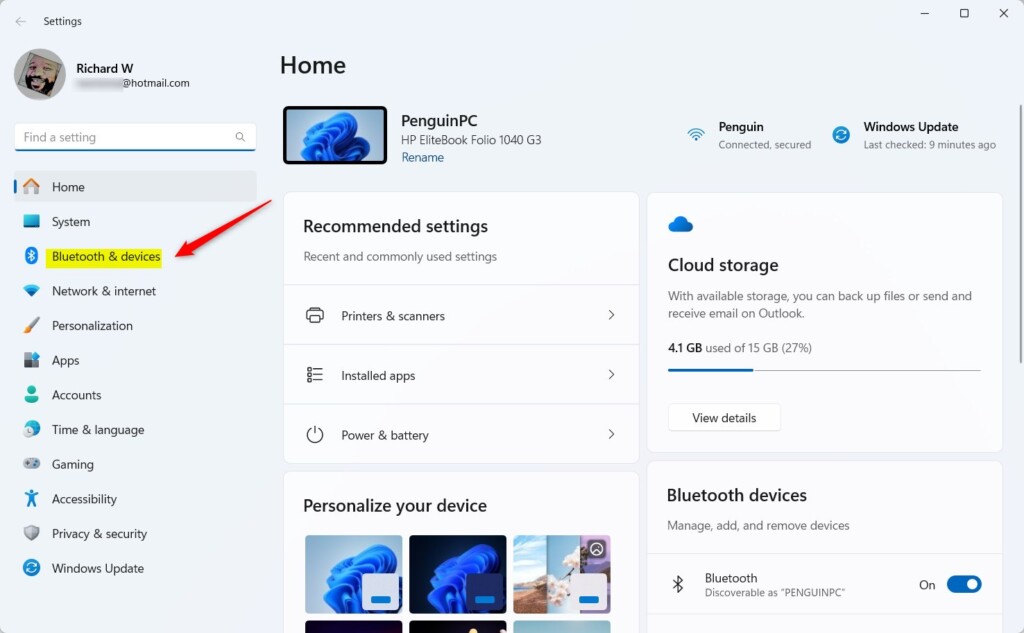
When the Setting app opens, click the Bluetooth & devices button on the left.
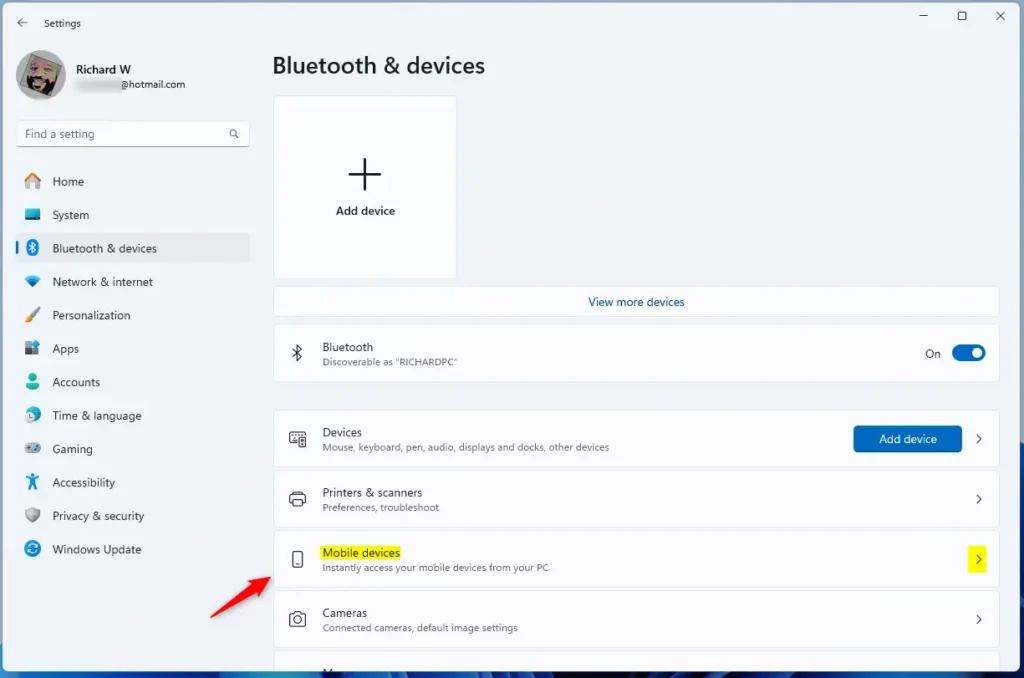
On the right, select the Mobile devices tile to expand it.
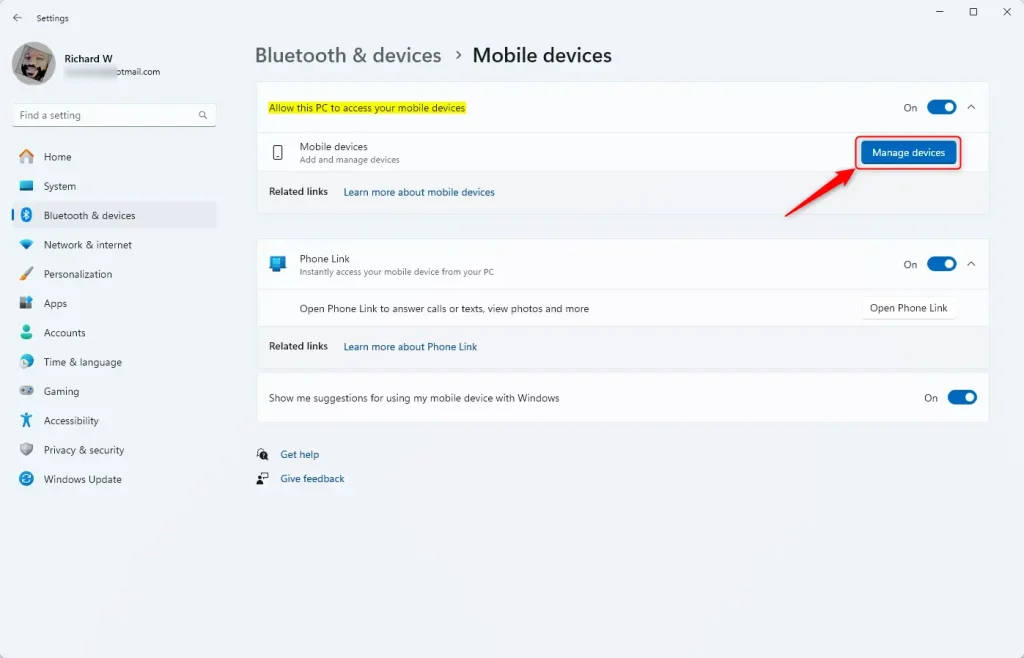
On the Bluetooth & device > Mobile devices settings pane, click the “Manage devices” button.
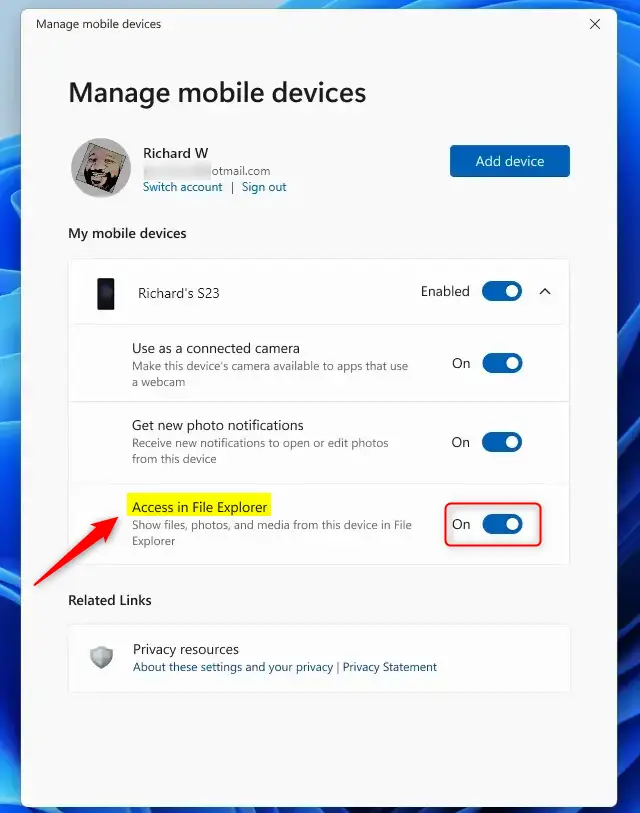
On the “Manage mobile devices” window, select the “Access in File Explorer” tile. Then, toggle the switch button to the On or Off position to enable or disable this feature.
When enabled, you should see your Android phone connected in File Explorer.
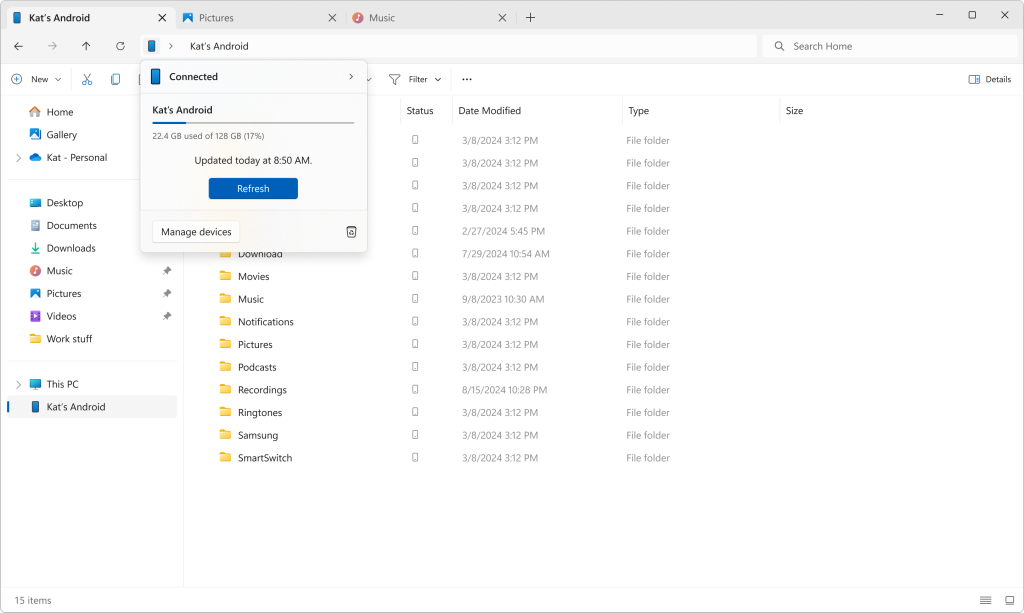
That should do it!
Reference:
Conclusion:
- Windows 11’s “Allow this PC to access your mobile devices” feature provides seamless access to Android phones from a connected PC.
- Enabling this feature allows users to browse, transfer, and manage files and folders wirelessly between the Android phone and the Windows 11 PC.
- Important requirements for this feature include Android 11 or higher on the phone, the BETA version of Link to Windows app, and participation in the Windows Insider Program.
- Following the steps, users can easily enable or disable access to their Android phone in File Explorer, enhancing productivity and file management.


Leave a Reply