How to Enable or Disable Outlook Notifications on Windows 11

You enable or disable Outlook notifications on Windows 11 to manage email and calendar alerts.
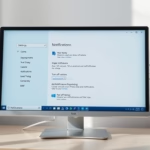
Control Outlook notifications on Windows 11 through the app’s settings. Go to Settings > Notifications, then toggle “Show app notifications” and customize banner and sound options for emails and calendar events.
Outlook notifications are the pop-up banners that appear on your Windows 11 desktop, informing you of new emails or upcoming events, even when Outlook is closed.
By default, these alerts are usually active, but you can easily turn them off if they disrupt your workflow or if you prefer a quieter PC experience.
This tutorial shows you how to adjust notification settings specifically within the new Outlook app for Windows 11. You can control whether notification banners display and if a sound plays for new messages.
Was this guide helpful?

About the Author
Richard
Tech Writer, IT Professional
Richard, a writer for Geek Rewind, is a tech enthusiast who loves breaking down complex IT topics into simple, easy-to-understand ideas. With years of hands-on experience in system administration and enterprise IT operations, he’s developed a knack for offering practical tips and solutions. Richard aims to make technology more accessible and actionable. He's deeply committed to the Geek Rewind community, always ready to answer questions and engage in discussions.



No comments yet — be the first to share your thoughts!