

This article explains how to enable or disable the two-finger press-and-hold touch gesture in Windows 11.
Touchscreen devices allow direct interaction with displayed content, unlike using a mouse, touchpad, or other peripherals (except a stylus, which is not required for most modern touchscreens).
With touchscreen devices, you can navigate quickly using touch gestures. A touch gesture refers to the physical action performed on a touchscreen by your finger(s).
You can enable or disable the two-finger press-and-hold touch gesture on Windows 11 devices.
To get started, first, open the Windows Settings app.
You can do that by clicking on the Start menu and selecting Settings. Or press the keyboard shortcut (Windows key + I) to launch the Settings app.
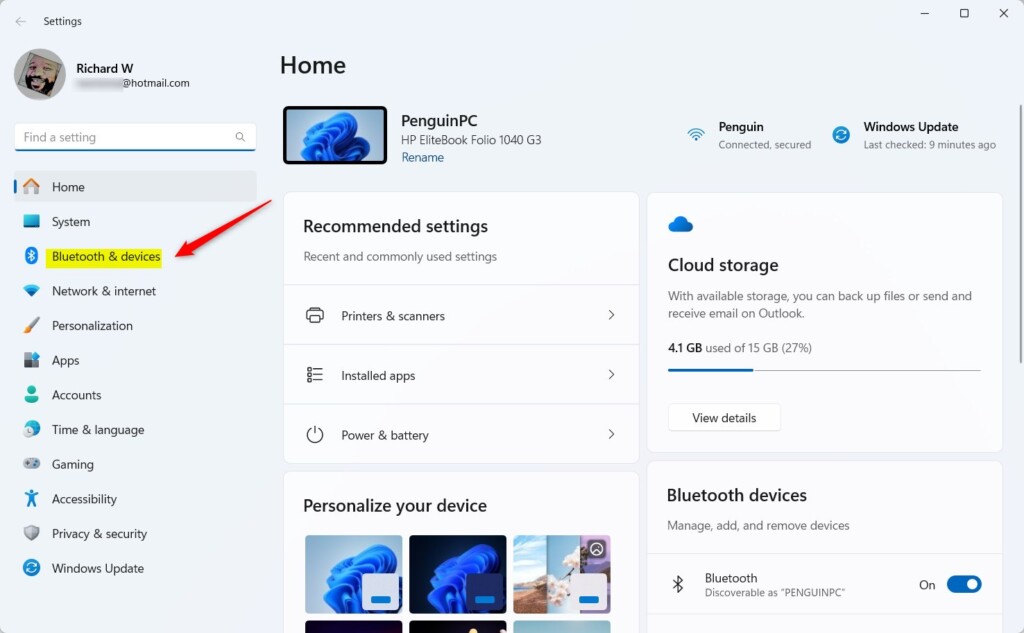
When the Settings app opens, click the Bluetooth & devices button on the left.
Select the “Touch” tile on the right to expand it.
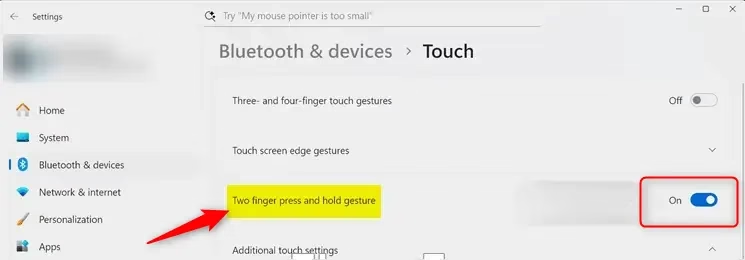
On the Bluetooth & devices > Touch settings pane, select the “Two finger press and hold gesture” tile. Then, toggle the switch button to the On position to enable it.
To disable it, toggle the switch button to the Off position.
That should do it!
Conclusion:
In conclusion, enabling or disabling the two-finger press-and-hold touch gesture in Windows 11 is straightforward and can enhance your touchscreen experience. Here are the key points to remember:
- Accessibility: Adjusting the two-finger gesture can provide a more personalized interaction with your device.
- Easy Navigation: Touch gestures simplify navigation, making it quicker and more intuitive.

Leave a Reply