How to Enable or Disable Screen Tint in Windows 11

Screen Tint is a new visual accessibility feature designed to help users manage eye strain and migraines. Unlike standard color filters that change the entire color profile of your display, Screen Tint applies a subtle color overlay. This helps reduce harsh glare and improves reading comfort.
This feature is currently available in Windows 11 build 26300.8289 and later for Insider Preview members. It is an experimental tool meant to provide more granular control than the standard Night Light feature.
Why use Screen Tint?
Many users suffer from digital eye strain after long hours at the computer. Screen Tint allows you to apply specific colors like amber, blue, or green to your display. By adjusting the intensity, you can make text easier to read and reduce the harshness of white backgrounds.
What happens when you enable it?
When you turn on Screen Tint, your display will immediately take on the selected color hue. This change is purely visual and does not affect your actual files or system settings. Importantly, this tint is applied at the display level, meaning it will not show up in your screenshots. Your saved images will look normal to others, even if your screen looks tinted to you.
How to Enable Screen Tint via ViVeTool
If you are on the correct build but do not see the option, you can force it to appear using a command-line tool. Note: This requires administrative privileges.
1. Download the latest version of ViVeTool.
2. Open your Command Prompt as an administrator.
3. Navigate to the folder where you saved the tool and run this command:
vivetool.exe /enable /id:606621244. Restart your computer to apply the changes.
Turn On or Off Screen Tint in Settings
1. Open Settings by pressing Win+I on your keyboard.
2. Click on Accessibility in the left menu, then select Screen tint on the right.
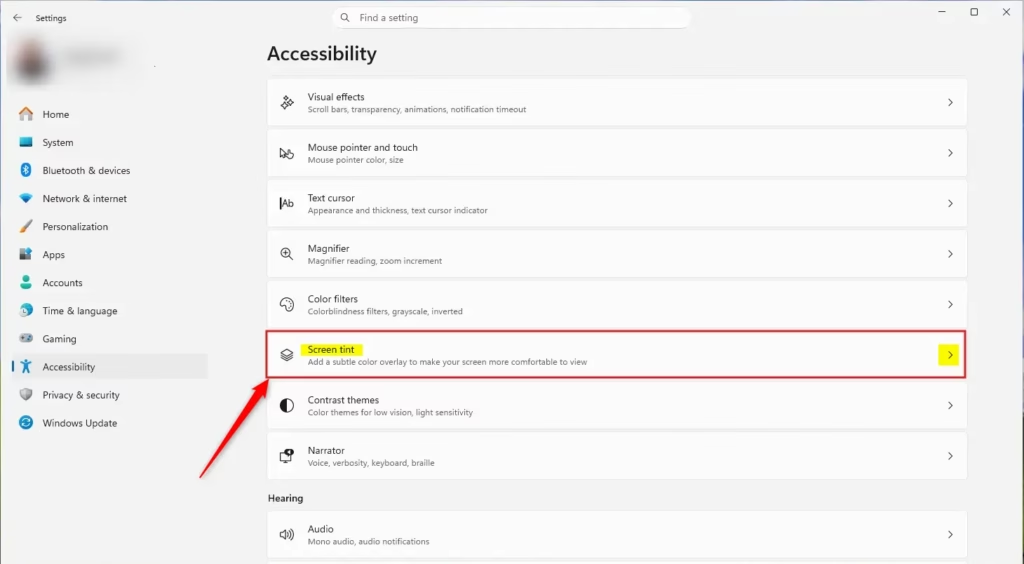
3. Toggle the Screen tint switch to On or Off.
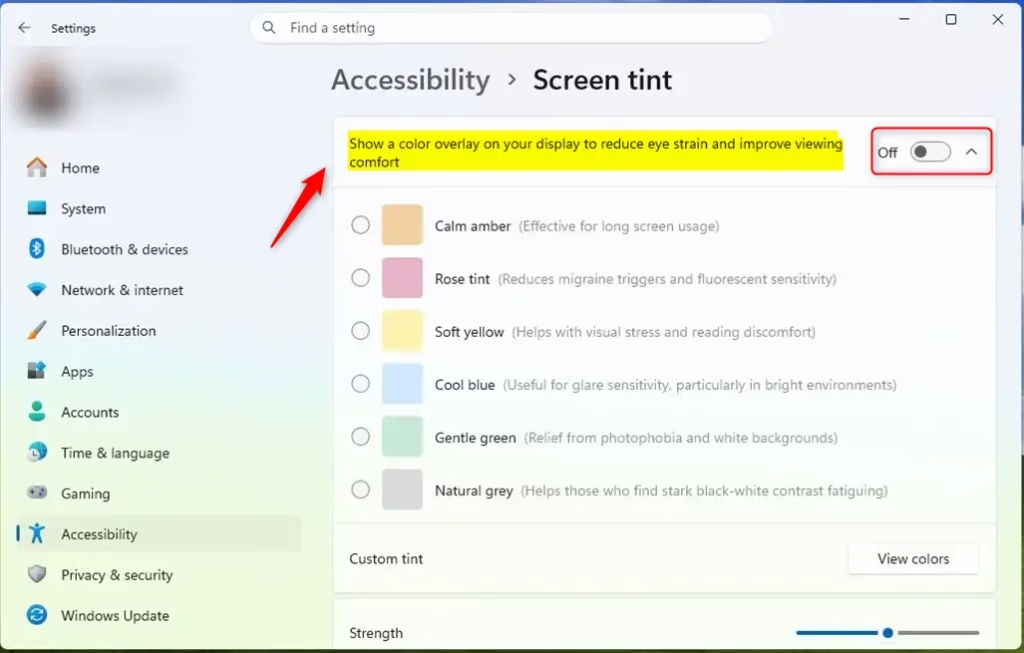
4. Once enabled, use the sliders to pick your preferred color and adjust the strength to your liking.
Turn On or Off Screen Tint using Registry
Warning: Editing the Registry can cause system instability if done incorrectly. Always back up your registry before making changes.
To enable the feature via the Registry, open the Registry Editor (regedit) with admin rights and navigate to:
HKEY_CURRENT_USER\Software\Microsoft\ScreenTintCreate a new DWORD value named Active. Set the value to 1 to enable it or 0 to disable it.
Summary
Screen Tint is a powerful new way to customize your display for better eye comfort. By using this feature, you can reduce glare and eye strain by applying a custom color overlay. While it is currently an experimental feature for Windows Insiders, it offers a significant upgrade over standard color filters. Remember to use caution when editing the registry and always keep your system updated to ensure you have access to the latest accessibility enhancements.” }
How does Screen Tint differ from Night Light?
Night Light is designed to reduce blue light exposure to help with sleep patterns by warming the screen color. Screen Tint is a more flexible accessibility tool that lets you choose any color and intensity, specifically targeting visual comfort and reading ease rather than just blue light reduction.
Is Screen Tint available in the stable version of Windows 11?
Currently, Screen Tint is an experimental feature available only to Windows 11 Insider Preview users on specific builds. It has not yet been rolled out to the general public in the stable version of Windows 11. Microsoft may include it in future updates based on user feedback.
Was this guide helpful?



Leave a Reply Cancel reply