
This article explains how to enable or disable “Show Device Name in Windows Share” on Windows 11.
Windows Mobile devices (or Phone Link) allow you to access your mobile devices from your PC instantly. This feature comes in handy when transferring files, sending messages, or receiving notifications from your phone while working on your computer.
When you want to link your Mobile device to Windows, you must sign into your Microsoft account before managing your mobile devices. Once you’re signed in, you can link your devices.
You can directly share files to your Android phone from the Windows Share window in Windows 11.
A recent update to Windows 11 Insider channels lets you enable or disable showing your mobile device name in Windows Share.
Show Phone Name in Windows Share
As mentioned, a recent update to Windows allows users to turn on/off and “Show device name in Windows Share.”
Here’s how to do that.
First, open the Windows Settings app.
You can do that by clicking on the Start menu and selecting Settings. Or press the keyboard shortcut (Windows key + I) to launch the Settings app.
When the Setting app opens, click the Bluetooth & devices button on the left.

Select the Mobile devices tile under ‘Bluetooth & devices ‘on the right to expand it.

Next, select the “Manage devices” button under “Allow this PC to access your mobile device.”

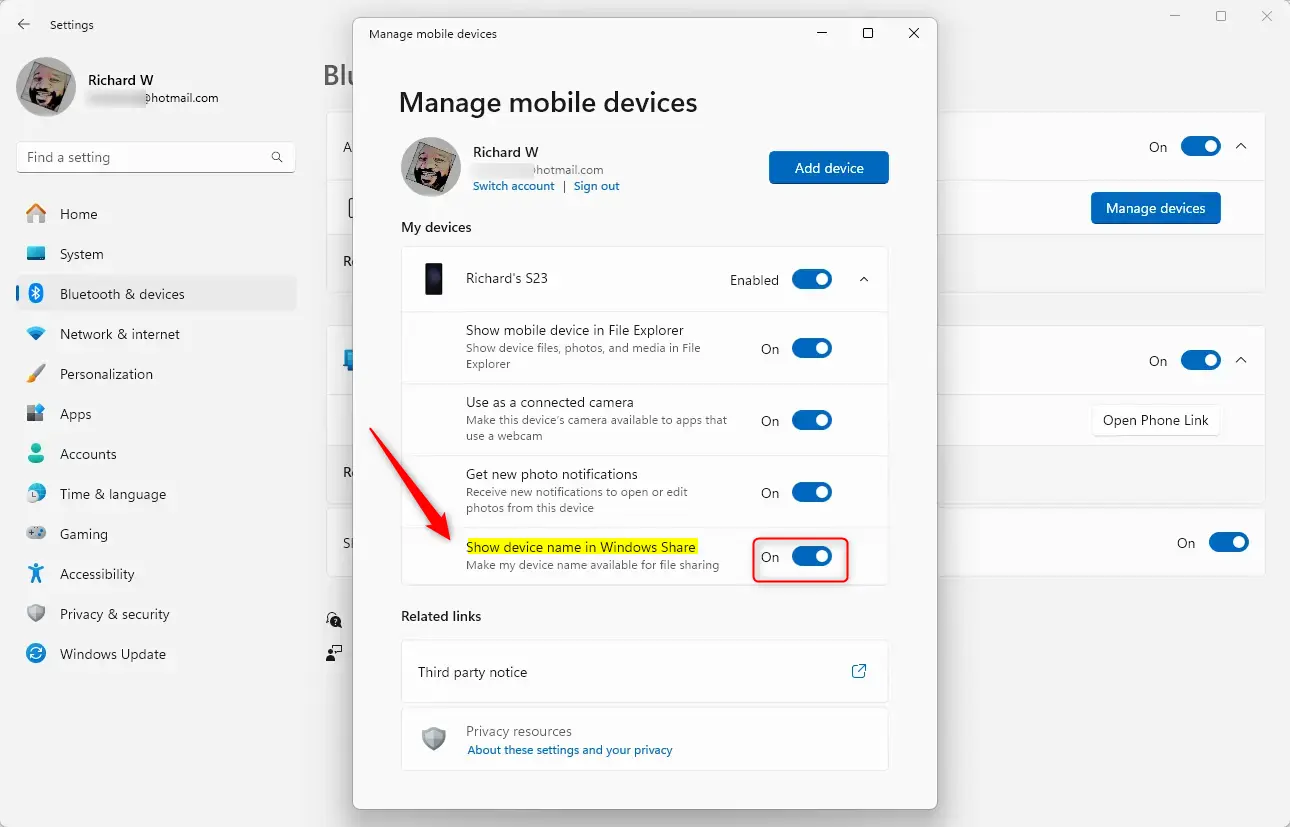
Under My devices, expand the mobile device tile you want to work with. Then, select the “Show device name in Windows Share” tile and toggle the button to the On position to enable it.
To disable it, toggle the button to the Off position.
That should do it!
Conclusion:
- Enabling or disabling the “Show device name in Windows Share” feature in Windows 11 enhances the user experience by allowing better identification of mobile devices.
- Accessing mobile devices from your PC streamlines file transfers, message sending, and notification management.
- The simple steps provided make it easy to switch the visibility of mobile device names as needed.
- Users can manage their linked devices effectively through the Windows Settings app, ensuring a personalized setup.
- Remember to sign out if you wish to disconnect your mobile device from your Windows PC.
Frequently Asked Questions
How do I enable the device name in Windows Share?
Can I disable the device name visibility in Windows Share?
What is the benefit of showing the device name in Windows Share?
Do I need to sign in to my Microsoft account to link my mobile device?
What steps should I follow to access my mobile device from Windows 11?


Leave a Reply Cancel reply