How to Enable Hey, Copilot: Hands-Free Voice Commands on Windows 11

You enable “Hey, Copilot” on Windows 11 to use hands-free voice commands for the AI assistant.
This feature allows you to activate Copilot simply by saying “Hey, Copilot,” letting you interact without touching your keyboard or mouse.
Starting with Copilot app version 1.25051.10.0, this new capability lets you initiate a conversation when your PC is unlocked.
Hands-free interaction is perfect for multitasking; you can ask Copilot questions or brainstorm ideas while continuing your other work.
Enable “Hey, Copilot” on Windows 11 by opening the Copilot app, signing in, going to Settings, and toggling on “Listen for ‘Hey, Copilot’ to start a conversation.” This allows for hands-free voice commands to interact with the AI assistant.
Enable “Hey, Copilot” on 🪟 Windows 11
A new Microsoft feature lets you control Copilot using your voice. Here’s how to turn it on.
Step 1Open the Copilot App
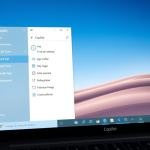
First, open the Copilot app.
Step 2Sign In with Your Microsoft Account
If you haven’t signed into Copilot yet, do so now with your Microsoft account. This syncs your settings across devices.
Step 3 Go to Settings
Next, click the Account button. Then select Settings in full view mode.
Step 4Enable Voice Commands
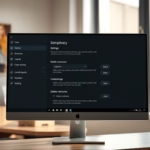
On the Settings page, find Voice Mode Settings. Select “Listen for ‘Hey, Copilot’ to start a conversation.” Toggle the button on to enable this feature. Toggle it off to disable it .
Step 5Save Your Changes
Exit the settings page when you’re done. That’s it!
Summary
Turning on “Hey, Copilot” in Windows 11 lets you talk to the AI assistant without using your hands. You can easily switch this feature on or off right from the Copilot app’s settings. Make sure you’re signed in with your Microsoft account to keep your settings the same everywhere and get a more personal experience.
How do I enable Hey Copilot in 🪟 Windows 11?
To enable or disable this feature in your Copilot settings, go to Account > Settings > Listen for 'Hey, Copilot' to start a conversation and toggle the switch. Once enabled, simply start a question with “Hey Copilot” and Copilot Voice will respond.
Is there an AI assistant for 🪟 Windows 11?
With the help of Copilot, an AI assistant, you can get clear answers, inspiration, and solutions for your questions, projects, and to-do-lists. How does AI enhance creativity in Windows 11? Windows 11 provides AI-driven features and tools to improve your overall experience.
Was this guide helpful?

About the Author
Richard
Tech Writer, IT Professional
Richard, a writer for Geek Rewind, is a tech enthusiast who loves breaking down complex IT topics into simple, easy-to-understand ideas. With years of hands-on experience in system administration and enterprise IT operations, he’s developed a knack for offering practical tips and solutions. Richard aims to make technology more accessible and actionable. He's deeply committed to the Geek Rewind community, always ready to answer questions and engage in discussions.


No comments yet — be the first to share your thoughts!