

This guide shows you how to turn disk write caching on or off for your computer’s drives in Windows 11. We’ll use simple steps that anyone can follow.
What is Disk Write Caching?
Disk write caching makes your computer faster. Here’s why: it temporarily saves data in a special memory area called a “cache” before writing it to your hard drive or SSD. This means your apps don’t have to wait as long when you save files.
Important: If your computer suddenly turns off or crashes before the cached data saves to the disk, you could lose recent changes.
How to Turn On or Off Disk Write Caching
You can change this setting using two easy methods: Disk Management or Device Manager.
Method 1: Using Disk Management
- Press
Windows + Ron your keyboard to open the Run box. - Type
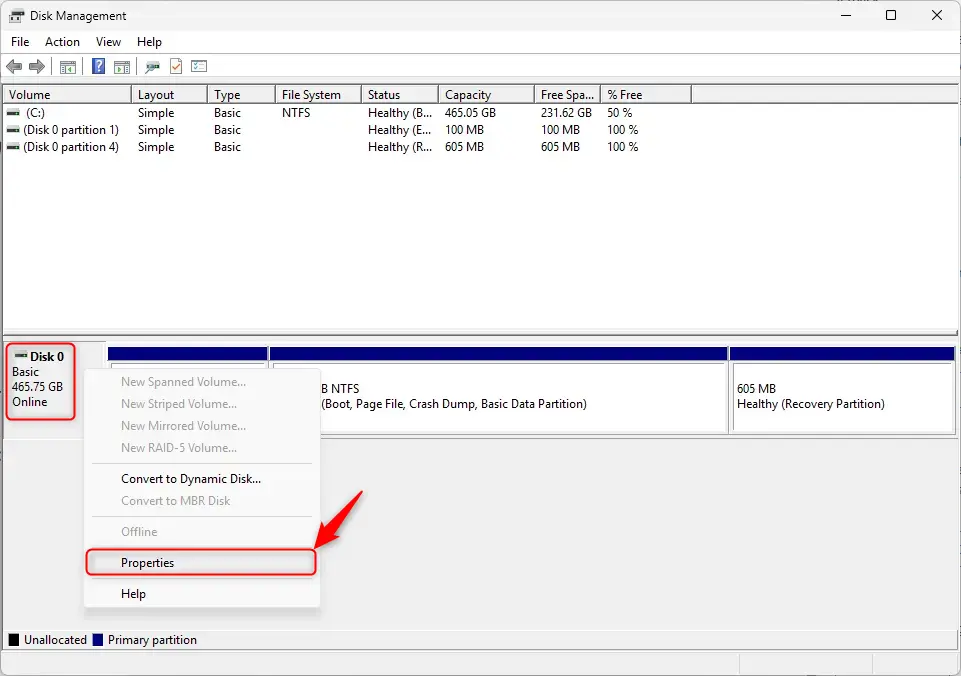
diskmgmt.mscand pressEnter. Disk Management opens. - In the left column, find the disk you want to change. Usually, Disk 0 is your main drive.
- Right-click on the disk label (like “Disk 0”) and choose Properties.
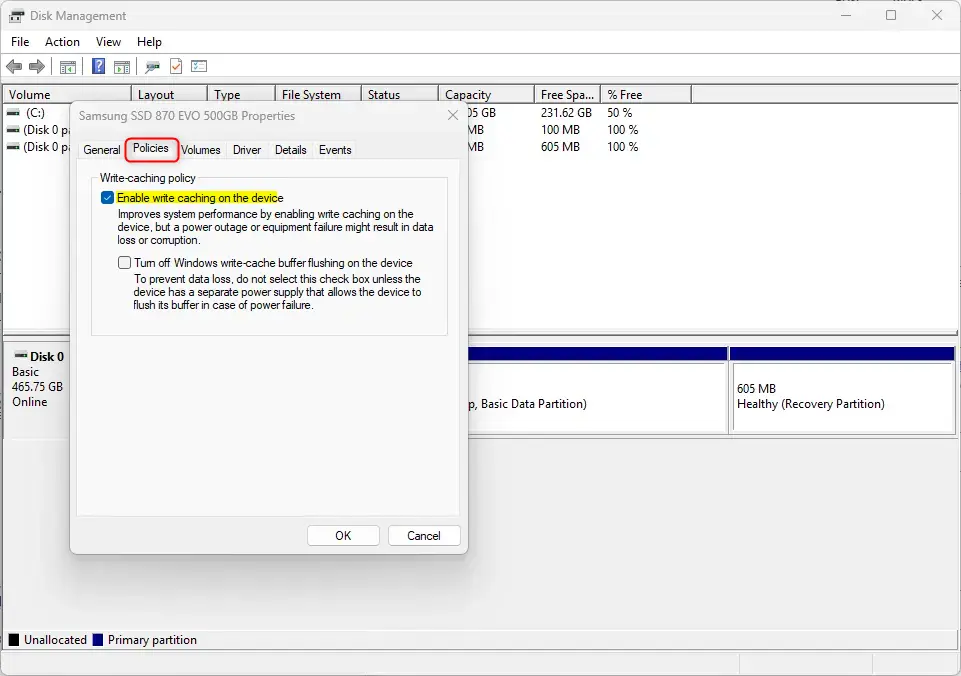
- Click the Policies tab.
- Check or uncheck the box next to “Enable write caching on the device” to turn it on or off.
- Click OK to save your changes.
- Close Disk Management when finished.
Method 2: Using Device Manager
- Press
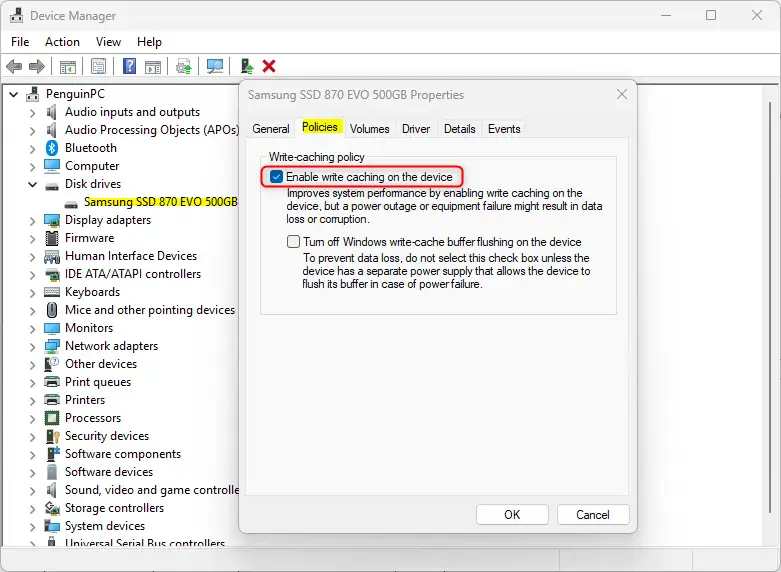
Windows + Xand select Device Manager from the list. - Expand the Disk drives section.
- Right-click on your disk drive and select Properties.
- Go to the Policies tab.
- Check or uncheck the box next to “Enable write caching on the device” to turn it on or off.
- Click OK to save.
Important Things to Remember
- Write caching can make your computer faster by speeding up how data saves.
- If your PC shuts down suddenly, some recent data might be lost if it’s still in the cache.
- You can easily turn this feature on or off anytime using Disk Management or Device Manager.
- Make sure to regularly back up your important files, especially if you use write caching.
- If you want to learn more about managing disks in Windows 11, check out this helpful article on How to Initialize a New Disk in Windows 11.
Summary
Disk write caching speeds up your computer by temporarily storing data in memory before writing it to your drive. You can enable or disable it using either Disk Management or Device Manager in Windows 11. While faster performance is good, remember that sudden shutdowns could cause data loss if changes haven’t been written to your disk yet. Back up your files regularly if you use write caching.
Leave a Reply