Windows 11 has a handy feature that can automatically change the brightness of videos based on the light around you. This helps videos look better whether you’re in a bright room or a dark space, and it can also make watching easier on your eyes.
The feature is called “Adjust video based on lighting around me”. When turned on, Windows will use sensors in your device to detect the light in your room and adjust video brightness automatically.
Important: This feature only works if your device has a light sensor. If you don’t see it in settings, your device probably doesn’t have one.
How to Turn On or Off Auto-Adjust Video Brightness
Here are simple steps to enable or disable this feature using Windows Settings:
- Open Windows Settings:
- Click on the Start menu (Windows icon at the bottom-left) and choose Settings, or
- Press Windows key + I on your keyboard to open Settings directly.
- In the Settings window, click on Personalization from the left menu.
- On the right side, find and click Video playback.
- Under Video playback settings, look for “Adjust video based on lighting around me” and switch it On or Off as you like.
Here’s what it looks like in Settings:
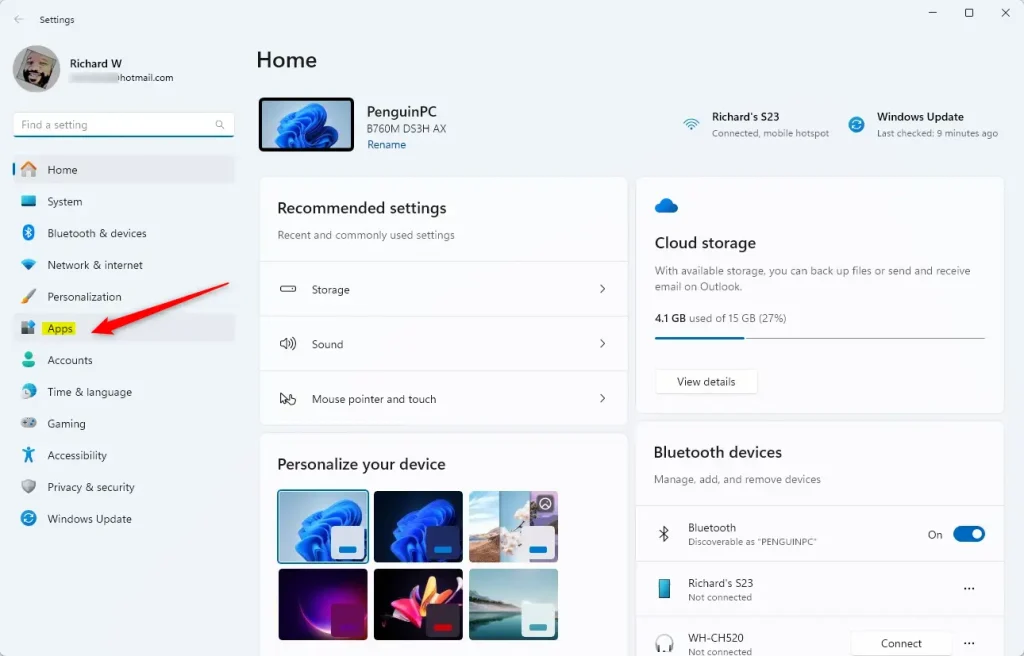
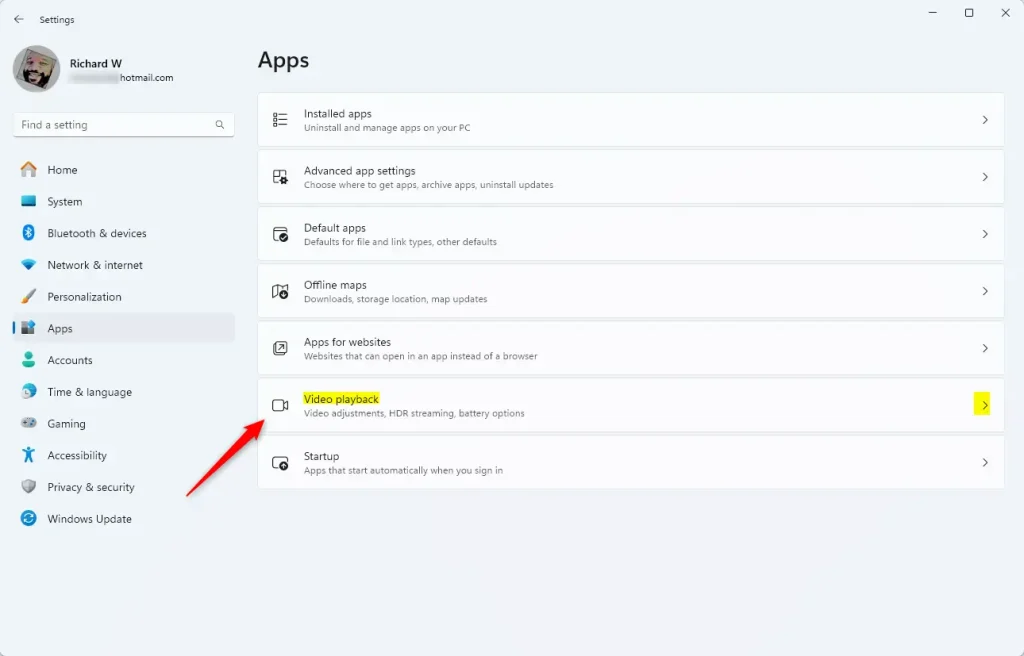
Note: If you don’t see the “Adjust video based on lighting around me” option, your computer might not have a light sensor.
When finished, you can simply close the Settings app.
How to Change This Setting Using the Registry Editor (Advanced)
If you are comfortable with advanced settings, you can turn this feature on or off by editing the Windows Registry. Be careful when using the Registry Editor — changing the wrong settings can cause problems.
Follow these steps:
- Press Windows key + R, type
regedit, and press Enter to open the Registry Editor. - Navigate to this folder path:
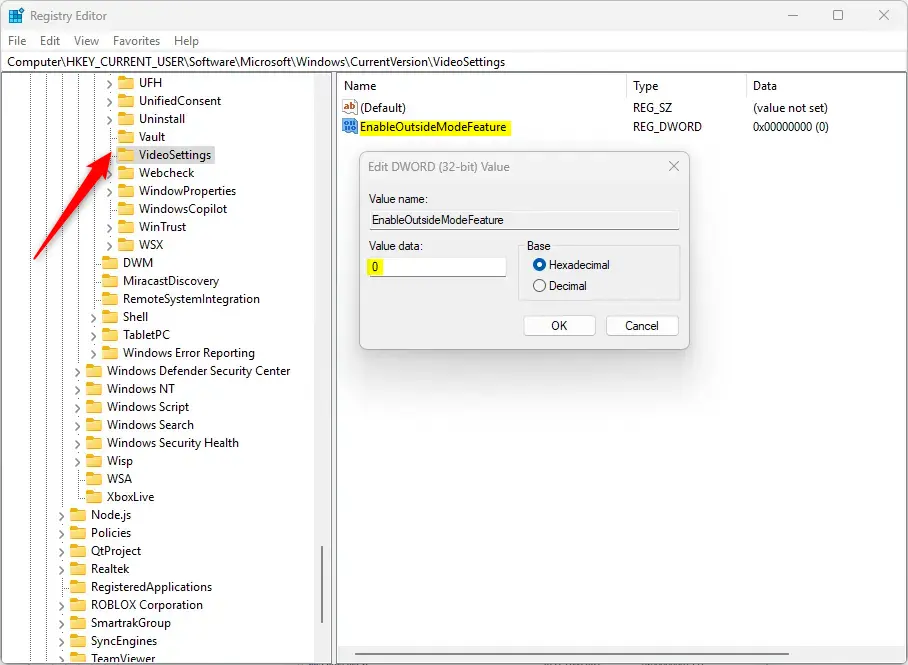
ComputerHKEY_CURRENT_USERSoftwareMicrosoftWindowsCurrentVersionVideoSettings
- In the right pane, look for a value named
EnableOutsideModeFeature. - If it exists, double-click it and change the value to:
1to turn the auto-adjust brightness ON0to turn it OFF
If it does NOT exist, right-click a blank space in the right pane, choose New > DWORD (32-bit) Value, name itEnableOutsideModeFeature, then set the value as above.
- Close the Registry Editor and restart your PC for the changes to take effect.
Summary
- This feature automatically changes video brightness based on the lighting around you to make videos easier on the eyes.
- You can turn it on or off easily in Windows Settings under Personalization > Video playback.
- Advanced users can use the Registry Editor to change this setting.
- Your device needs a light sensor to use this feature; if it doesn’t have one, the option won’t be available.
- Try adjusting this setting if videos look too bright or too dark depending on your room’s lighting.
If you want to learn more about Windows 11 settings, visit the official Microsoft support page: https://support.microsoft.com/windows
Leave a Reply