How to Check TPM Version on Windows 11 Easily

You check your TPM version on Windows 11 by opening the TPM Management tool.
The Trusted Platform Module (TPM) is a crucial security chip integrated into your PC’s motherboard. It encrypts sensitive data and protects your system from malware and unauthorized access.
For Windows 11 to function correctly, your system requires TPM version 2.0 or a later iteration. Confirming your TPM version is vital for troubleshooting and verifying Windows 11 compatibility.
Open TPM Management by typing tpm.msc into the Start menu search and selecting the result. The TPM version will be displayed in the window that opens. Alternatively, check Device Security in the Windows Security app.
What is TPM?
Think of TPM as a tiny lockbox inside your computer. It holds important security keys that help protect your information, like passwords and encryption keys. This helps keep your computer safer from hackers.
How to Check Your TPM Version in 🪟 Windows 11
Here are 4 easy ways you can see what TPM version you have on your PC.
1Use the Windows Security App
- Click the Start menu (the Windows icon in the bottom-left corner).
- Type Windows Security in the search box and click the app when it appears.
- In the Windows Security window, click Device security on the left side.
- Under Security processor, click Security processor details.
- Look for Specification version — this shows your TPM version.


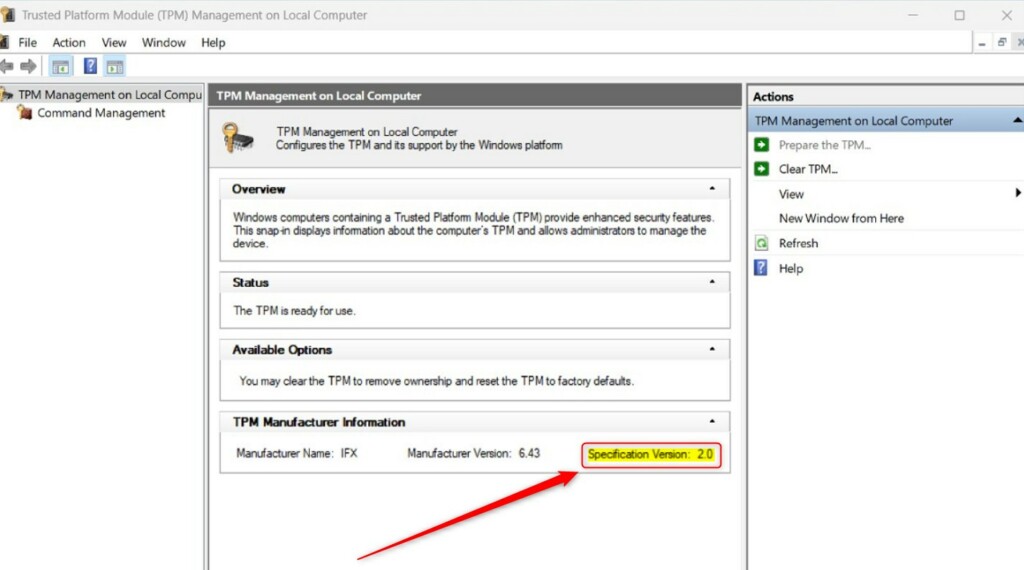
2Use the TPM Management Console
- Open the Start menu and type
tpm.msc. - Click on Trusted Platform Module (TPM) Management from the results.
- A window will open showing information about your TPM, including the version.
3Use Device Manager
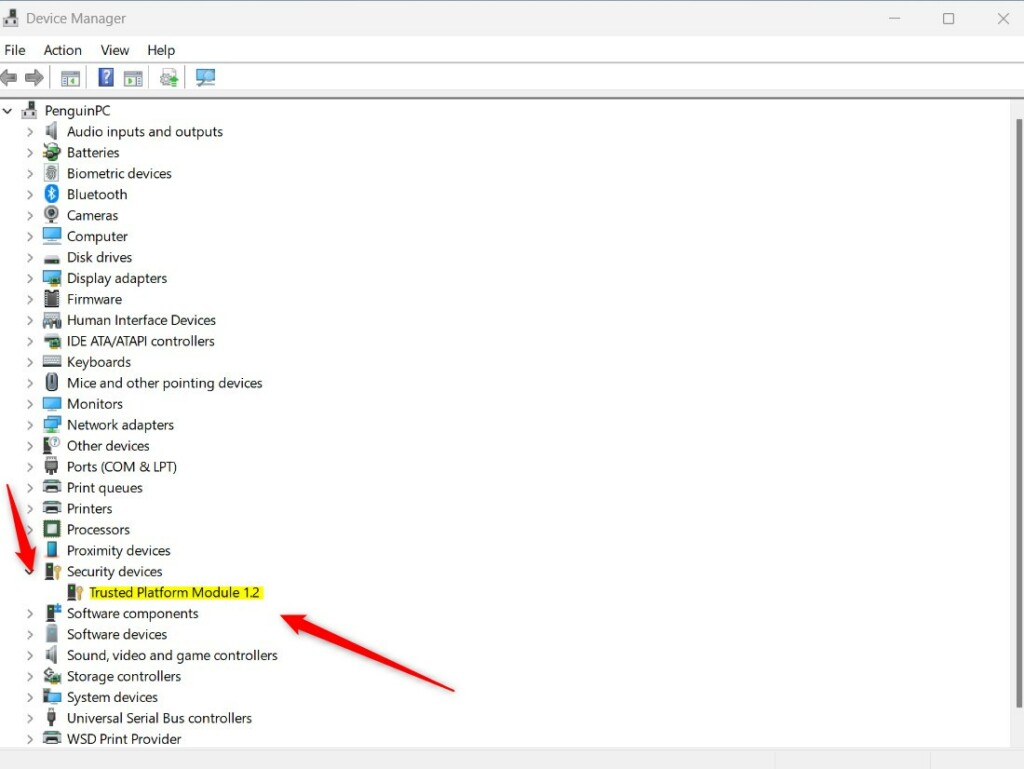
- Open the Start menu, type Device Manager, and open it.
- In Device Manager, find and click the arrow next to Security devices to expand it.
- You should see Trusted Platform Module 2.0 or another version number listed.
4Use PowerShell or Command Prompt
- Right-click the Start menu and select Windows Terminal. [Requires admin privileges]
- Choose either the PowerShell or Command Prompt tab.
- Type the following command and press Enter:
tpmtool getdeviceinformationThe information shown will include the TPM version.
Why Knowing Your TPM Version Matters
- Make sure your PC meets Windows 11 requirements.
- Fix problems with your TPM chip more easily.
- Keep your computer secure with the right TPM version.
If you want to learn how to fix TPM problems, check out this guide: How to Run TPM Troubleshooter in Windows 11.
Summary
Checking your TPM version in Windows 11 is easy and can help you keep your PC secure and working well. You can use the Windows Security app, TPM Management Console, Device Manager, or a simple command in PowerShell or Command Prompt. Try these steps and you’ll know your TPM version in no time!
Is TPM 1.2 or 2.0 for 🪟 Windows 11?
TPM 2.0 is required to run Windows 11, as an important building block for security-related features. TPM 2.0 is used in Windows 11 for a number of features, including Windows Hello for identity protection and BitLocker for data protection.
Was this guide helpful?

About the Author
Richard
Tech Writer, IT Professional
Richard, a writer for Geek Rewind, is a tech enthusiast who loves breaking down complex IT topics into simple, easy-to-understand ideas. With years of hands-on experience in system administration and enterprise IT operations, he’s developed a knack for offering practical tips and solutions. Richard aims to make technology more accessible and actionable. He's deeply committed to the Geek Rewind community, always ready to answer questions and engage in discussions.



No comments yet — be the first to share your thoughts!