
Windows 11 computers accumulate trash and temporary files over time. These unnecessary files take up valuable hard drive space and slow down your computer’s speed. Deleting them regularly keeps your system running faster and more efficiently.
Why should you delete trash and temporary files? Extra files clog your system like dust in a vacuum cleaner. Your computer has to work harder to find what it needs, which makes everything feel slower.
What happens when you delete these files? Your computer runs faster. You free up storage space. Your programs launch quicker. Everything feels more responsive.
Manually deleting files is tedious and easy to forget. A better approach is to automate the process. Windows 11 has a built-in tool called Storage Sense that handles this for you automatically.
Automatically Delete Temporary Files with Storage Sense
Storage Sense is a Windows 11 feature that removes temporary files and junk automatically. You just set it up once, and it does the work for you.
How to Enable Storage Sense
- Open the Settings app. Click the Start menu and select Settings. Or press Windows key + I on your keyboard.
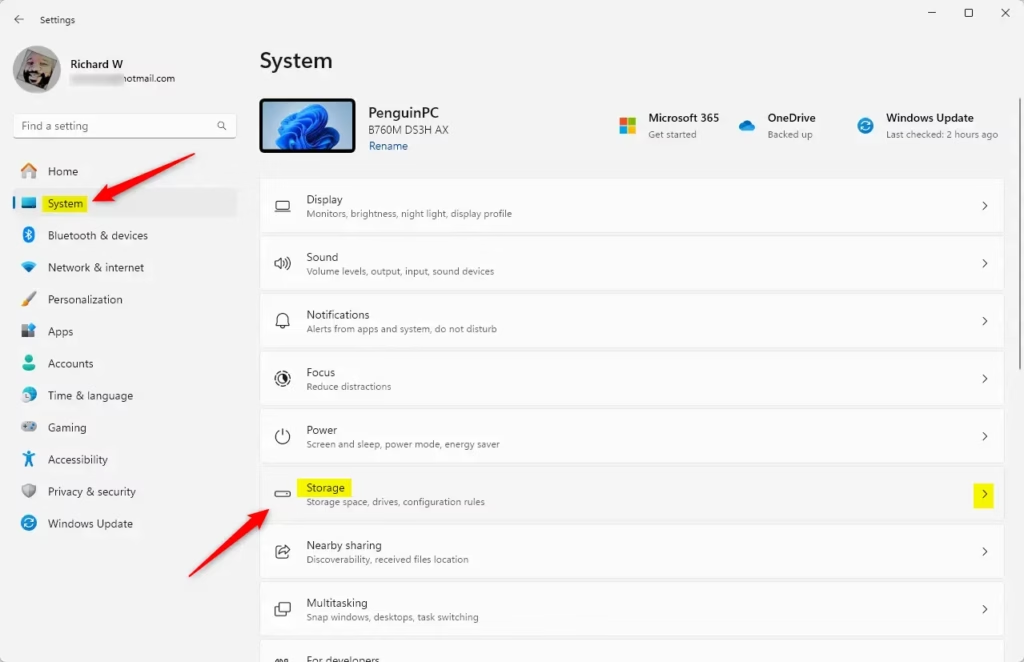
- In Settings, click System on the left side.
- Click Storage on the right side to expand it.
- Turn on Storage Sense by clicking the button so it shows On.
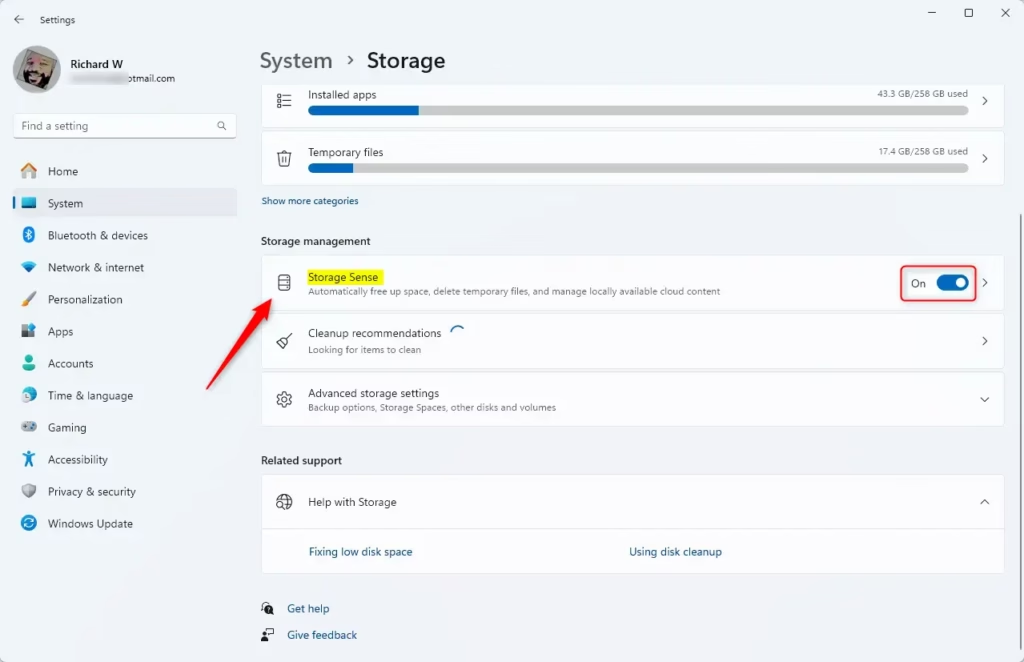
This setting tells Windows 11 to automatically delete temporary files and items in your recycle bin. Your computer stays clean without you doing anything.
Quickly Remove Temporary Files Right Now
If you want to delete temporary files immediately instead of waiting for automatic cleanup, follow these steps:
- In the Storage settings, click on the Temporary files tile to expand it.
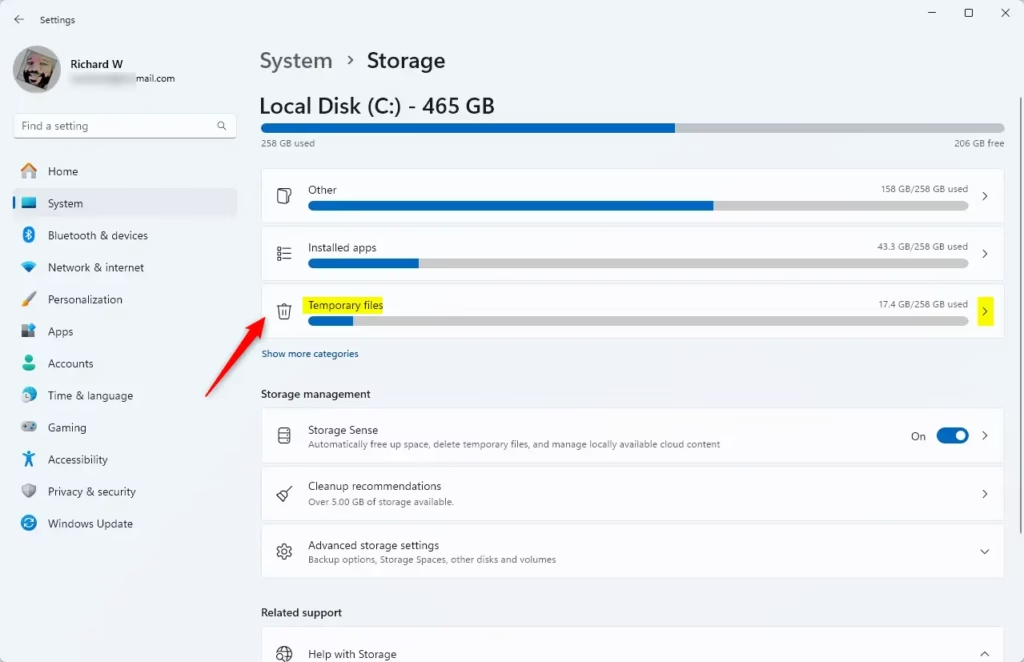
- Check the boxes next to the files you want to delete.
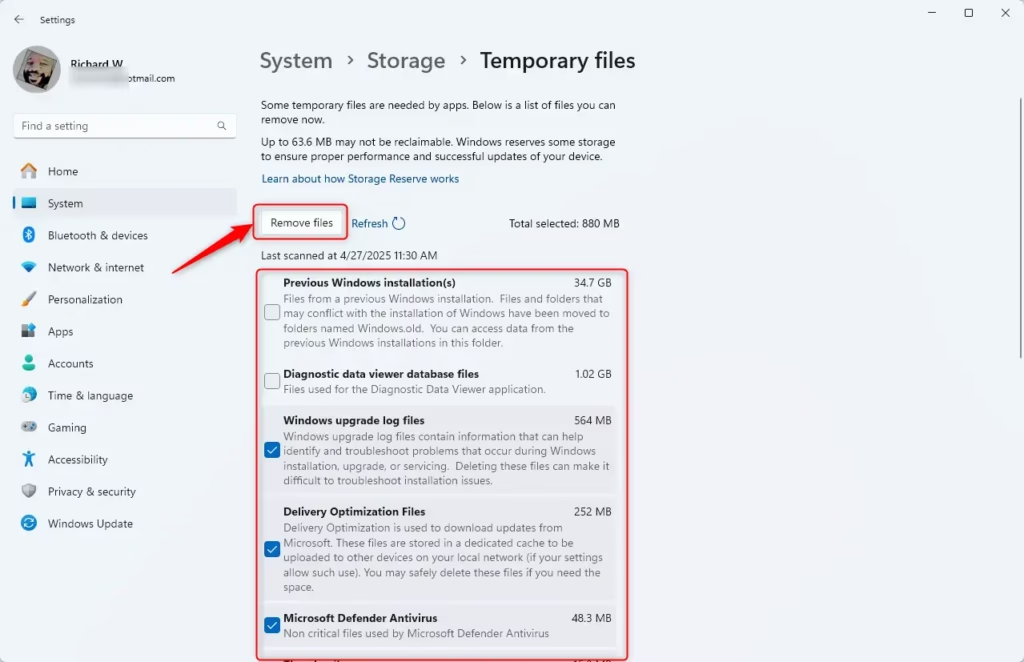
- Click Remove files.
That’s it! Your temporary files are gone.
Summary
Trash and temporary files slow down your Windows 11 computer. Storage Sense automatically deletes these unnecessary files to keep your system running smoothly. You can turn on Storage Sense in Settings under System > Storage with just one click. For immediate cleanup, use the Temporary files option in the same location. By automating this process, you save time and maintain a faster, more efficient computer without any manual effort.



Leave a Reply