

This post explains a new control that changes the power button behavior when pressed in Windows 11.
The power button behavior refers to the action taken when the power button on a device, such as a computer, is pressed. Typically, the power button is used to turn the device on or off, but it can also be configured to perform other actions, such as putting the device to sleep, hibernation mode, or doing nothing.
In our previous post, we showed you how to change the power button behavior settings in Windows 11. Then, one had to use the classic Control Panel app. Now, users can use the Windows Settings app to change what happens when the power button is pressed.
One might want to change the power button behavior in Windows for several reasons. For instance, you might want to configure the device to go into sleep mode instead of shutting down when the power button is pressed, as this can save time when resuming work.
Alternatively, you may want the device to shut down immediately when the power button is pressed to prevent unauthorized access or to save Power.
Change the power button behavior in Windows 11
As described above, a new way to alter the power button behavior was introduced with Windows (Build 26002).
Here’s how to use the Settings app to change the power button behavior.
First, open the Windows Settings app.
You can do that by clicking on the Start menu and selecting Settings. Or press the keyboard shortcut (Windows key + I) to launch the Settings app.
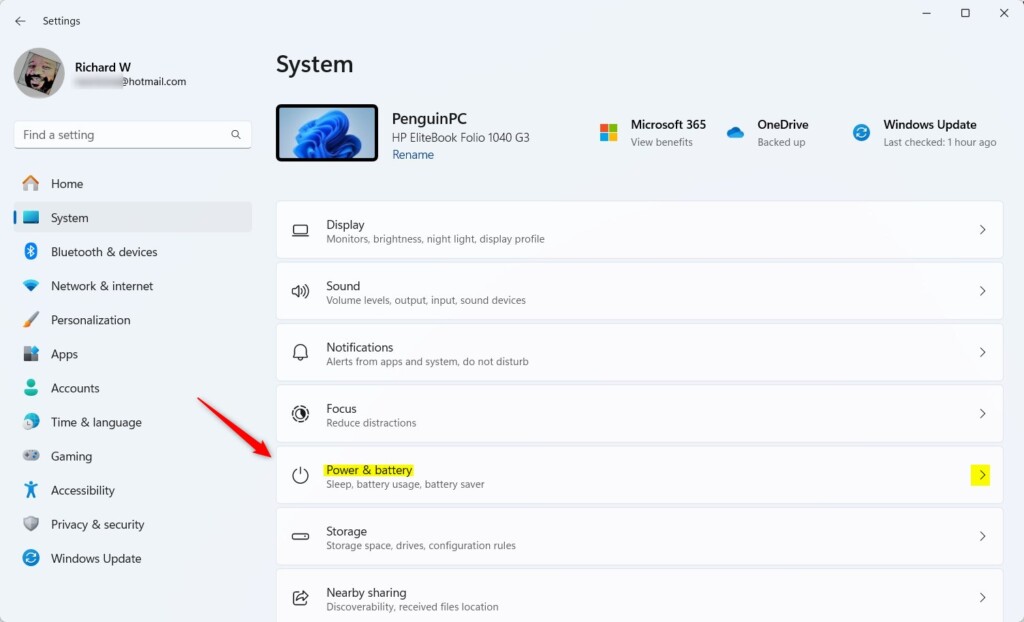
When the Setting app opens, click the System button on the left.

Select the Power & battery or Power tile on the right to expand it.
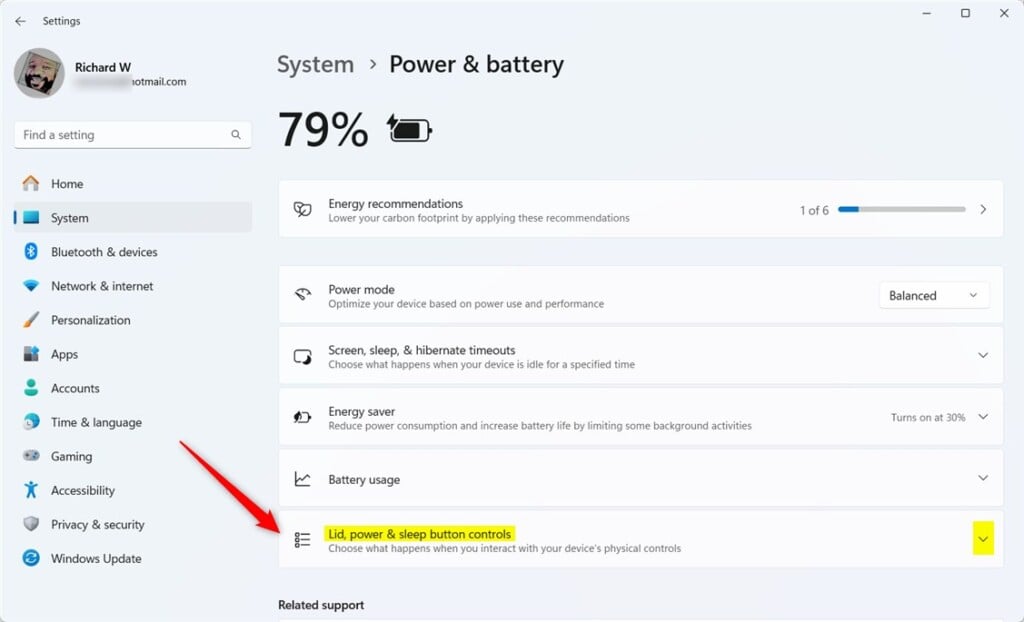
Select and expand the ‘Lid, power & sleep button controls‘ tile on the System -> Power & battery settings page.
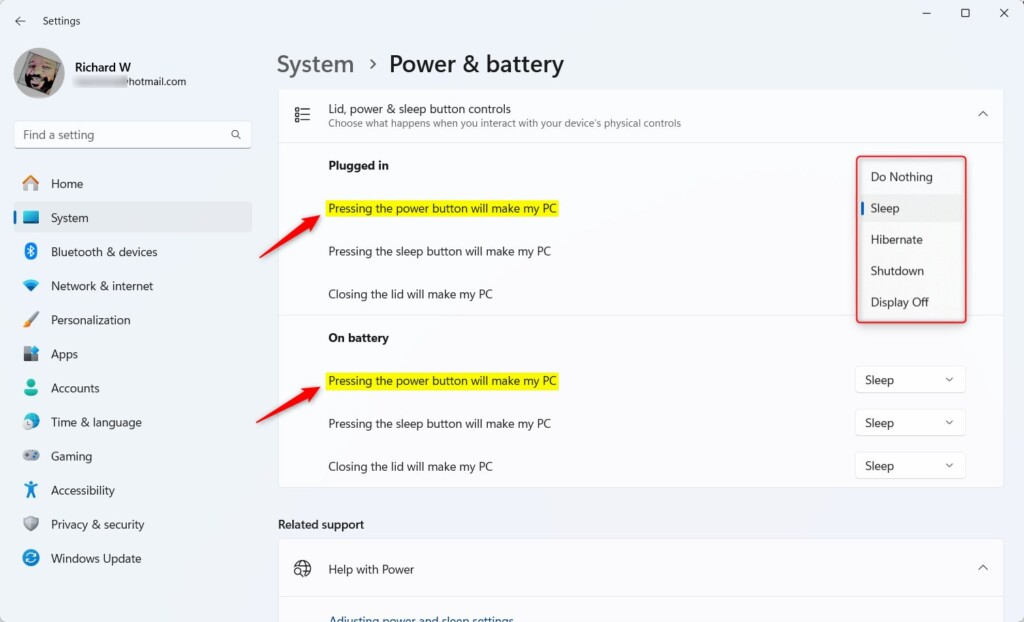
Next, select the ‘Pressing the power button will make my PC‘ tile under Plugged in or On battery.
Then, choose one of the options available for closing the lid:
- Do Nothing
- Sleep (default)
- Hibernate
- Shutdown
- Display Off
When you’re done, exit the Settings app.
That should do it!
Conclusion:
- Changing the power button behavior in Windows 11 is now conveniently accessible through the Windows Settings app.
- This guide simplifies altering the power button’s actions, offering options such as shutting down, entering sleep mode, or doing nothing when pressed.
- Customizing these settings gives users greater control over their device’s functionality and power management.
- For further inquiries, feel free to utilize the comments section below.



Leave a Reply Cancel reply