How to Install Etherpad on Ubuntu Linux


Etherpad is a tool for writing documents with friends or coworkers at the same time. It is open-source and very flexible. Why? You use it to collaborate on projects in real-time. What happens? You get a shared workspace where everyone can edit the same text at once.
Install prerequisites
First, update your system and install necessary helper tools.
sudo apt update
sudo apt install gnupg2 git curl unzip libssl-dev pkg-config gcc g++ make build-essential
Install the MariaDB database server
Etherpad needs a database to save your work. MariaDB is a great choice.
sudo apt update
sudo apt install mariadb-server
sudo systemctl stop mariadb
sudo systemctl start mariadb
sudo systemctl enable mariadb
Setup Etherpad database
Log in to the database to create a space for Etherpad. Note: Modern MariaDB requires you to use your system root account.
sudo mysql -u root
CREATE DATABASE etherdb;
GRANT ALL PRIVILEGES on etherdb.* to etheruser@localhost IDENTIFIED BY 'type_password_here';
FLUSH PRIVILEGES;
exit
Install Node.js
Etherpad runs on Node.js. In 2026, it is best to use NVM (Node Version Manager) or the official NodeSource binary distributions to ensure you are running a supported LTS version.
curl -fsSL https://deb.nodesource.com/setup_lts.x | sudo -E bash -
sudo apt install -y nodejs
Install Etherpad
Create a dedicated user account for the application to keep things secure.
sudo useradd --system -d /opt/etherpad --shell=/bin/bash etherpad
sudo install -d -m 755 -o etherpad -g etherpad /opt/etherpad
cd /opt/etherpad
sudo -u etherpad git clone --branch master https://github.com/ether/etherpad-lite.git
cd etherpad-lite
sudo -u etherpad npm install
Next, edit the settings.json file to add your database details and set trustProxy to true.
Create the Service File
Create a service file so Etherpad starts automatically when your server boots.
sudo nano /etc/systemd/system/etherpad.service
Paste this template:
[Unit]
Description=Etherpad-lite
After=syslog.target network.target

[Service]
Type=simple
User=etherpad
Group=etherpad
WorkingDirectory=/opt/etherpad/etherpad-lite
Environment=NODE_ENV=production
ExecStart=/usr/bin/node src/node/server.js
Restart=always

[Install]
WantedBy=multi-user.target
sudo systemctl daemon-reload
sudo systemctl start etherpad
sudo systemctl enable etherpad
Configure Nginx and SSL
Using Nginx as a reverse proxy makes your site faster and more secure. You should also use Let’s Encrypt to get a free SSL certificate.
sudo apt install nginx certbot python3-certbot-nginx
Create your Nginx config file:
sudo nano /etc/nginx/sites-available/etherpad.conf
Add your proxy settings:
upstream etherpad {
   server localhost:9001;
}

server {
   listen 80;
   server_name etherpad.example.com;

   location / {
       proxy_pass http://etherpad;
       proxy_set_header Host $host;
       proxy_set_header X-Real-IP $remote_addr;
   }
}
Enable the site and get your certificate:
sudo ln -s /etc/nginx/sites-available/etherpad.conf /etc/nginx/sites-enabled/
sudo systemctl restart nginx
sudo certbot --nginx -d etherpad.example.com
Access Etherpad portal
Open your web browser and go to your domain name. You will see the welcome page.
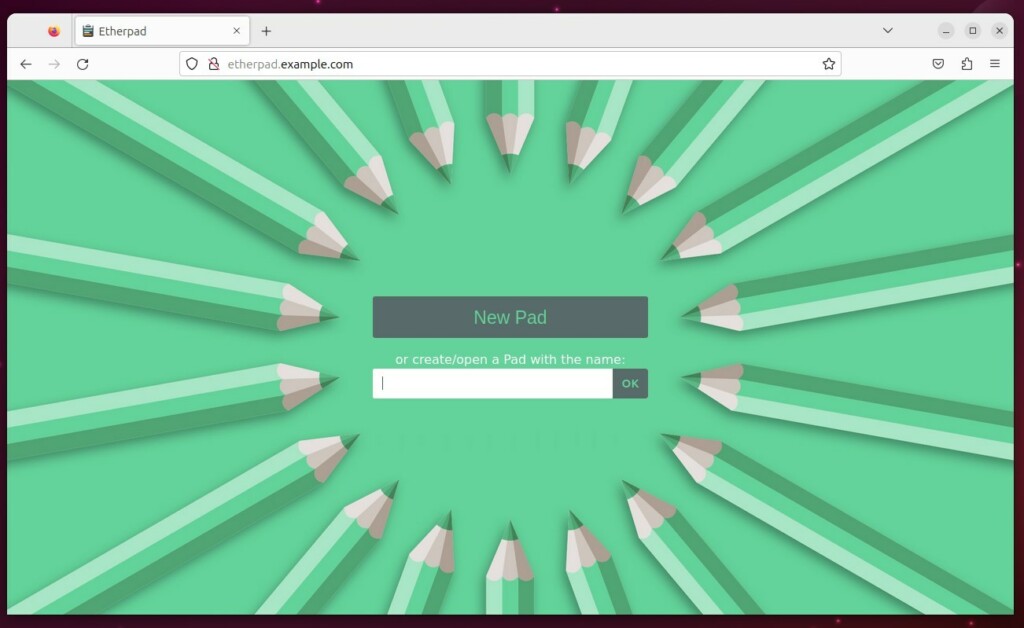
Begin using Etherpad
You can now create new pads or open existing ones to start collaborating.
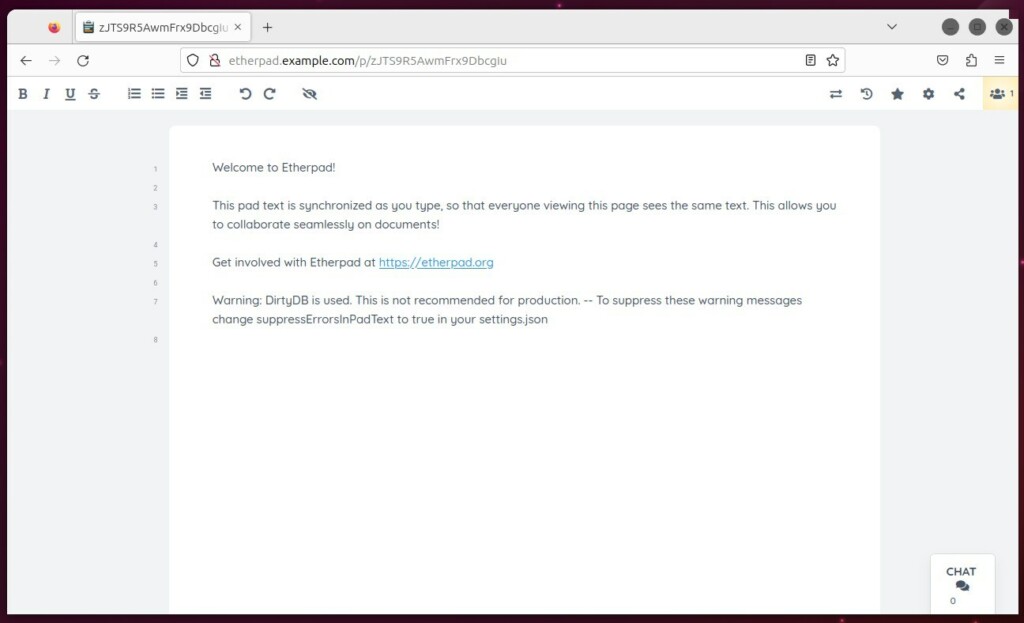
Reference: https://etherpad.org/
[Unit] [Service] [Install]
Was this guide helpful?





Leave a Reply