

This post describes steps to change the time format (12 / 24 hours) in Ubuntu Linux.
Ubuntu Linux will display the date and time on the Lock Screen, the System menu on your desktop, and other applications that depend on your system’s time.
The time format displayed on the lock screen is the same as configured within the Ubuntu system control panel. Therefore, whatever format is selected, it will be displayed system-wide.
The lock screen is the screen or curtain you see when you turn on your computer before the sign-in screen. It is also displayed once your computer is locked after you step away.
To log in or return to your desktop when your session is locked, press any key on the keyboard or click the mouse to raise the lock screen curtain to reveal the logon screen.
Enter your password to log on.
How to show 12 or 24-hour time format in Ubuntu Linux
As mentioned above, Ubuntu Linux has time settings that allow users to choose a 12 or 24-hour-based format.
The 12-hour time format is known as a standard format. The 24-hour-based format is sometimes called the military time format.
Below is how to change the time format in Ubuntu Linux.
Ubuntu Linux has a centralized location for the majority of its settings. From system configurations to creating new users and updating, all can be done from the System Settings panel.
To get to System Settings, open the Activities overview and start typing Settings.

Alternatively, click on the System menu at the top-right corner of the top bar on your desktop.
On the System menu, select Settings, as highlighted below.

In the Settings app, click on the Date & Time tile.
In the System Settings -> Date & Time settings pane, select the Time Format tile, then choose the format you want.
- 24-hour – 24-hour-based format or also known as military time.
- AM/PM – 12-hour-based format or also known as standard time.
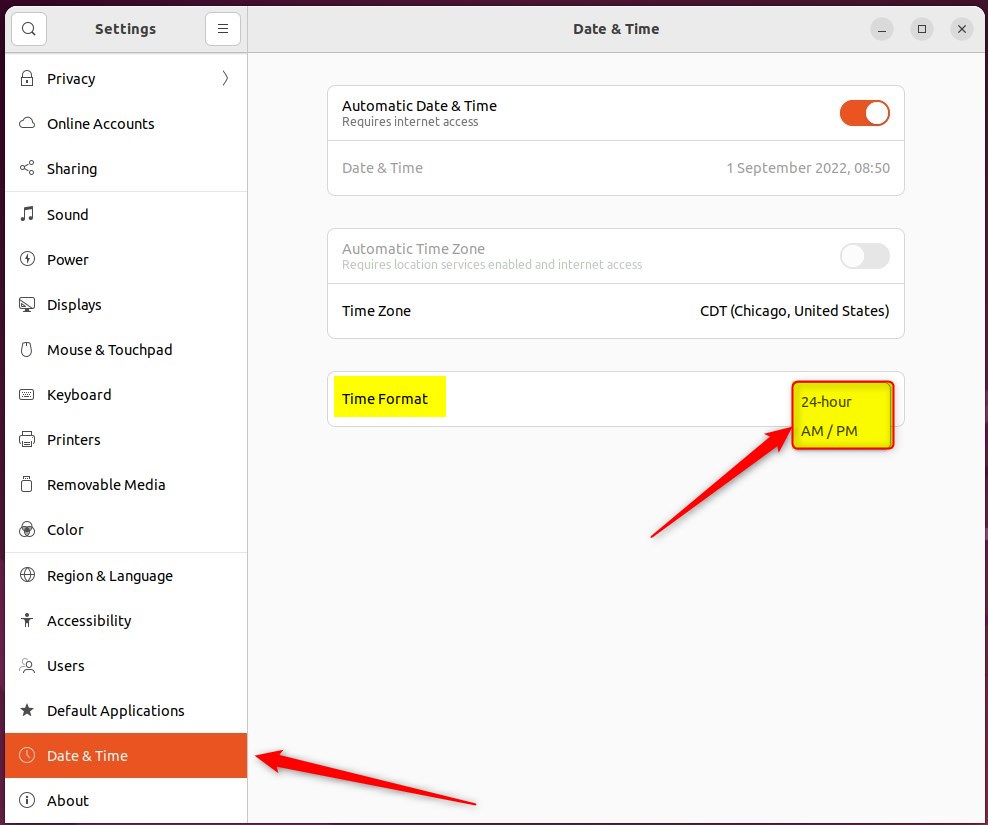
Changes should take place immediately.
That should do it! You can now close the settings app.
Conclusion:
- Ubuntu Linux offers the flexibility to display time in either 12-hour or 24-hour format, allowing users to customize their experience based on personal preference.
- The time format setting in Ubuntu affects the display on the lock screen and across the entire system, ensuring consistency in the time display.
- By accessing the System Settings and navigating to Date & Time, users can effortlessly switch between the 12-hour AM/PM format and the 24-hour military time format, with changes taking effect immediately.

Leave a Reply