
If your laptop has a precision touchpad, you can control how it reacts when you tap it with four fingers. This allows you to quickly launch tools like opening search, open the Notification center, control your media, or act as a middle mouse button.
Why do this? Customizing these gestures helps you navigate your computer faster. If you prefer using a regular mouse, you can also turn these gestures off to stop accidental clicks.
What happens when done? Your touchpad will perform the specific action you selected whenever you tap it with four fingers.
Here is how to change these settings in Windows 11.
How to change four-finger tap gestures
You can manage these settings through the main Windows Settings menu. You do not need special permissions for these steps.
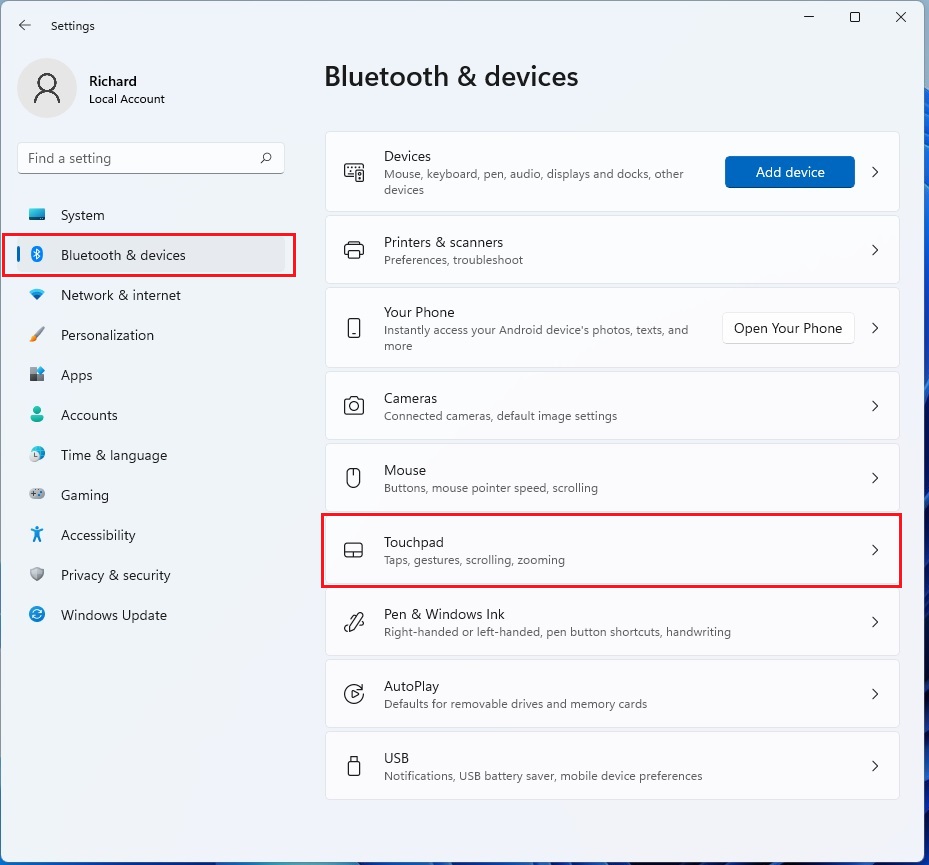
- Open the Settings app. You can do this by pressing the Windows key + I on your keyboard or by clicking Start and then Settings.

- In the menu on the left, click Bluetooth & devices.
- Select the Touchpad tile on the right side of the screen.
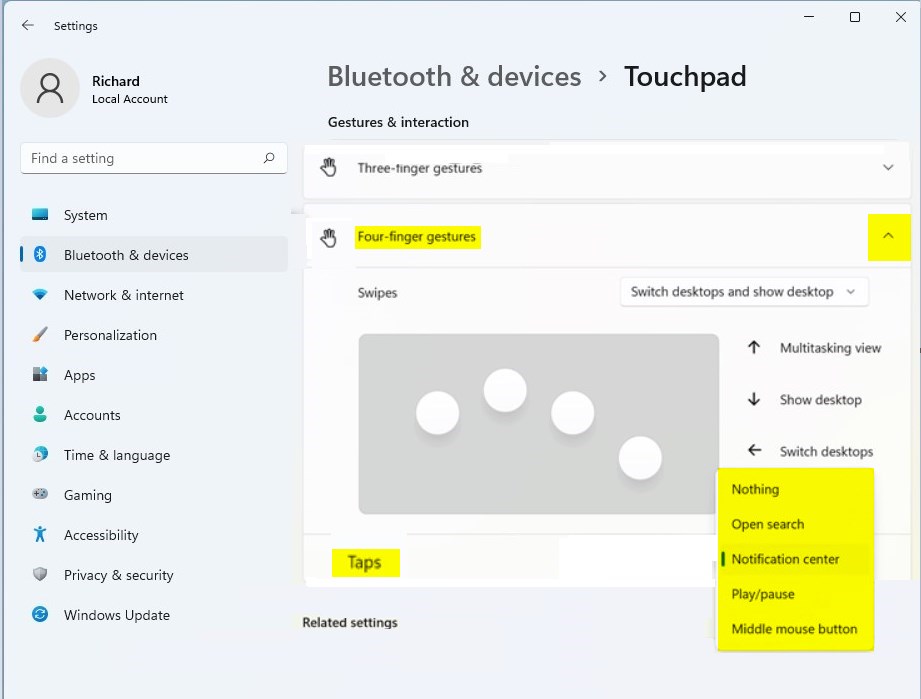
- Look for the Gestures & interaction section. Click the Four-finger gestures tile to see more options.
- Under the Taps section, click the drop-down menu to pick your preferred action:
- Nothing
- Open search
- Notification center
- Play/pause
- Middle mouse button
Summary
You can easily change how your touchpad responds to a four-finger tap by visiting the Touchpad section within Bluetooth & devices in your Settings. This allows you to set up shortcuts for searching, notifications, or media playback. Adjusting these settings can make your daily computer use much smoother, especially if you want to disable them while using an external mouse.



Leave a Reply