
You can turn the faded appearance of inactive tabs on or off in Microsoft Edge to improve visibility and manage your browsing experience.
Microsoft Edge’s “Sleeping Tabs” feature conserves system resources by putting unused tabs into a low-power state, reducing memory and CPU usage. This is particularly beneficial when you have numerous tabs open simultaneously, which is a common scenario for many users.
When a tab enters this low-power state, Edge visually indicates it by fading the tab title. This fading is a helpful cue, but if you find it distracting or difficult to read, you can easily disable this visual effect.
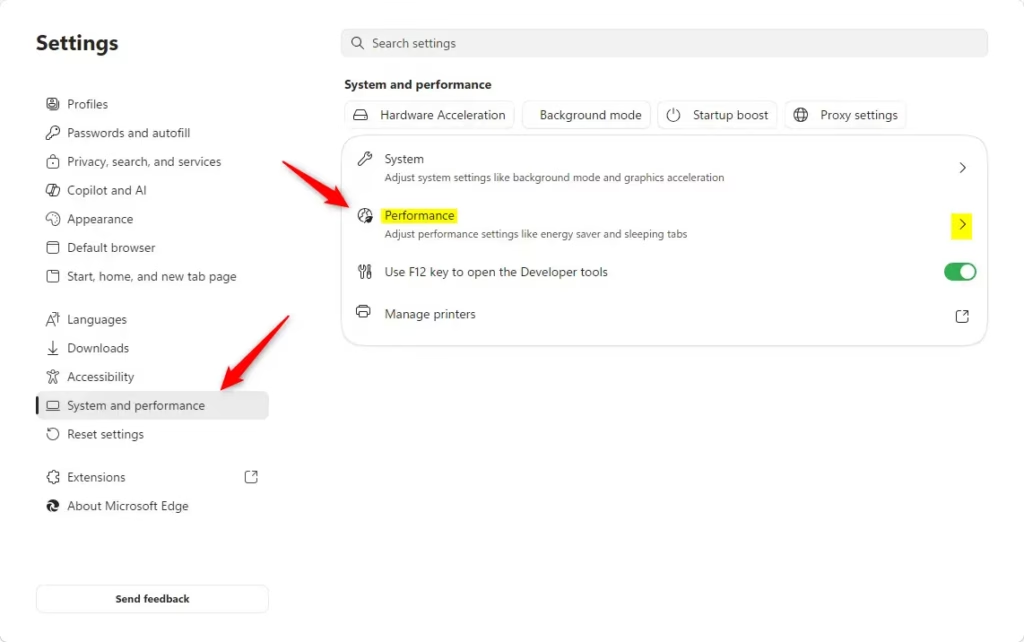
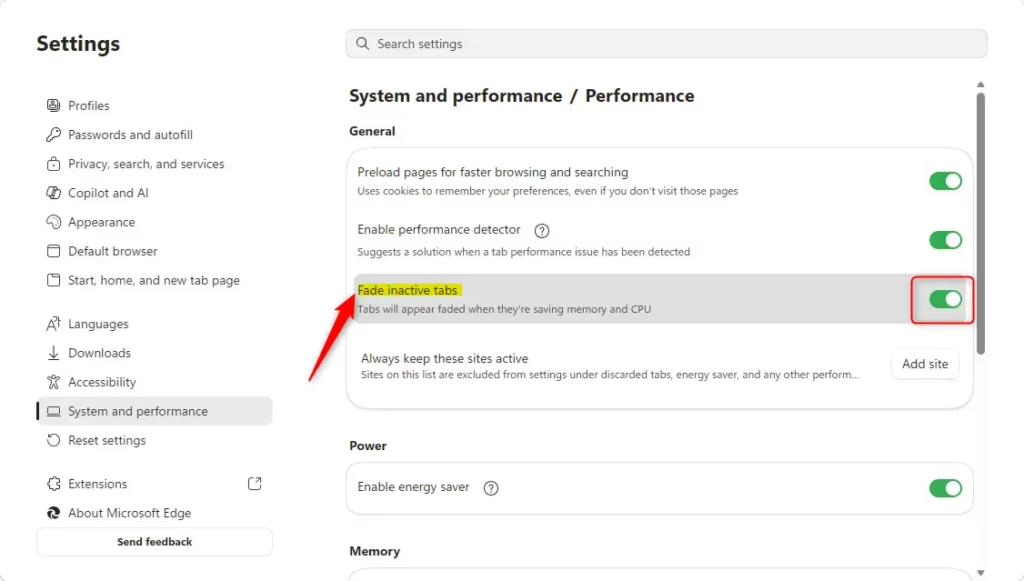
To turn off fading inactive tabs in Microsoft Edge, go to Settings, then System and performance, and finally Performance. Toggle off the “Fade inactive tabs” option. Your sleeping tabs will no longer appear faded.
How to Stop Sleeping Tabs from Fading
Do you want your sleeping tabs to look as bright as your active ones? You can do that. Here’s how to turn off the fading effect in Microsoft Edge:
- Open Microsoft Edge. Start by opening your browser.
- Go to the settings menu. Click the three dots
...in the top-right corner. This opens a menu. - Choose “Settings.” In the menu, click on “Settings.”
- Find “System and performance.” In the Settings tab, look for “System and performance” on the left side. Click it.
- Go to the “Performance” section. Inside “System and performance” settings, find “Performance.” Click on it.
- Find the “Fade inactive tabs” option. Scroll down in the Performance settings. Look for a setting called “Fade inactive tabs.”
- Turn off the switch. This switch is probably “On” by default. Click the switch to turn it “Off.” The switch will move and might change color to show it’s off.

That’s all there is to it! Once you turn this off, sleeping tabs won’t look faded anymore. They will look the same as your active tabs. They will still save power in the background. This is helpful if you find the faded look distracting. Or, you might prefer all your tabs to look the same.
Reference:
https://support.microsoft.com/en-us/edge/learn-about-performance-features-in-microsoft-edge
Summary
This guide shows you how to turn off the visual fading effect for inactive tabs in Microsoft Edge. By default, Edge dims tabs that haven’t been used for a while. This visual cue tells you they’re in a ‘sleeping’ state, which conserves system resources. If you find this fading distracting or prefer a consistent look for all your tabs, you can disable this feature through the browser’s settings. In the Settings tab, you’ll find ‘System and performance’ on the left side. Click on it, then go to ‘Performance’ and toggle off the ‘Fade inactive tabs’ option. Your sleeping tabs will then appear normal, even while still saving memory and processing power in the background.
Was this guide helpful?

About the Author
Richard
Tech Writer, IT Professional
Richard, a writer for Geek Rewind, is a tech enthusiast who loves breaking down complex IT topics into simple, easy-to-understand ideas. With years of hands-on experience in system administration and enterprise IT operations, he’s developed a knack for offering practical tips and solutions. Richard aims to make technology more accessible and actionable. He's deeply committed to the Geek Rewind community, always ready to answer questions and engage in discussions.


No comments yet — be the first to share your thoughts!