How to Open Command Prompt at Boot in Windows 11

This guide will show you how to open the Command Prompt before you log into Windows 11. This can help you fix problems if Windows isn’t working right.
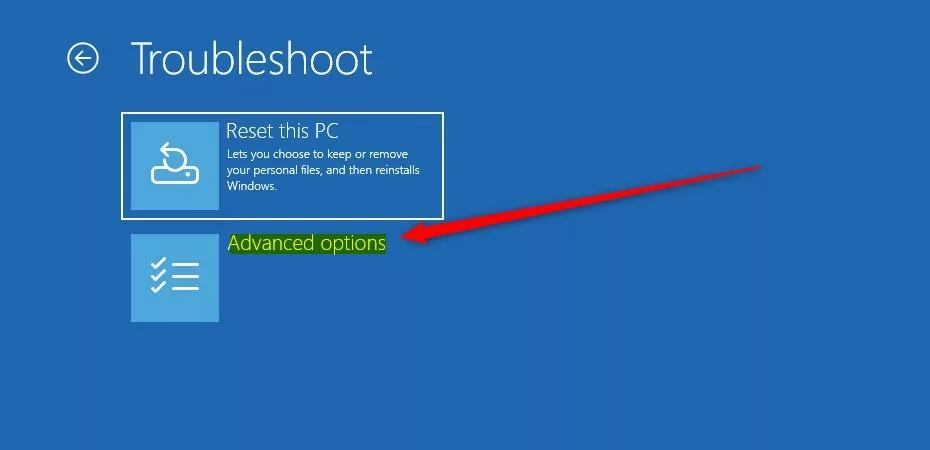
Open Command Prompt at boot in Windows 11 by pressing Shift+F10 during Windows setup from installation media. Alternatively, access it via the Advanced Startup menu by holding Shift while clicking Restart, then navigating to Troubleshoot > Advanced options > Command Prompt.
What is Command Prompt?
Command Prompt is a black window where you type commands to tell your computer what to do. Windows 11 also has PowerShell, which is similar but more powerful. Using these tools, you can fix issues or automate tasks like backups.
Why open Command Prompt before logging in?
Sometimes, Windows won’t start properly, or you can’t open Command Prompt normally. Opening it early, right when your computer boots up, can help you fix problems before Windows fully loads.
How to open Command Prompt at startup on 🪟 Windows 11
There are two easy ways to do this:
- Using Windows Installation Media (a USB drive or DVD with Windows files)
- Using Advanced Startup options built into Windows
Method 1Open Command Prompt with Shift+F10 during Windows setup
If you have a Windows 11 installation USB or DVD, follow these steps:
- Insert the USB or DVD and restart your computer.
- When your PC starts, it may ask you to press any key to boot from the media. Press any key on your keyboard.
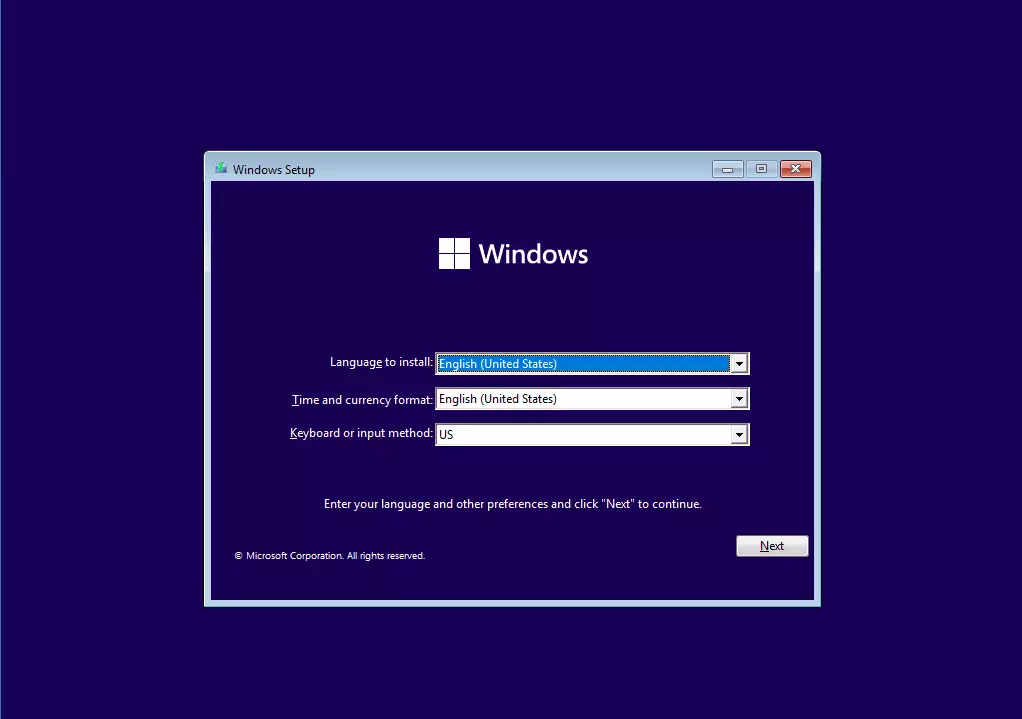
- When you see the Windows Setup screen like below, press Shift+F10 on your keyboard.
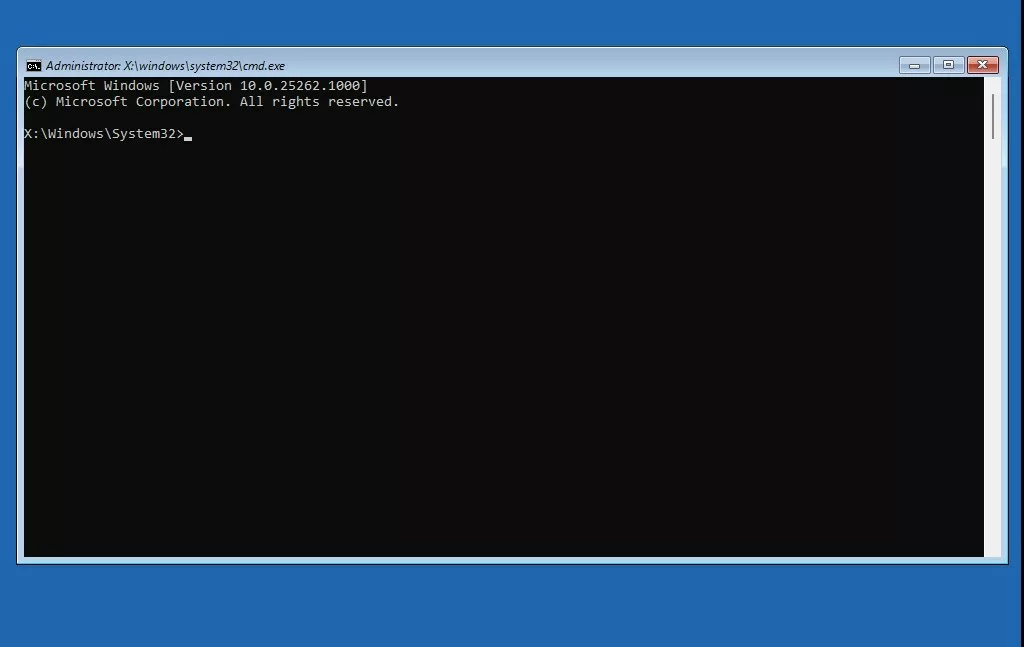
A Command Prompt window will open. You can now type commands. For example, type cd C: and press Enter to switch to your main hard drive.
Method 2Open Command Prompt from Advanced Startup menu
If you don’t have installation media, you can still open Command Prompt from Windows itself using Advanced Startup. Here’s how:
- Click the Start button, then the Power icon.
- [Admin required] [Requires admin privileges] Hold the Shift key and click Restart. Your PC will reboot to a special menu.
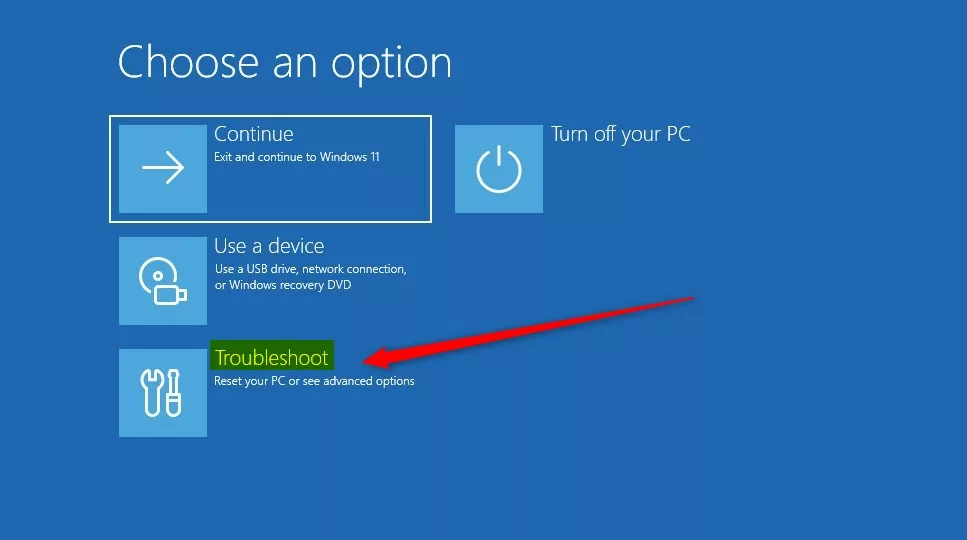
- When the menu appears, choose Troubleshoot.
- Next, click Advanced options.
- Then choose Command Prompt.
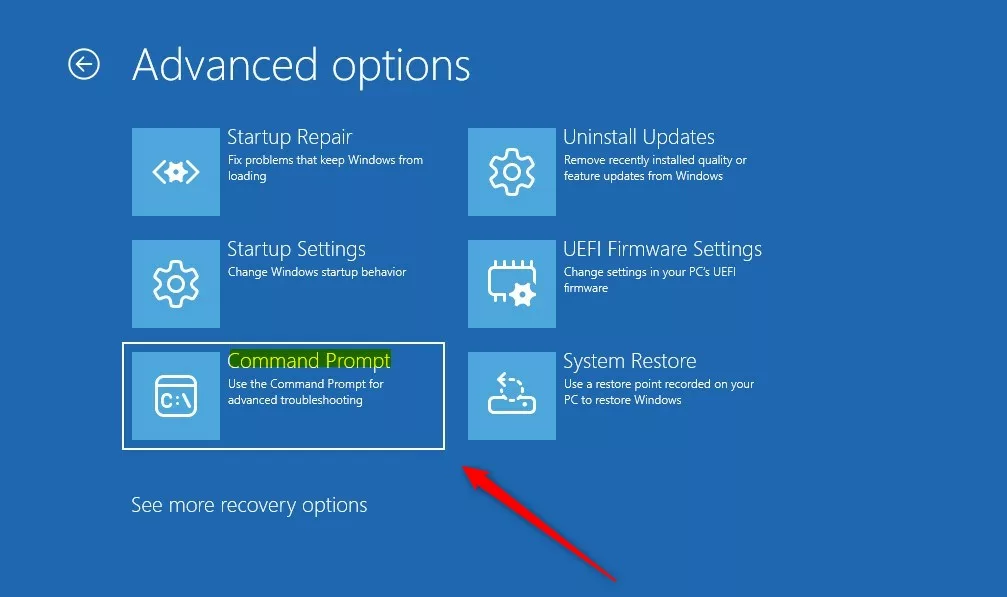
A Command Prompt window will open, and you can start typing commands.
Summary
- Opening Command Prompt at boot helps fix problems when Windows won’t start normally.
- You can open it using Windows installation media with a simple key press (Shift+F10).
- Or you can use Advanced Startup from inside Windows to access it.
- For more Windows command info, visit Microsoft’s official page.
If you have questions or want to share tips, please leave a comment below!
Was this guide helpful?

About the Author
Richard
Tech Writer, IT Professional
Richard, a writer for Geek Rewind, is a tech enthusiast who loves breaking down complex IT topics into simple, easy-to-understand ideas. With years of hands-on experience in system administration and enterprise IT operations, he’s developed a knack for offering practical tips and solutions. Richard aims to make technology more accessible and actionable. He's deeply committed to the Geek Rewind community, always ready to answer questions and engage in discussions.




No comments yet — be the first to share your thoughts!