How to Set Up a New Hard Drive in Windows 11

You set up a new hard drive in Windows 11 by initializing it and creating a volume.
Initializing prepares the drive for use, while creating a volume assigns it a drive letter and file system, making it accessible in File Explorer.
If your new drive isn’t showing up after installation, it requires this basic setup process, which usually takes less than five minutes.
This ensures Windows 11 can read and write data to your storage device.
Initialize the new drive through Settings or Disk Management, then create a volume. This prepares the drive for Windows, assigns it a letter, and formats it so you can save files. Your drive will then appear in File Explorer.
Why Initialize a Hard Drive?
Initializing a hard drive in Windows 11 is the first step to making a new disk usable, like preparing a blank notebook before you write in it.
Important: If the drive already has data on it and you don’t see it, don’t initialize it! Initializing will erase all that data. Instead, try fixing the problem without formatting.
How to Set Up Your New Disk Using Windows Settings
You can initialize your hard drive Windows 11 using the built-in Settings app by going to System, then Storage, and opening Advanced storage settings.
- Open the Settings app. Click the Start menu and then click Settings. You can also press Windows key + I on your keyboard.
- Go to System > Storage. In the Settings window, click System on the left side. Then click Storage on the right.
- Open Advanced Storage Settings. Scroll down and click Advanced storage settings to expand the options.
- Select Disks & Volumes. Click on Disks & volumes.
- Find your new disk. Look for a disk that says “Not initialized” in the list.
- Click the Initialize button next to the new disk.
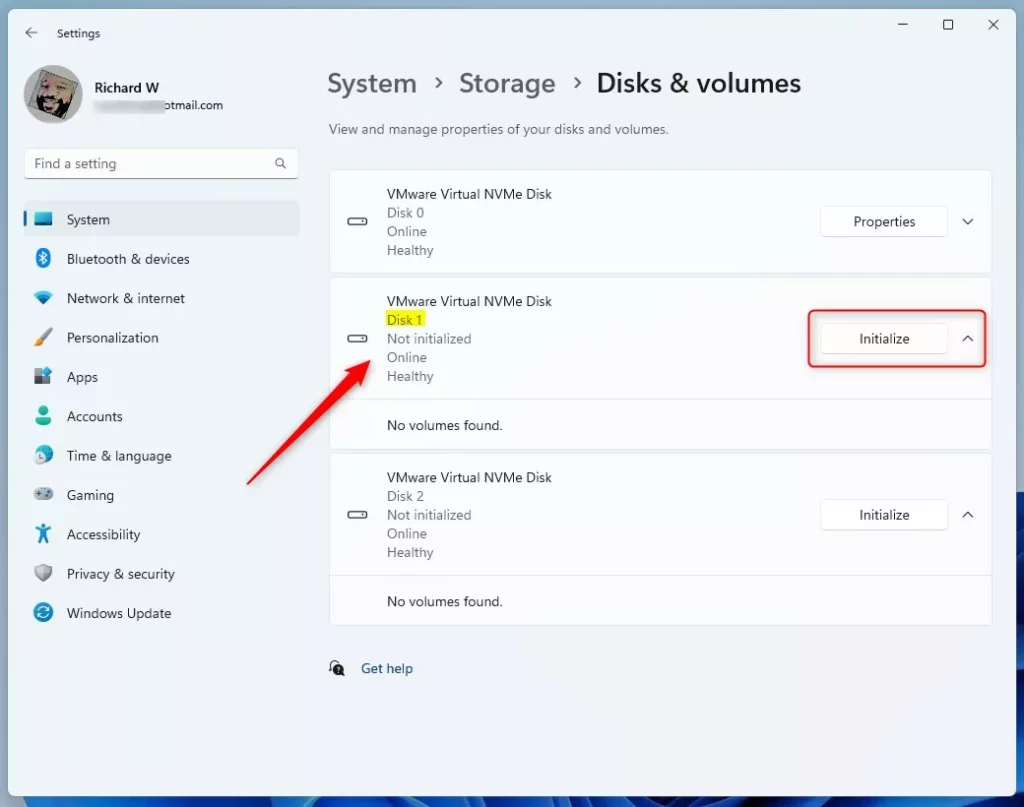
windows initialize disks pane - A window will pop up asking you to choose a partition style. What’s the difference?
- GPT (GUID Partition Table) – Best for most modern computers. It works with large drives (over 2 TB).
- MBR (Master Boot Record) – Older style. Use this for smaller drives or older computers.
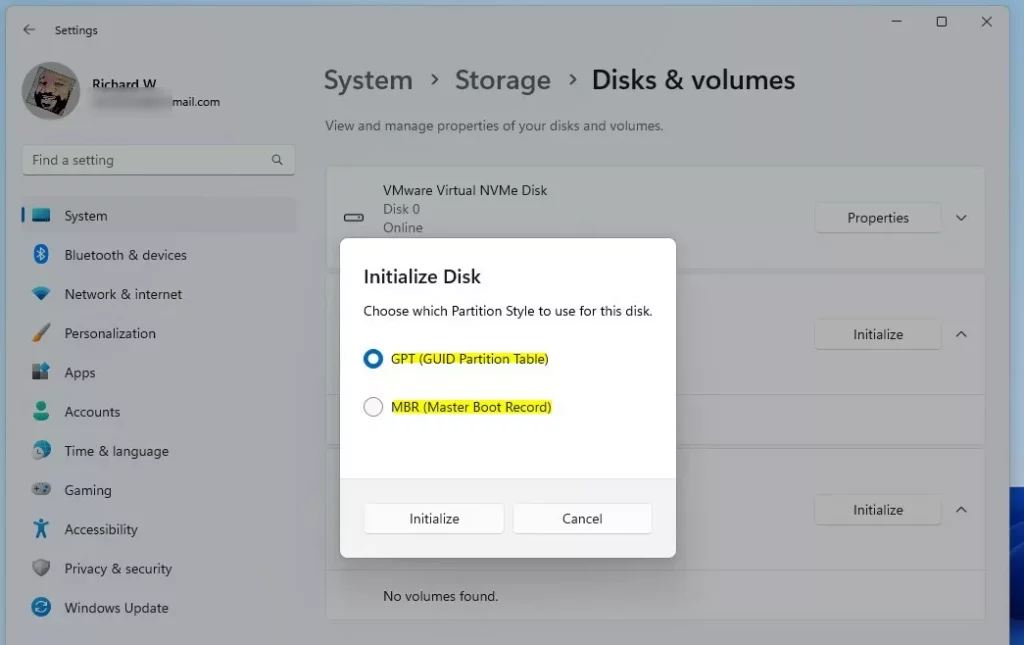
windows initialize disk choose partition style - Select GPT if you’re unsure. Then click Initialize.
- After initializing, the disk will show as “Unallocated.” Click Create volume to set up a partition.
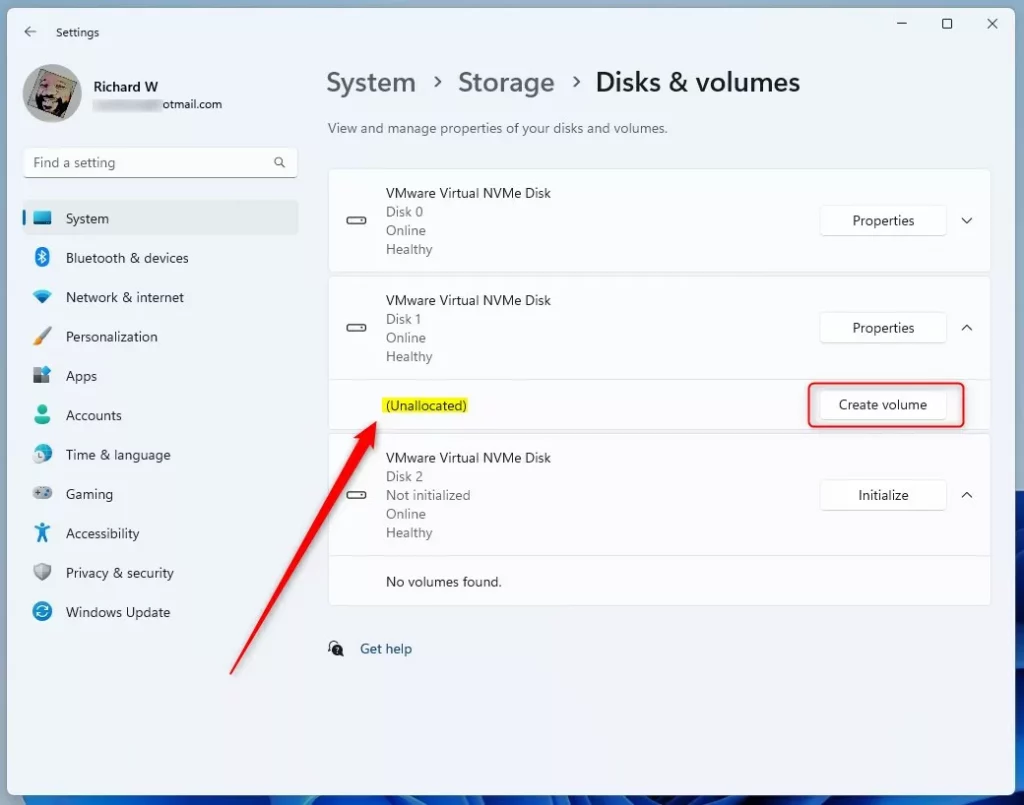
windows unallocated disk create volume - A new window will appear. You need to:
- Give the drive a name (called a label)
- Pick a drive letter (like D: or E:)
- Choose a file system (NTFS is standard for Windows)
- Click Format to finish setting up the drive.
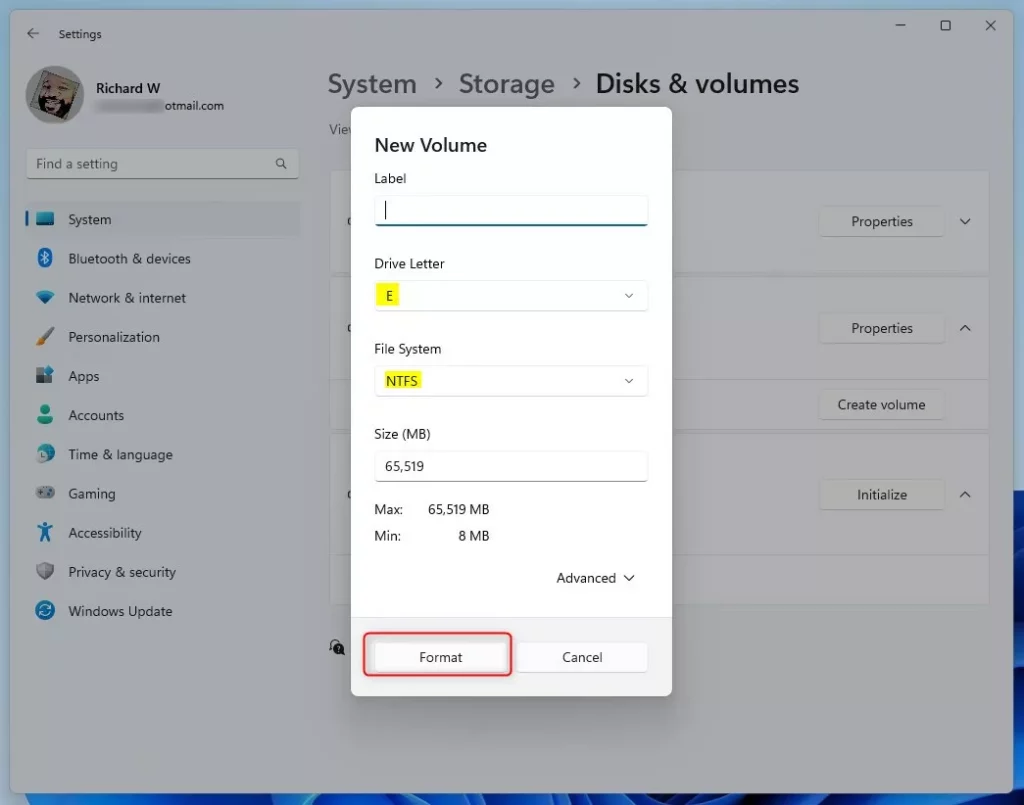
windows format disks prompt - Your new drive will now appear in File Explorer. You can start saving files on it!
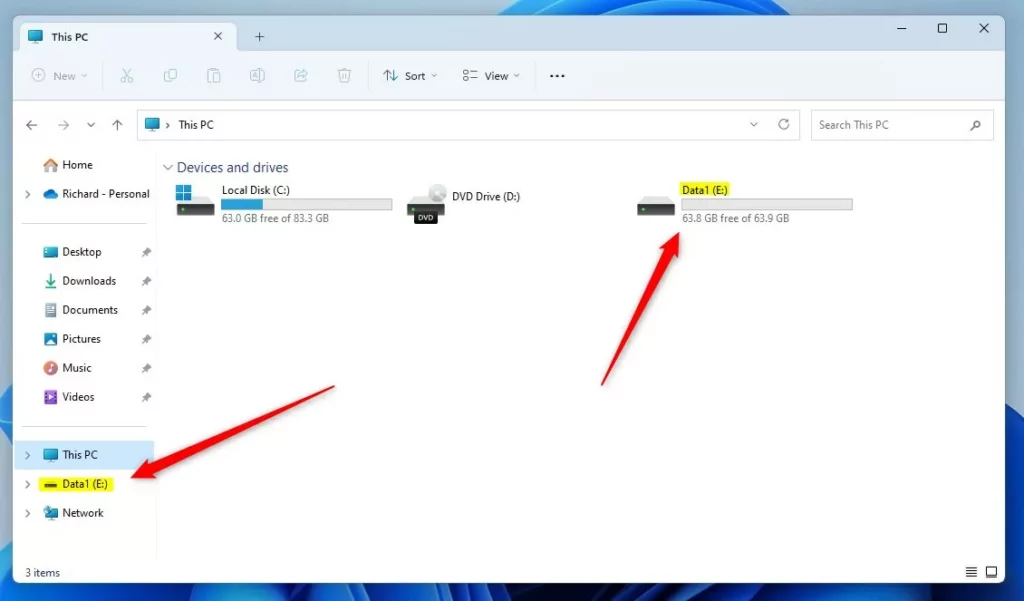
windows file explorer with drives
Another Way: Using Disk Management
Disk Management offers another way to initialize a hard drive Windows 11; simply search for it, run it as an administrator, and find your new disk listed as ‘Not Initialized’.
- Click the search box on the taskbar. Type
Disk Management. - ⚠️ Admin Privilege Required: Right-click on Disk Management and select Run as administrator. Click Yes if asked.
- Find your new disk. Look for one that says “Not Initialized” or “Offline.”
- If it says “Offline,” right-click it and select Online first. Then right-click it again and choose Initialize Disk.
- Pick the partition style (GPT or MBR). Click OK.
- Right-click the unallocated space on the disk. Choose New Simple Volume.
- Follow the setup wizard. Name your drive, pick a drive letter, and format it.
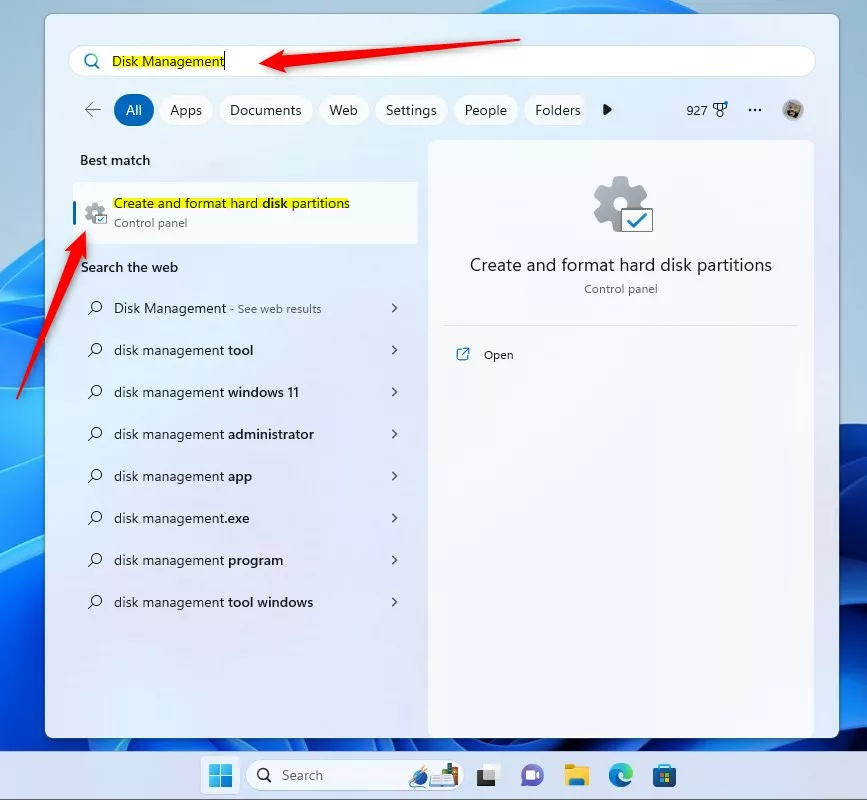
windows disk management tool - Your drive is now ready to use in File Explorer.
Summary
To use a new drive, you must first initialize and format it, which can be done through Windows Settings or the Disk Management tool.Was this guide helpful?

About the Author
Richard
Tech Writer, IT Professional
Richard, a writer for Geek Rewind, is a tech enthusiast who loves breaking down complex IT topics into simple, easy-to-understand ideas. With years of hands-on experience in system administration and enterprise IT operations, he’s developed a knack for offering practical tips and solutions. Richard aims to make technology more accessible and actionable. He's deeply committed to the Geek Rewind community, always ready to answer questions and engage in discussions.



No comments yet — be the first to share your thoughts!