Turn On or Off Touch Keyboard Add Period after Double-tap Spacebar in Windows 11

You can automatically add a period after double-tapping the Spacebar on Windows 11’s touch keyboard.
This makes typing quicker by adding a period and a space when you double-tap the Spacebar, much like on many phone keyboards.
This setting is particularly useful if you frequently use the touch keyboard for its convenience on devices with touchscreens or for those who prefer on-screen typing.
To enable or disable this convenient touch keyboard function in Windows 11, you navigate through the Settings app.
Go to Settings > Time & language > Typing > Touch keyboard. Toggle the “Add a period after I double-tap the Spacebar” option to turn it on or off. This feature automatically inserts a period and space when you double-tap the spacebar.
Option 1Use Settings to Turn the Feature On or Off
- Open Settings by pressing
Win + Ion your keyboard. - In Settings, click Time & language on the left side. Then click Typing on the right side.
You can easily turn the touch keyboard’s ‘add period after double-tap spacebar’ feature on or off right from Windows 11 Settings.
- Scroll down and click on Touch keyboard to open more options.
- Look for the option called Add a period after I double-tap the Spacebar. Check the box to turn it on (this is already on by default). Uncheck the box to turn it off.
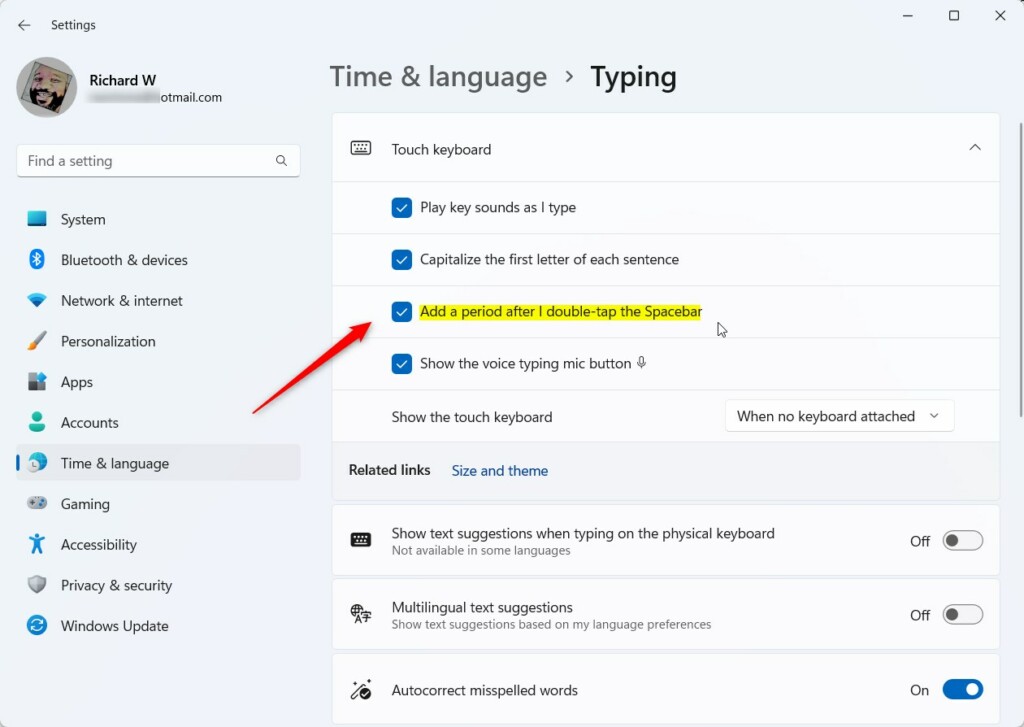
You can easily turn the touch keyboard’s ‘add period after double-tap spacebar’ feature on or off right from Windows 11 Settings.
- You can now close the Settings window. You’re done!
Option 2Use Registry Editor to Turn the Feature On or Off
If you’re comfortable editing the Windows Registry (a central database for system settings), you can change this setting there instead. ⚠️ Admin privileges required.
Turn On the Add Period Feature
reg add "HKCU\Software\Microsoft\TabletTip\1.7" /v EnableDoubleTapSpace /t REG_DWORD /d 1 /fTurn Off the Add Period Feature
To turn off the touch keyboard’s automatic period insertion after you double-tap the spacebar, you can use a simple command in the registry.
reg add "HKCU\Software\Microsoft\TabletTip\1.7" /v EnableDoubleTapSpace /t REG_DWORD /d 0 /fWarning: Be careful when editing the registry. Your computer relies on it to function correctly, so it’s a good idea to back it up first. Learn how to back up the registry here.
Summary
You can manage this handy feature through Settings or the Registry Editor, whichever you prefer.
Does Ctrl+2 double space?
Ctrl+2 is the shortcut key for double space in Microsoft Word. Select any part of the text and press the Ctrl+2 shortcut key.
Was this guide helpful?

About the Author
Richard
Tech Writer, IT Professional
Richard, a writer for Geek Rewind, is a tech enthusiast who loves breaking down complex IT topics into simple, easy-to-understand ideas. With years of hands-on experience in system administration and enterprise IT operations, he’s developed a knack for offering practical tips and solutions. Richard aims to make technology more accessible and actionable. He's deeply committed to the Geek Rewind community, always ready to answer questions and engage in discussions.




No comments yet — be the first to share your thoughts!