Setup PHP Timezone in Apache on Ubuntu 24.04

You set up the PHP timezone in Apache on Ubuntu 24.04 by editing the `php.ini` configuration file.
This setting defines the default timezone your PHP applications use for all date and time functions. Getting this right is essential for accurate timestamps, logging, and any time-dependent operations in your web projects.
For example, incorrect timezone settings can lead to confusing booking systems or data inconsistencies. On Ubuntu 24.04 with PHP 8.2 and Apache, you’ll typically find and modify the `php.ini` file at `/etc/php/8.2/apache2/php.ini`.
Edit the php.ini file, typically found at /etc/php/[version]/apache2/php.ini. Uncomment or add the date.timezone line under the [Date] section and set it to your desired timezone, like America/Chicago. Restart Apache to apply the changes.
Set up Ubuntu timezone
Before setting up the timezone for your PHP app, you should ensure your Ubuntu server has the correct timezone since most apps depend on the server’s timezone.
To find out which timezone your server’s is in or configured for, run the command below.
timedatectl
The command above should output a result similar to the one below.
               Local time: Tue 2025-02-18 14:51:49 CST
           Universal time: Tue 2025-02-18 20:51:49 UTC
                 RTC time: Tue 2025-02-18 20:51:50
                Time zone: America/Chicago (CST, -0600)
System clock synchronized: yes
              NTP service: active
          RTC in local TZ: no
There’s nothing to do if the server is in the correct time zone.
If not, you can use the steps below to change the server’s timezone.
First, list all the time zones available to your server by running the command below.
sudo timedatectl list-timezones
The command will output a list of all the time zones.
Africa/Abidjan
Africa/Accra
Africa/Addis_Ababa
Africa/Algiers
Africa/Asmara
Africa/Asmera
Africa/Bamako
Africa/Bangui
.....
Once you find the timezone to use, run the command below to set it up on your server.
sudo timedatectl set-timezone America/Chicago
Replace the highlighted Continent or Country/City in the command to match yours.
Alternatively, you can run the command below to select your server’s time zone interactively.
sudo dpkg-reconfigure tzdata
Use the arrow up/down key to select the correct timezone.
The server’s time zone should be updated.
Set PHP timezone
Now that the server’s timezone is correct set up the PHP timezone to match the server’s.
To change or update the PHP timezone, run the command below to open each php.ini file at these locations.
Replace the highlighted version number (8.3) with the correct PHP version installed on the server.
sudo nano /etc/php/8.3/apache2/php.ini
sudo nano /etc/php/8.3/cli/php.ini
Update the [Date] section in the file.
[Date]
; Defines the default timezone used by the date functions
; https://php.net/date.timezone
date.timezone = America/Chicago
Save the file and exit.
Alternatively, run the command below to quickly update the timezone instead of digging through the php.ini file.
sudo sed -i "s/;date.timezone.*/date.timezone = America/Chicago/" /etc/php/8.3/apache2/php.ini
sudo sed -i "s/;date.timezone.*/date.timezone = America/Chicago/" /etc/php/8.3/cli/php.ini
Restart PHP to apply the settings.
sudo systemctl restart apache2
Verify the Configuration
You can create a PHP file (e.g., info.php) in Apache’s root directory with the following content to check the current PHP configuration
   <?php
   phpinfo();
   ?>
Access this file through your web browser (http://localhost/info.php) and look for the date.timezone setting to verify it is set correctly.
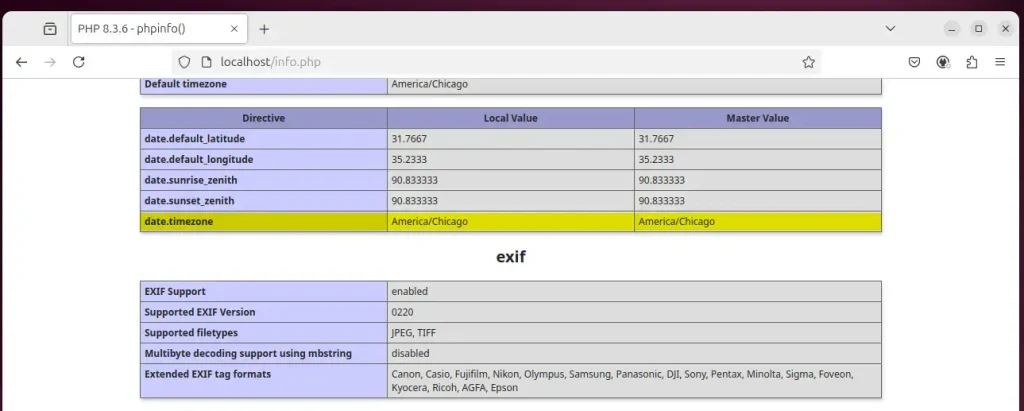
That should do it!
Conclusion:
Setting the correct timezone in PHP with Apache on Ubuntu is crucial for ensuring that your applications accurately handle time-sensitive data. By following the steps outlined, you can:
- Verify the server’s current timezone and update it if necessary.
- Make sure the PHP timezone aligns with the server’s timezone for consistency.
- Update the php.ini files or use command-line shortcuts for efficiency.
- Restart the Apache server to apply the changes.
- Verify the changes by checking the
date.timezonesetting with a PHP info page.
Ensuring that your system timezone is set correctly is vital for the reliability and accuracy of your web applications.
Was this guide helpful?

About the Author
Richard
Tech Writer, IT Professional
Richard, a writer for Geek Rewind, is a tech enthusiast who loves breaking down complex IT topics into simple, easy-to-understand ideas. With years of hands-on experience in system administration and enterprise IT operations, he’s developed a knack for offering practical tips and solutions. Richard aims to make technology more accessible and actionable. He's deeply committed to the Geek Rewind community, always ready to answer questions and engage in discussions.


No comments yet — be the first to share your thoughts!