

This article explains how to turn on or off the “Remember Recent Media” feature in the Media Player app on Windows 11.
The Windows Media Player app is a built-in application that lets you play various media files, like videos, music, and images. It is a useful tool for managing and playing your media collection in Windows. It supports multiple file formats and offers basic playback controls, including play, pause, stop, rewind, and fast-forward.
The default video folder in Windows 11 is stored in the videos folder of your home directory. Music files are also automatically stored in the music folder of your home directory.
The Windows Media Player app will list all recently played media on the app’s Home page under Recent media. Starting with version 11.2409.11.0, a button was added to turn off the recent media by toggling the “Remember recent media” off.
Toggle the “Remember recent media” in Media Player
As mentioned, the most recent version of the Media Player in Windows 11 lets you toggle and hide the “Recent media” list.
Here’s how to do it.
First, open the Windows Media Player app.
Then, click the Settings button on the left sidebar of the app.

On the Settings page, scroll down under Privacy and toggle the switch button to the Off position for “Remember recent media” to hide the recently opened media items.
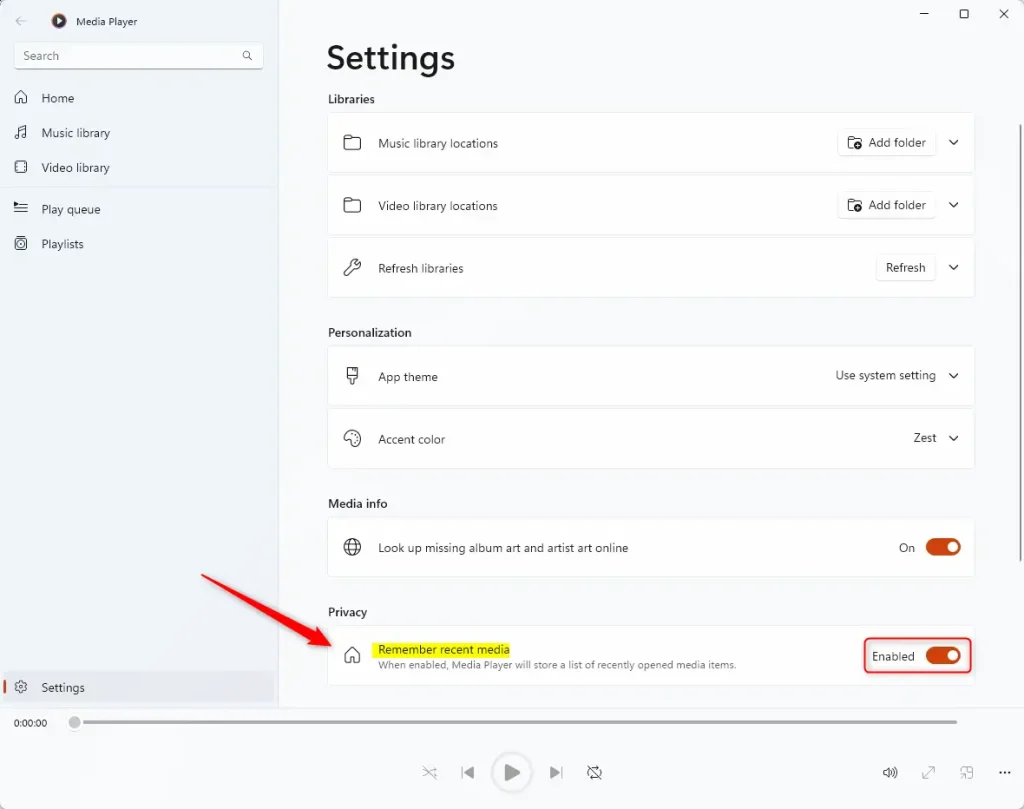
That should do it!
Conclusion:
In summary, managing the “Remember Recent Media” feature in the Windows Media Player app is straightforward and can enhance your media playback experience. Here are the key points to remember:
- The Windows Media Player app allows you to play various media files, offering robust playback controls.
- The Recent media feature helps you quickly access your recently played items.
- You can easily toggle the Remember recent media in the app’s privacy settings.
- Turning off this feature will prevent the app from displaying your recent media, offering more privacy in your media usage.
- The steps to adjust this setting are simple and can be completed in just a few clicks.
Following these guidelines, you can customize your media experience to suit your preferences.


Leave a Reply Cancel reply