How to Make Windows 11 Safer with Firmware Protection

Firmware Protection in Windows 11 is a security feature that safeguards your PC’s foundational software from malicious attacks.
This protection works by ensuring the integrity of your device’s firmware, which is the low-level software that controls hardware operations before Windows even loads.
Enabling Firmware Protection on your Windows 11 device adds a critical layer of defense against sophisticated threats that target the boot process, often before traditional antivirus software can even activate.
To utilize this security enhancement, you’ll typically need a PC that supports UEFI (Unified Extensible Firmware Interface) and Trusted Platform Module (TPM) version 2.0, both standard on modern hardware.
Enable Firmware Protection by opening Windows Security, navigating to Device security, then Core isolation details, and toggling the Firmware protection switch to On. Restart your PC for the changes to take effect.
What Is Firmware Protection?
Firmware protection in Windows 11 acts like a security guard for your computer’s startup process, making sure only safe software runs before Windows even loads.
Firmware Protection works like a security guard at your PC’s startup, checking everything is safe before Windows even loads. This extra layer of protection helps:
- Stop malware attacks that try to hide deep inside your PC.
- Make sure only trusted software runs when your PC turns on.
- Keep your PC’s firmware safe from being changed without permission.
- Give extra security to special devices called Secured-core PCs.
Note: Firmware protection is especially important if you store sensitive information or want strong security for your PC.
How to Turn On Firmware Protection in 🪟 Windows 11
You can turn on Windows 11 firmware protection using the built-in Windows Security app if your computer supports this feature.
- Open the Windows Security app. You can do this by clicking the Start button, then selecting Settings > Privacy & Security > Windows Security, and then click Open Windows Security.
- In the Windows Security window, click on Device security.
- Look for the section called Core isolation and click on Core isolation details.
- Find the switch for Firmware protection and toggle it On.
- If the Firmware Protection option is grayed out and you can’t change it, you may need to adjust a setting in the Windows Registry. (Don’t worry, we’ll explain that below.)
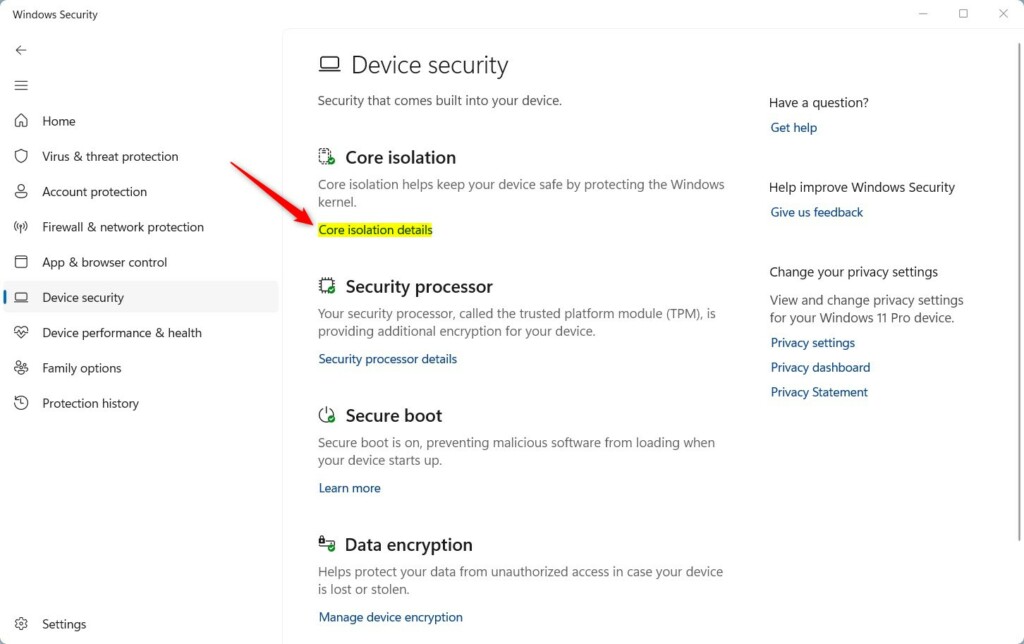
- After turning it on, restart your computer to make sure the changes take effect.
How to Enable Firmware Protection Using Windows Registry
If you can’t find the option to turn on firmware protection in Windows Security, you can try enabling it using the Windows Registry, but be careful as mistakes can cause problems.
- [Admin Required] Press ⊞ Win+R keys to open the Run box. Type
regeditand press Enter to open the Registry Editor. - Navigate to this folder path:
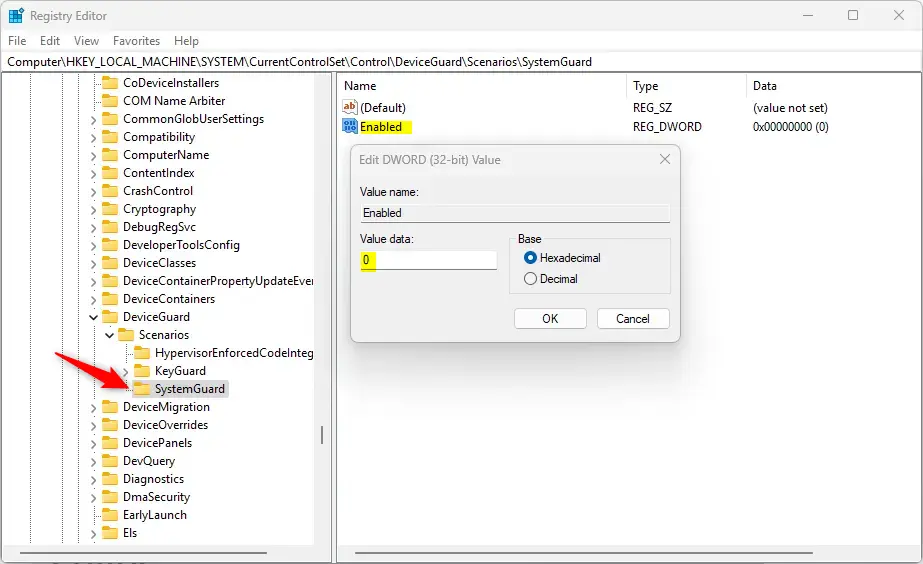
HKEY_LOCAL_MACHINE\SYSTEM\CurrentControlSet\Control\DeviceGuard\Scenarios\SystemGuard - Right-click on the SystemGuard folder, then choose New > DWORD (32-bit) Value.
- Name this new value
Enabled. - Double-click the Enabled value and set its data to
1to turn on Firmware Protection. - Click OK and close the Registry Editor.
- Restart your computer to apply the changes.
Summary
Turning on firmware protection in Windows 11 adds an important layer of security by stopping malware before your PC starts and ensuring only trusted software runs during startup.
- Stopping malware that tries to attack your PC before Windows starts.
- Making sure your PC only runs trusted software during startup.
- Protecting the important firmware that helps your PC start.
- Giving extra security especially if you have a Secured-core PC.
For more details, you can visit the official Microsoft page on System Guard Secure Launch and SMM Protection.
By following these simple steps, you help protect your PC from hidden threats and keep your Windows 11 experience safe and smooth.
How do I turn on firmware protection on 🪟 Windows 11?
Select Start > Settings > Update & Security > Windows Security > Open Windows Security > Device security > Core isolation > Firmware protection.
Do I need firmware protection?
Firmware protection Like a house that depends on a good foundation to be secure, a computer needs its firmware to be secure in order to ensure that the operating system, applications, and data on that computer are safe.
Was this guide helpful?

About the Author
Richard
Tech Writer, IT Professional
Richard, a writer for Geek Rewind, is a tech enthusiast who loves breaking down complex IT topics into simple, easy-to-understand ideas. With years of hands-on experience in system administration and enterprise IT operations, he’s developed a knack for offering practical tips and solutions. Richard aims to make technology more accessible and actionable. He's deeply committed to the Geek Rewind community, always ready to answer questions and engage in discussions.



No comments yet — be the first to share your thoughts!