How to Optimize Windows 11 CPU Scheduling for Speed

Want to make your Windows 11 PC faster? You can optimize CPU scheduling, which controls how your processor shares its power. This means deciding which programs get your CPU cores and for how long, directly affecting how quickly apps respond and how smoothly your whole system runs. Prioritizing programs you’re actively using over background tasks, especially when you’re gaming or editing video, can really boost performance. This guide will walk you through making those changes in Windows’ advanced system settings.
Adjust CPU scheduling in Windows 11 by opening System Properties, navigating to Advanced system settings, and then changing the Processor scheduling option under Performance Options. You can choose to prioritize Programs or Background services for faster performance.
What is CPU Scheduling?
CPU scheduling is how Windows decides which programs get to use your computer’s processor and when, making sure everything runs smoothly.
How to Change CPU Scheduling in 🪟 Windows 11
Changing Windows 11 CPU scheduling can help your computer run faster by telling it which apps to focus on.
- Open System Properties. Click the Start button, then go to Settings > System > About. On the right side, click Advanced system settings.
- In the System Properties window, click the Advanced tab.
- Under Performance, click the Settings button.
- In the Performance Options window, click the Advanced tab.
- Under Processor scheduling, choose one of these options:
- Programs – to give more power to apps you are actively using.
- Background services – to help tasks running behind the scenes work better.
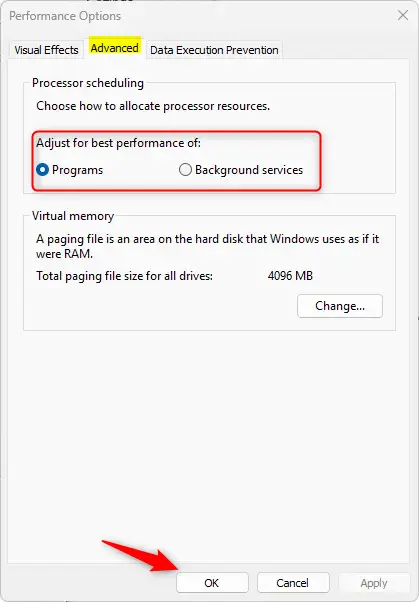
- Click OK to save your changes.
Advanced Option: Change CPU Scheduling Using the Registry Editor
For more advanced control over Windows 11 CPU scheduling, you can use the Registry Editor, but be very careful as mistakes can cause problems.
- ⚠️ Admin privileges required. Open the Registry Editor by typing
regeditin the Start menu and pressing Enter. - Navigate to this folder path:
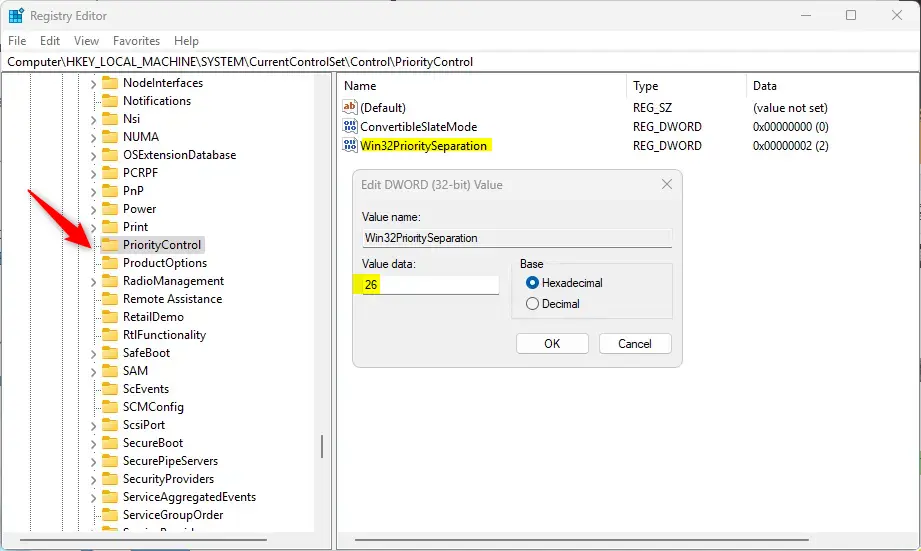
Computer\HKEY_LOCAL_MACHINE\SYSTEM\CurrentControlSet\Control\PriorityControl - Right-click the PriorityControl folder, select New > DWORD (32-bit) Value, and name it
Win32PrioritySeparation. - Double-click
Win32PrioritySeparationand set the value to:26for prioritizing Programs18for prioritizing Background services
- Click OK and close the Registry Editor.
- ⚠️ Admin privileges required. Restart your PC to apply the changes.
Summary
- CPU Scheduling controls how Windows shares your processor’s time.
- You can choose to prioritize apps you actively use or background tasks.
- Changing settings through System Properties is simple and safe.
- Registry editing is for advanced users who want more control.
- Always restart your PC after making changes to make sure they work.
CPU scheduling is how Windows manages your processor’s time, and you can adjust it to prioritize apps or background tasks for better performance.
Is CPU scheduling necessary?
CPU scheduling is necessary because it’s how your operating system makes sure your computer’s processor time is shared fairly and efficiently between all your running apps.
Which CPU scheduling is best and why?
Choosing the Right Scheduling Algorithm Apply SJF (Shortest Job First) in environments where short tasks are common and can be predicted. Implement Round Robin for time-sharing and interactive systems to improve user experience. Utilize Priority Scheduling when certain programs need immediate CPU access, like in real-time systems.
How to maximize CPU performance in 🪟 Windows 11?
Set your Power mode to Best performance. If power usage isn’t a concern, selecting Best performance can help the CPU run at higher speeds when needed. Go to Start > Settings > System > Power & sleep.
Was this guide helpful?

About the Author
Richard
Tech Writer, IT Professional
Richard, a writer for Geek Rewind, is a tech enthusiast who loves breaking down complex IT topics into simple, easy-to-understand ideas. With years of hands-on experience in system administration and enterprise IT operations, he’s developed a knack for offering practical tips and solutions. Richard aims to make technology more accessible and actionable. He's deeply committed to the Geek Rewind community, always ready to answer questions and engage in discussions.



No comments yet — be the first to share your thoughts!