

This article explains how to refresh or rescan the Wi-Fi networks available on your Windows 11 computer.
Why Refresh Your Wi-Fi Networks?
Wi-Fi in Windows lets you connect to wireless networks. This means you can access the internet and other resources without needing cables plugged into your computer. It gives you freedom to move around.
When you open the Wi-Fi connection pane in Windows, you see a list of Wi-Fi networks nearby. Each network has a name called an SSID. You can pick one and connect to it if you know the password.
Sometimes a network doesn’t show up in your list right away. Starting with Windows 11 build 26002 (Canary), Windows 11 added a refresh button. Now you can search for networks that aren’t showing up instead of waiting.
Method 1: Use the Quick Settings Refresh Button
The easiest way to refresh your Wi-Fi list is using the new button in Quick Settings.
- Open Quick Settings by pressing Win+A on your keyboard.
- Look for the Wi-Fi button. Click the arrow on the right side that says Manage Wi-Fi connections.
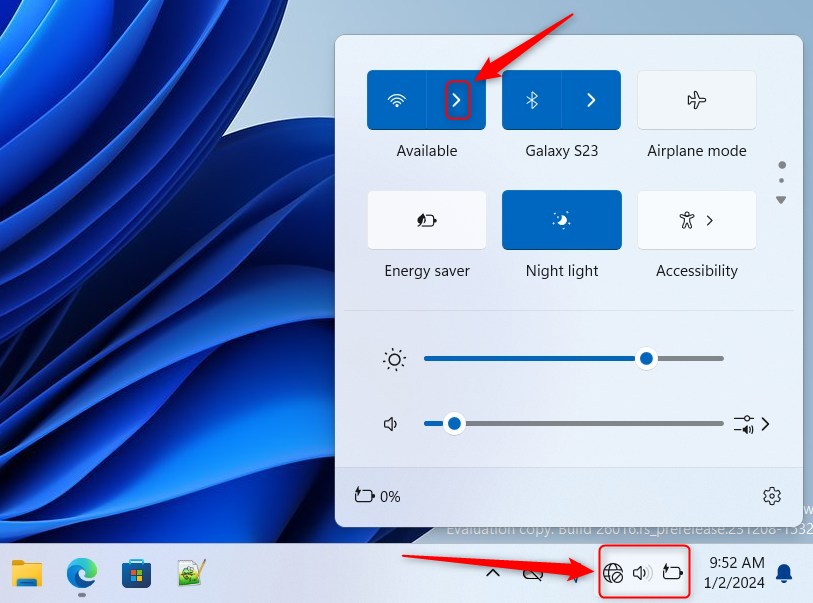
- Click the Refresh button to search for Wi-Fi networks again.
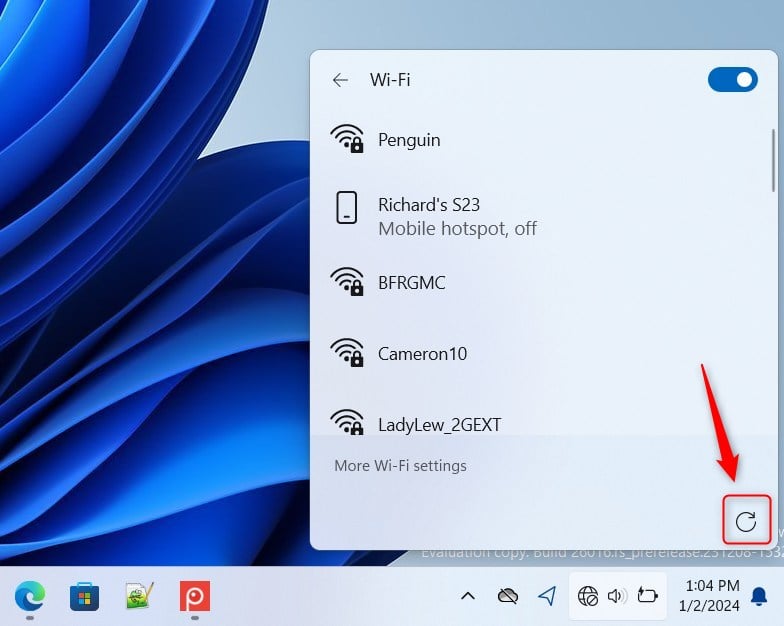
What happens: Your computer will scan for all Wi-Fi networks in range. Networks that were hidden or slow to appear will now show up in your list.
Method 2: Use Windows Terminal to Refresh Wi-Fi
If the Quick Settings button doesn’t work, you can use Windows Terminal instead. This is a more advanced method.
⚠️ Admin Required: You need administrator privileges to run these commands.
- open the Windows Terminal app on your computer.
- Click on the PowerShell tab.
- Copy and paste one of these commands:
Get-Service wlansvc | Restart-Service- OR
Restart-Service -Force -Name "wlansvc"
- Press Enter to run the command.
If you want to use Command Prompt instead, run one of these commands:
PowerShell "Get-Service wlansvc | Restart-Service"- OR
PowerShell Restart-Service -Force -Name "wlansvc"
What happens: These commands restart your Wi-Fi service. This forces your computer to scan for networks again. New networks will appear in your list.
Summary
Refreshing your Wi-Fi network list helps you find networks that don’t show up right away. Windows 11 makes this easy with a refresh button in Quick Settings. If that doesn’t work, you can use Windows Terminal to restart your Wi-Fi service. Both methods do the same thing: they make your computer search for wireless networks again.
We hope this guide helped you manage Wi-Fi networks in Windows 11. If you have questions or tips to share, please use the comments section below.


Leave a Reply Cancel reply