

This article explains how to turn on “Get new photo notifications” from your mobile devices on Windows 11.
Windows Mobile devices (or Phone Link) lets you access your mobile devices right from your PC. New features are being added to Mobile devices settings.
Starting with Windows 11 build 23619 (Dev), a new feature lets you easily access and edit your recent photos and screenshots from your Android device in Snipping Tool on your PC.
With this feature, your PC will get instant notifications whenever you take a new photo or screenshot on your Android device.
To use this, you must first go to Settings > Bluetooth & devices > Mobile devices and turn on “Allow this PC to access your mobile devices.”
Turn on or off new photo notifications from mobile devices on Windows
A new feature is being rolled out to Insider Preview users. It will let them get instant access to new photos from mobile devices on Windows 11.
Here’s how to do that.
Step 1: Open the Settings app
First, open the Windows Settings app.
You can do this by clicking on the Start menu and selecting Settings. Or press Windows key + I on your keyboard to launch the Settings app.
Step 2: Go to Bluetooth & devices
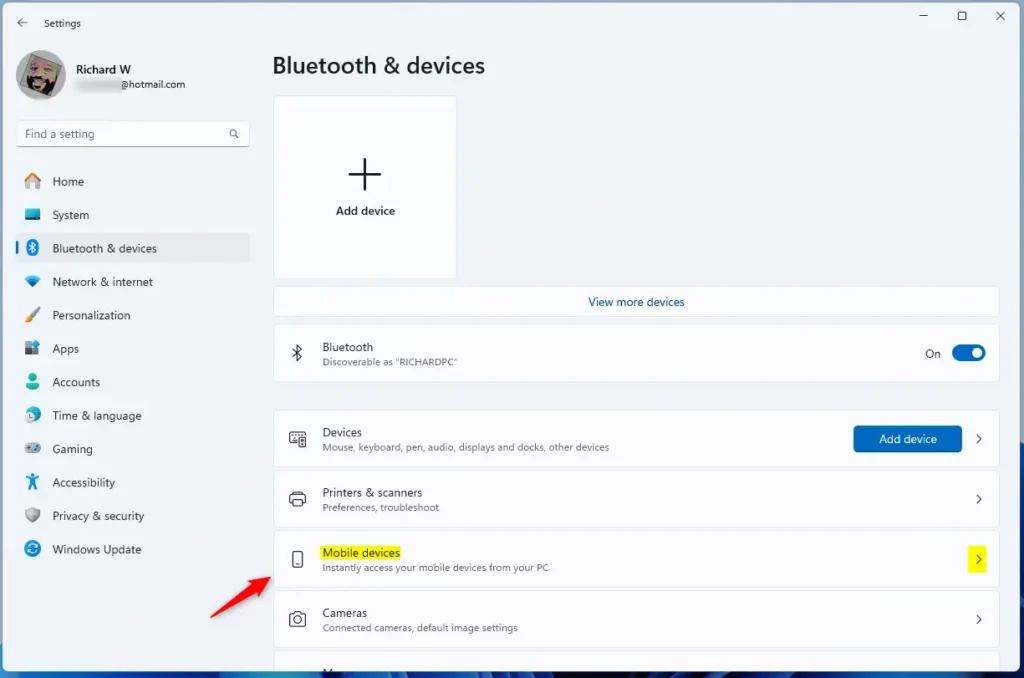
When the Settings app opens, click the Bluetooth & devices button on the left side.

Step 3: Select Mobile devices
Select the Mobile devices tile under ‘Bluetooth & devices’ on the right side to expand it.
Step 4: Click Manage devices
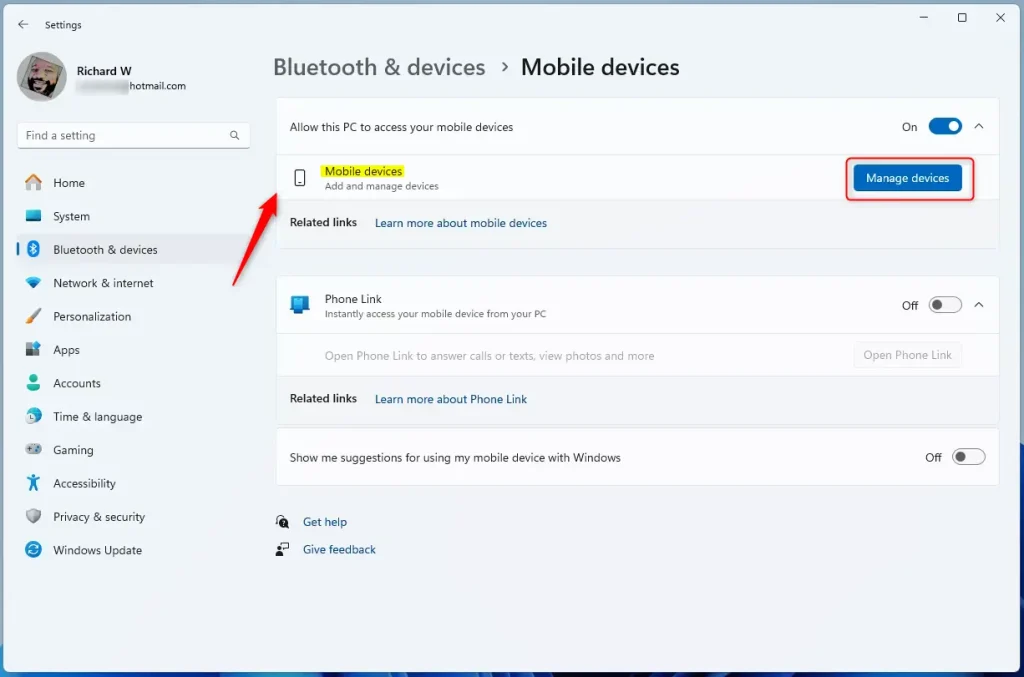
Next, select the Manage devices button under “Allow this PC to access your mobile device.”
Step 5: Enable get new photo notifications
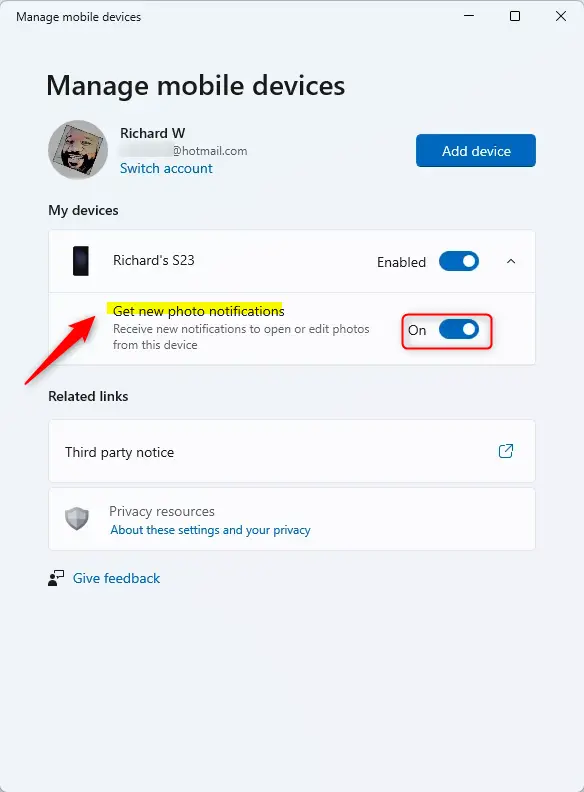
Next, select the Get new photo notifications tile. Then, toggle the switch button to the On position to enable it.
To disable it, toggle the switch button to the Off position.
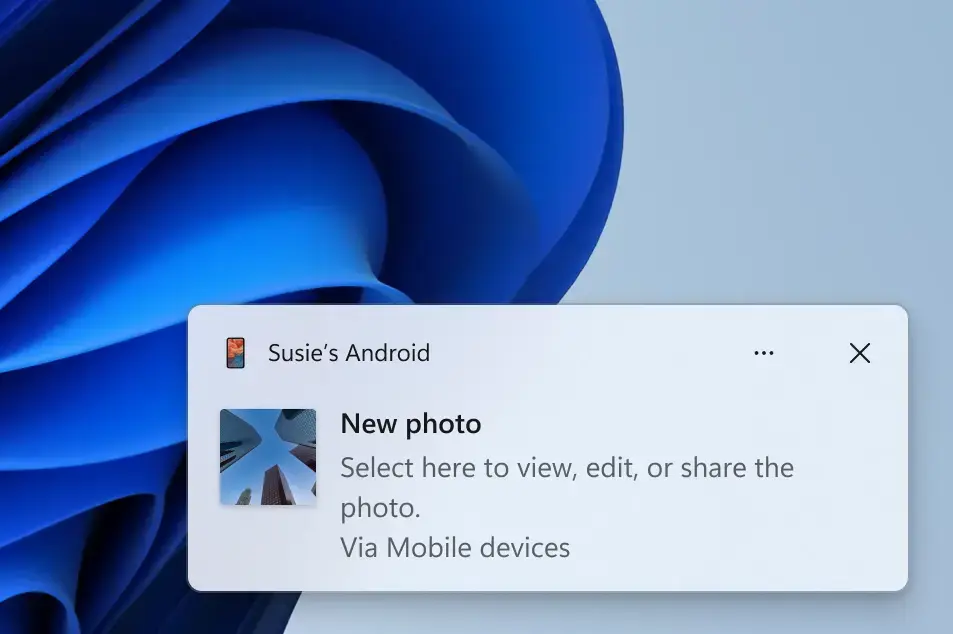
You’ll get notifications for new photos from your mobile devices when this is enabled.
That’s all you need to do!
Why should you use this feature?
This feature helps you stay updated. You won’t miss any important photos or screenshots from your Android device. You can access them right away on your PC without manually checking your phone.
What happens when you enable photo notifications?
When you turn this on, your PC will pop up with alerts whenever you capture a photo or screenshot on your Android device. You can then quickly open and edit these images using Snipping Tool on your Windows 11 PC.
Summary
This article showed you how to turn “Get new photo notifications” on or off from your mobile devices on Windows 11. The new feature lets you easily access and edit recent photos and screenshots from your Android mobile device in Snipping Tool on your PC. Your PC will get instant notifications whenever you take a new photo or screenshot on your Android device. To use this feature, go to Settings > Bluetooth & devices > Mobile devices and toggle the “Allow this PC to access your mobile devices” setting.
For more information or to leave feedback and suggestions, refer to Microsoft blog.
Frequently Asked Questions
How do I enable photo notifications on Windows 11?
What is the 'Get new photo notifications' feature?
Can I disable photo notifications on Windows 11?
Do I need to connect my mobile device to use photo notifications?
What should I do if I don't see the photo notifications option?



Leave a Reply