

This article explains how to show or hide updates using the “wushowhide.diagcab” file on Windows 11.
What is wushowhide.diagcab?
The “wushowhide.diagcab” is a tool made by Microsoft. It lets you show or hide Windows updates. Think of it as a helper tool that fixes problems with Windows updates. It also stops certain updates from installing on your computer.
Why would you use this? Maybe an update caused problems on your computer. Perhaps it made programs crash or made your system slow. This tool lets you block that update until you know it’s safe.
How to Use the Tool
Step 1: Download the Tool
First, you need to download the file. Go to the Microsoft Download Center and get the wushowhide.diagcab file. Save it somewhere easy to find on your computer, like your Desktop or Downloads folder.
Step 2: Open the Tool
Find the “wushowhide.diagcab” file. Double-click it to open it. The tool will start running.
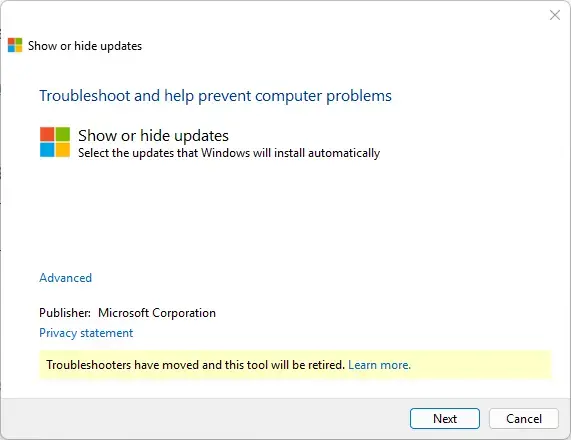
Step 3: Choose What You Want to Do
You’ll see two choices:
- Hide updates — Pick this if you want to block a specific update from installing.
- Show hidden updates — Pick this if you want to unhide updates so they install normally.
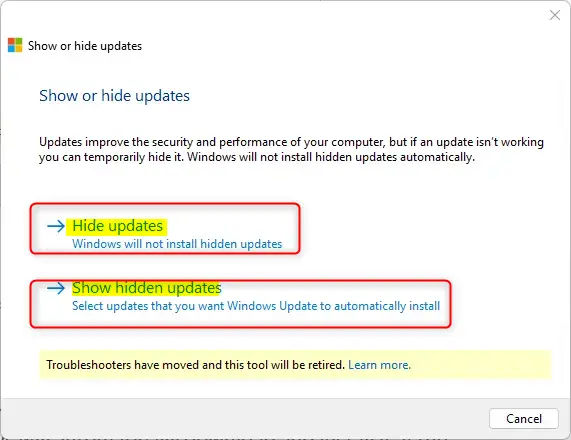
Step 4: Select the Update
Pick the Windows 11 update you want to hide. Click Next, then Close.
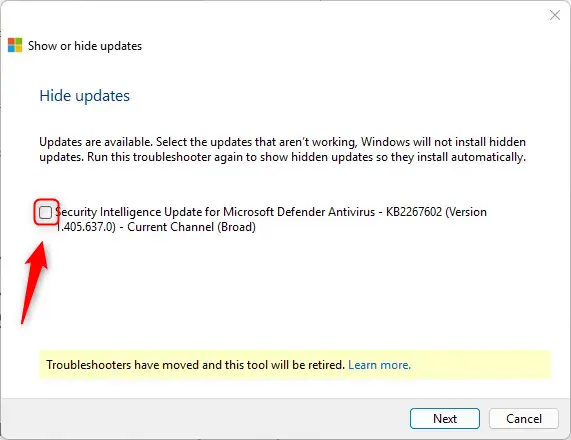
What happens next? The update will disappear from Windows Update. But when Microsoft releases a newer version of that update, Windows will still download and install it automatically. If the update is already on your computer, you’ll need to remove it first and then block it.
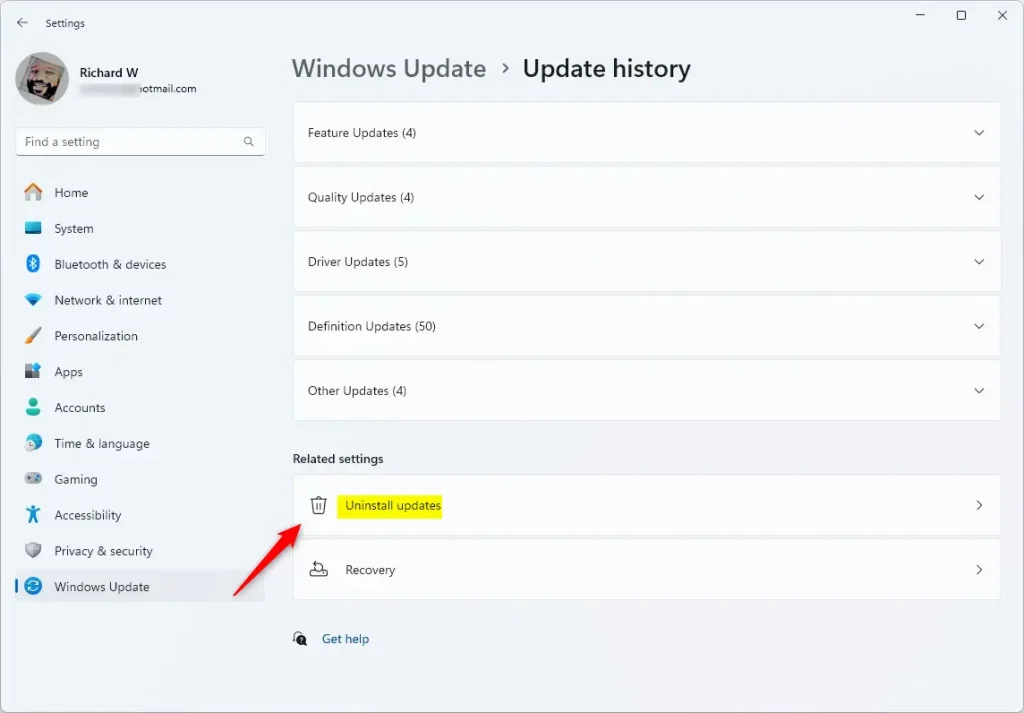
Step 5: Remove an Already-Installed Update
If the update is already installed, go to Settings > Windows Update > Update history > Uninstall updates. From there, you can remove it.
Important Note
Keep your system updated for safety. But if an update causes problems, these steps help you control what gets installed. Balance is key — stay secure while avoiding broken updates.
Summary
The wushowhide.diagcab tool helps you manage Windows 11 updates. It lets you hide updates that cause problems and show them again when you’re ready. Download the file from Microsoft, open it, choose hide or show, pick your update, and click through. This gives you control over your Windows system’s stability and security.

Leave a Reply Cancel reply