

This article explains how to turn off or delete custom command shortcuts using Voice access in Windows 11.
Voice access is a new feature that lets anyone control their computer and write messages just by talking. With Voice access, you can navigate Windows, open apps, and run commands all through spoken words.
You can turn on or off Voice access, automatically start it up before signing on, stop it from starting automatically, install additional languages, list and create custom commands, and more.
When you create custom Voice access commands, they are ready to use. But you can turn these commands off when you don’t need them anymore.
Why turn off or delete custom Voice access commands? There are several reasons. Maybe a command isn’t useful anymore. Maybe it’s causing confusion or mistakes. Turning off or deleting commands can make Voice access simpler and easier to use. If multiple people use Voice access on the same computer, removing unused commands keeps things cleaner.
Turn Voice Access Commands On or Off
You can easily turn custom Voice access commands on or off in Windows 11.
Here’s how:
- First, turn on Voice access.
- Then, open the Voice access commands page.
- Select Voice shortcuts on the left side to see all your shortcuts.

- Find the custom command you want in the list.
- Toggle the button to On to enable the command.
- Toggle the button to Off to disable it.
What happens? When you toggle a command on, it becomes active and ready to use. When you toggle it off, the command stops working.
Delete Custom Voice Access Commands
If you want to completely remove a custom command, follow these steps.
- First, turn on Voice access.
- Then, open the Voice access commands page.
- Select Voice shortcuts on the left side to see all your shortcuts.
- Select the custom command you want to delete.
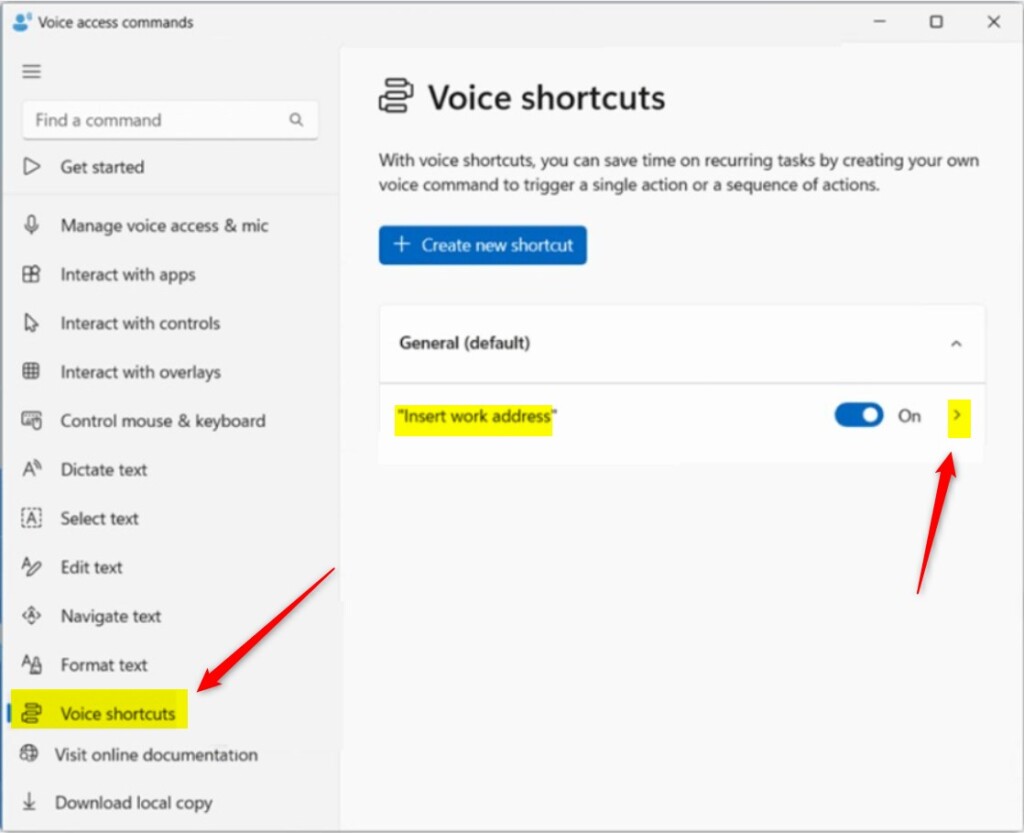
- On the command details page, click the Delete button.

What happens? The custom command is permanently removed and can no longer be used.
Summary
Managing your Voice access commands is simple. You can turn commands on and off without removing them. Or you can delete commands you no longer need. Both options help keep your Voice access experience clean and organized. Follow the steps above to control which commands work for you.
Share your feedback or tips in the comments below!
Frequently Asked Questions
How do I turn off custom Voice Access commands in Windows 11?
Can I delete custom Voice Access commands permanently?
What is the difference between disabling and deleting Voice Access commands?
Why would I want to disable Voice Access custom commands?
Where do I find the Voice Access commands page in Windows 11?

Leave a Reply Cancel reply