How to Create Custom Voice Shortcuts in Windows 11

You create custom voice shortcuts in Windows 11 to control your PC using spoken commands.
These shortcuts allow you to trigger specific actions, like opening an application or navigating a folder, simply by saying a phrase you define.
Windows 11’s Voice Access feature, available since late 2021, enables you to build these custom commands. You can assign a shortcut to open Microsoft Edge with a single spoken word.
This hands-free control streamlines repetitive tasks and improves PC accessibility. Follow these steps to set them up.
You can create custom voice shortcuts in Windows 11 by enabling Voice access, opening the Voice command list, selecting Voice Shortcuts, and clicking Create New Shortcut. Follow the prompts to name your command and assign an action, like opening an application or folder. This allows you to control your PC hands-free with spoken phrases.
Why Create Custom Voice Commands?
Custom commands are fantastic for saving time and reducing physical strain. When you use them, you get a personalized workflow where a simple phrase triggers complex actions, making your Windows 11 experience faster and more efficient.
How to List Voice Access Commands
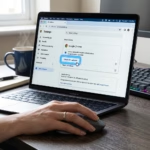
Start by turning on Voice access. Once it’s active, either click the mic button or say “Voice access wake up.” When you see the system is listening, say “What can I say,” and a full list of available commands will pop up on your screen.
How to Create Custom Command Shortcuts
You can create custom voice shortcuts in Windows 11 to control your computer using just your voice.
- Turn on Voice access.
- Open the Voice access command list.
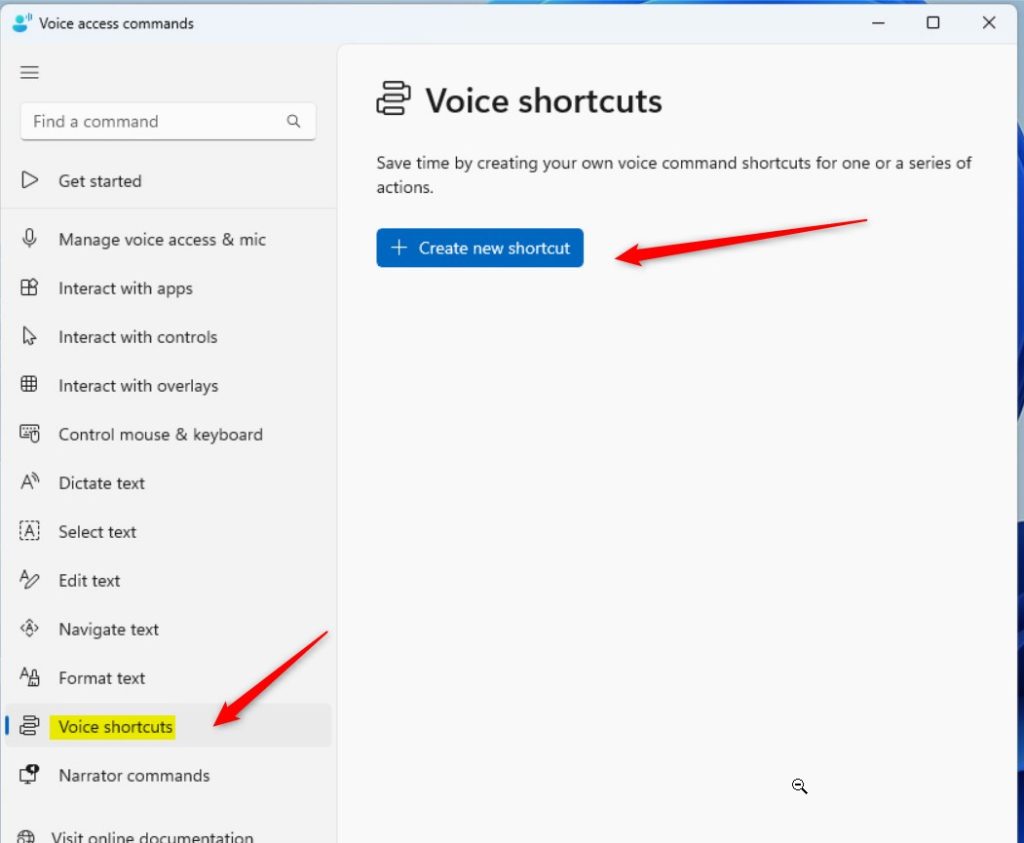
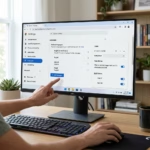
- Click Voice Shortcuts in the left menu.
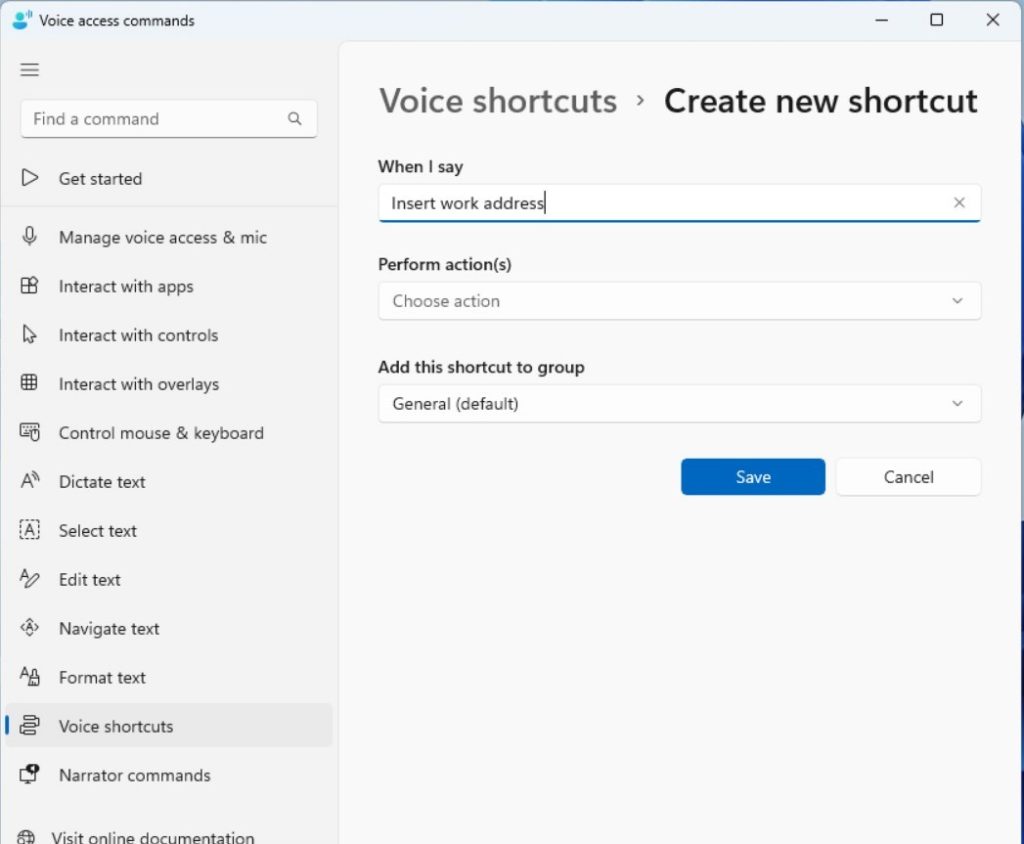
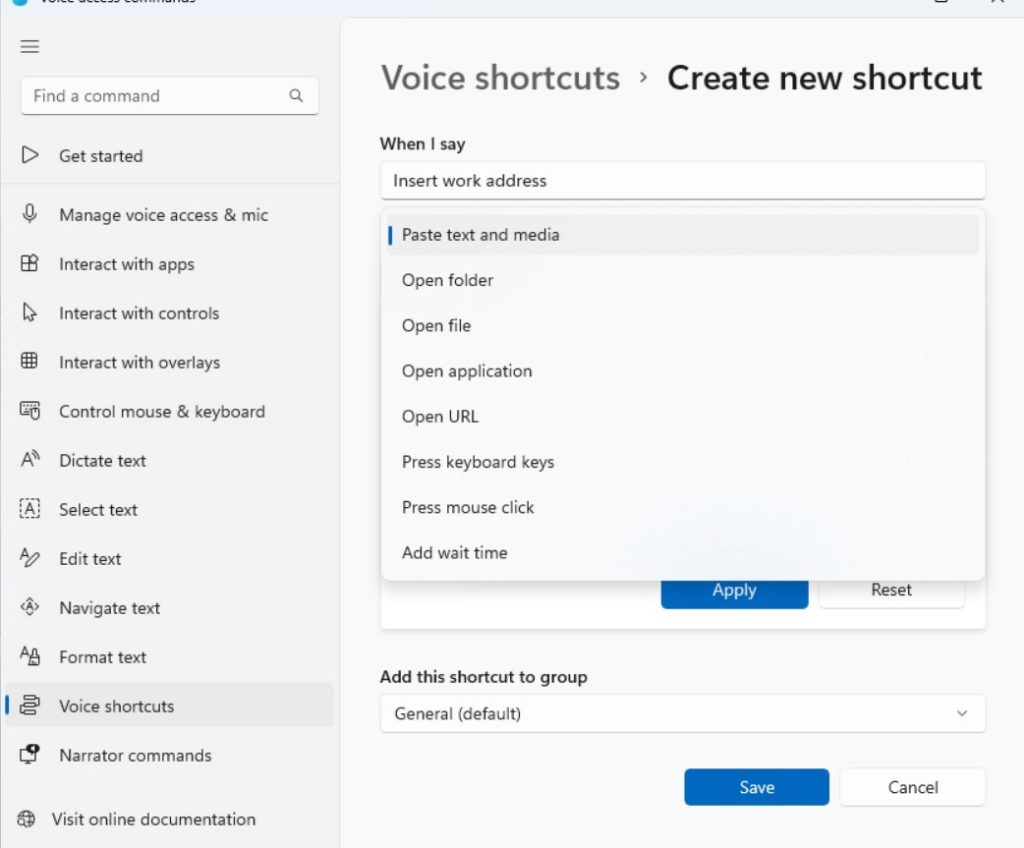
- Select Create New Shortcut.
Practical Use Cases and Examples
You can use custom voice shortcuts in Windows 11 for many everyday tasks, like opening specific folders or websites with a simple voice command.
Managing and Editing Shortcuts
To modify an existing shortcut, return to the Voice Shortcuts menu. Select the command you wish to change, click the edit icon, and update the trigger phrase or the action. You can also delete shortcuts you no longer need to keep your list organized.
Troubleshooting Voice Access Issues
If a command is not recognized, check your microphone settings. Ensure you are speaking clearly and that background noise is minimal. If the command fails, verify the path or action you assigned is correct. Heads up: Some system-level changes might need admin privileges to work correctly.
Summary
Custom voice shortcuts in Windows 11 make your computer easier to use hands-free.
Reference: Official Microsoft Voice Access Command List
Can I use custom voice shortcuts for multi-step tasks?
Right now, custom voice shortcuts in Windows 11 are built for single-action triggers. While you can launch apps or open folders, complex multi-step macros are not natively supported. You may need to use third-party automation software alongside Voice access to chain multiple actions together into a single spoken command.
Are voice shortcuts synced across Windows devices?
Nope, custom voice shortcuts are stored locally on your specific computer. They do not automatically sync across different Windows devices via your Microsoft account. You must manually recreate your preferred shortcuts on each machine you use to ensure a consistent hands-free experience across your entire hardware setup.
How to troubleshoot if a custom command is not recognized?
If your command is ignored, verify that Voice access is in ‘Wake’ mode. Check your microphone input levels in settings. Ensure the command phrase is simple and unique. If the issue persists, restart the Voice access app or check for pending Windows updates that might include speech recognition improvements.
Was this guide helpful?

About the Author
Richard
Tech Writer, IT Professional
Richard, a writer for Geek Rewind, is a tech enthusiast who loves breaking down complex IT topics into simple, easy-to-understand ideas. With years of hands-on experience in system administration and enterprise IT operations, he’s developed a knack for offering practical tips and solutions. Richard aims to make technology more accessible and actionable. He's deeply committed to the Geek Rewind community, always ready to answer questions and engage in discussions.

[…] start it up before signing on, stop it from starting automatically, install additional languages, list and create custom commands, and […]