How to Add Custom Words to Voice Access in Windows 11

You add custom words to Voice Access in Windows 11 by opening Voice Access settings and using the “Add a word” option.
Voice Access in Windows 11 is a powerful accessibility feature. It lets you control your PC entirely with voice commands, making hands-free navigation and dictation possible.
This feature sometimes struggles with unique or uncommon terms, like names, technical jargon (specialized terms), or specific lingo, which can lead to recognition errors.
Good news: Windows 11 lets you build a personal dictionary for Voice Access, which improves its accuracy and your efficiency. You can add up to 2,000 custom words to personalize your experience.
Open Voice Access settings and select “Add a word” to enter custom terms. You can also use the voice command “Add to Vocabulary” to access the vocabulary builder and type in words for Voice Access to learn.
How to Add Your Own Words to Voice Access
Here’s how to add your own words to Voice Access:
- Turn on Voice Access: Go to this guide if you need help turning it on.
- Open Vocabulary Builder: Say the command
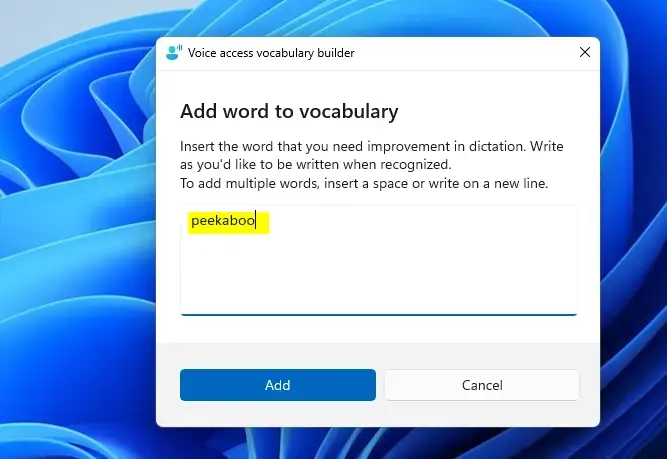
"Add to Vocabulary"out loud, or open the Voice Access settings and find the vocabulary builder there. - Add Your Words: Click the Add button, then type the words you want Voice Access to learn.
- Save: Once you add the words, Voice Access will start recognizing them better when you speak.
If you prefer, you can also open the vocabulary builder from the Voice Access settings menu.
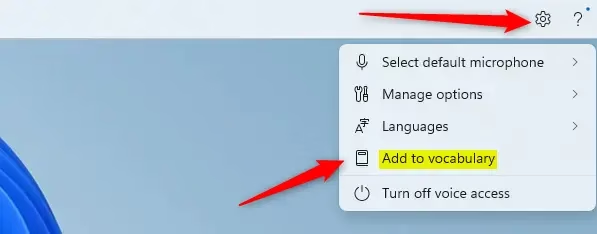
Click the ‘Add’ button to type your custom words.
Why Add Custom Words?
- Better Accuracy: Voice Access understands your unique words and names, so it types what you say more correctly.
- Easy to Use: Adding words is quick and doesn’t need any special skills.
- Use Voice or Settings: You can add words by talking or by clicking in the settings.
- Always Improving: Microsoft keeps adding new features to make Voice Access easier and smarter.
Want to learn more? Check out the official Microsoft blog post about this update.
Summary
Adding your own words to Voice Access in Windows 11 helps your PC understand you better, making interactions smoother and more accurate. Turn on Voice Access, open the vocabulary builder, add your custom words, and enjoy more responsive voice control!
How do I customize Voice Access?
To view or change your Voice Access settings, open your device’s Settings app. Select Accessibility, then Voice Access.
Can I customize voice control commands?
Go to Settings and select Accessibility. Then, select Voice Control, followed by Customize Commands, and finally select Custom.
What languages are available for Microsoft Voice Access?
Voice access is currently available in the following languages and dialects: English–US, English–UK, English–India, English–New Zealand, English–Canada, English–Australia, Spanish–Spain, Spanish–Mexico, German–Germany, French–France, French–Canada, Simplified Chinese–China, Traditional Chinese–Taiwan, Japanese, and …
Was this guide helpful?

About the Author
Richard
Tech Writer, IT Professional
Richard, a writer for Geek Rewind, is a tech enthusiast who loves breaking down complex IT topics into simple, easy-to-understand ideas. With years of hands-on experience in system administration and enterprise IT operations, he’s developed a knack for offering practical tips and solutions. Richard aims to make technology more accessible and actionable. He's deeply committed to the Geek Rewind community, always ready to answer questions and engage in discussions.

No comments yet — be the first to share your thoughts!