How to Add Custom Words to Voice Access in Windows 11

Voice Access is a helpful feature in Windows 11 that lets you control your computer and write messages by speaking. You can open apps, click buttons, and do many things without touching your keyboard or mouse.
If you want Voice Access to understand your special words — like names, places, or hard-to-pronounce words — you can add them yourself. This helps the feature hear you better and write more accurately.
How to Add Your Own Words to Voice Access
Here’s a simple way to add your own words to Voice Access:
- Turn on Voice Access: Go to this guide if you need help turning it on.
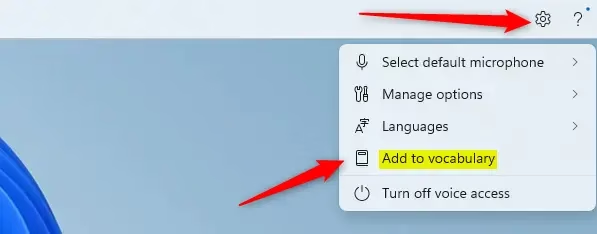
- Open Vocabulary Builder: Say the command
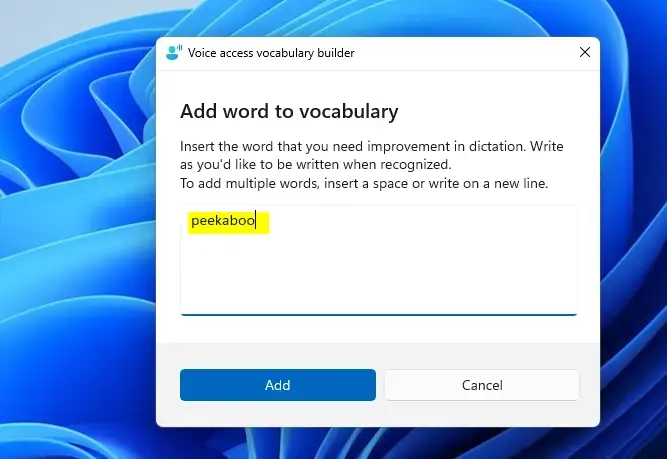
"Add to Vocabulary"out loud, or open the Voice Access settings and find the vocabulary builder there. - Add Your Words: Click the Add button, then type the words you want Voice Access to learn.
- Save: Once you add the words, Voice Access will start recognizing them better when you speak.
If you prefer, you can also open the vocabulary builder from the Voice Access settings menu.
Just click the Add button to type your custom words.
Why Add Custom Words?
- Better Accuracy: Voice Access understands your unique words and names, so it types what you say more correctly.
- Easy to Use: Adding words is quick and doesn’t need any special skills.
- Use Voice or Settings: You can add words by talking or by clicking in the settings.
- Always Improving: Microsoft keeps adding new features to make Voice Access easier and smarter.
Want to learn more? Check out the official Microsoft blog post about this update.
Summary
Adding your own words to Voice Access in Windows 11 helps your computer understand you better and makes talking to your PC easier and more accurate. Just turn on Voice Access, open the vocabulary builder, add your special words, and enjoy smoother voice control!
Was this guide helpful?


Leave a Reply Cancel reply