How to Use the Copy as Table Feature in Snipping Tool

You can use Snipping Tool’s “Copy as table” feature to transform screenshots of data into editable tables.
Snipping Tool is a built-in Windows application that captures images of your screen. Its “Copy as table” functionality, introduced in version 11.2409.22.0, extracts data organized in rows and columns directly from these screenshots.
This powerful feature eliminates the tedious process of manually retyping information. You can instantly copy tabular data from an image and paste it directly into programs like Microsoft Excel, Word, or your email client.
Open Snipping Tool, take a screenshot of your table, and click “Text Actions.” Then, press Ctrl+C to copy the table data and paste it into your desired application.
How to capture a screenshot as a table
The Snipping Tool lets you grab a picture of a table on your screen and turn it into actual data you can use, all thanks to its ‘Copy as table’ feature.
Follow these steps to use the new feature:
- Open the Snipping Tool app.
- Take a screenshot of the area that contains the table you want to copy.
- Drag your mouse to select the table area.
- Click the Text Actions button in the toolbar. This will identify the text in your image.
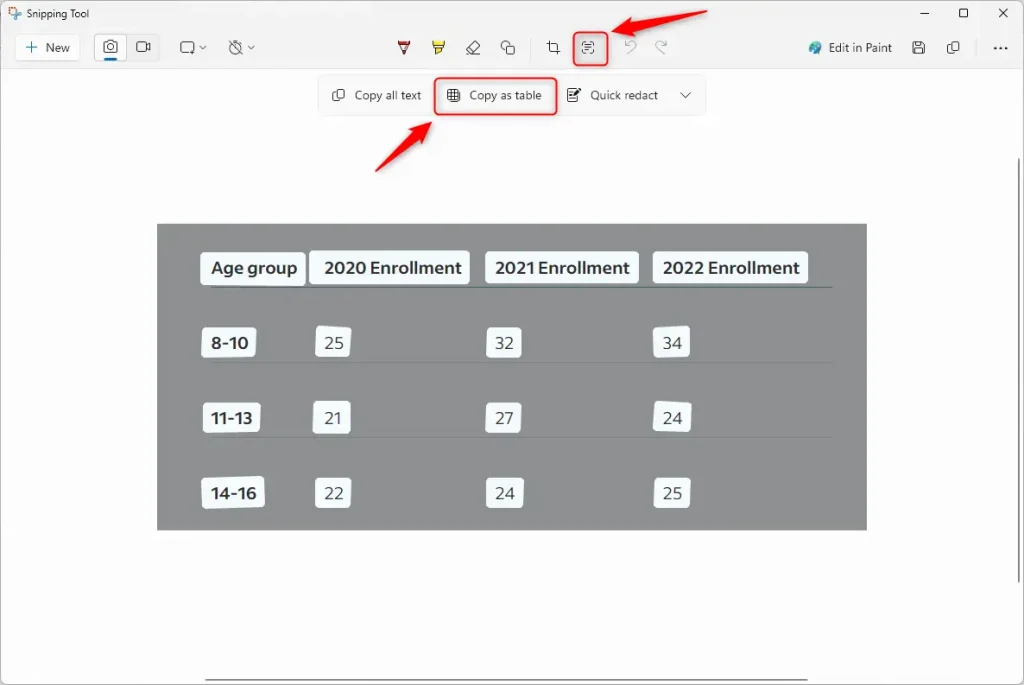
- Once the text is selected, you can use the keyboard shortcut
CTRL+Vto paste the data as a table into your document or email.
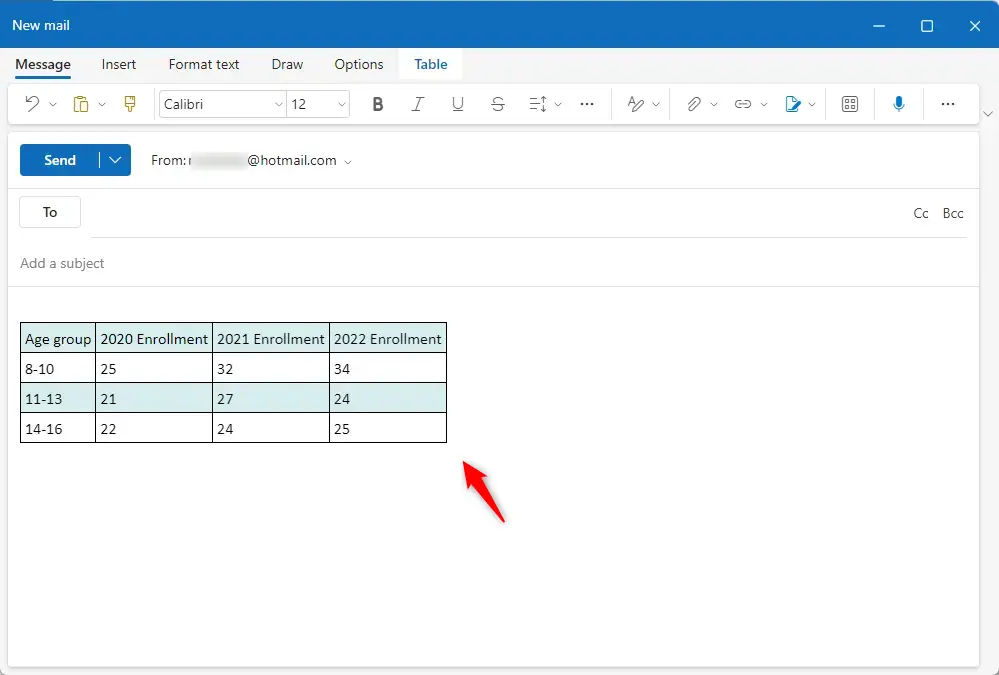
Note: You don’t need administrative privileges for this process.
Summary
The Snipping Tool’s ‘Copy as table’ feature is a handy way to grab table data from a picture on your screen and put it into spreadsheets or documents.- The Snipping Tool lets you capture screen areas and turn them into organized data.
- The “Copy as table” feature allows you to move table data from an image directly into a spreadsheet or document.
- Use the Text Actions button after taking your screenshot to enable this feature.
- This is a fast way to share information without retyping data manually.
How do I copy and paste a table as an image?
If you want to copy a table as a picture, you can do this in Excel by selecting the table cells or object you want, then using the ‘Copy as Picture’ option.
How do I copy a table from an image?
Okay and you can copy as table. Now we can copy this table into the word processor like Microsoft Word on Google documents.
Was this guide helpful?

About the Author
Richard
Tech Writer, IT Professional
Richard, a writer for Geek Rewind, is a tech enthusiast who loves breaking down complex IT topics into simple, easy-to-understand ideas. With years of hands-on experience in system administration and enterprise IT operations, he’s developed a knack for offering practical tips and solutions. Richard aims to make technology more accessible and actionable. He's deeply committed to the Geek Rewind community, always ready to answer questions and engage in discussions.




No comments yet — be the first to share your thoughts!