
Quick Assist is a helpful tool built into Windows 11. It lets you help someone fix a computer problem from far away. Or it lets someone help you fix your computer without being in the same room.
Why use it? Remote help saves time. You don’t need to travel to help a friend or family member with their PC.
How does it work? The person helping shares a special security code with the person needing help. This code creates a safe connection between the two computers.
How to Use Quick Assist
1. Open Quick Assist
To open Quick Assist, follow these steps:
- Click the Start button (the Windows icon) on the bottom left of your screen. Or press the Windows key on your keyboard.
- Type
Quick Assistin the search box. - Click the Quick Assist app when it appears.
Shortcut tip: Press Ctrl + Windows key + Q together to open it faster.
2. Start Quick Assist
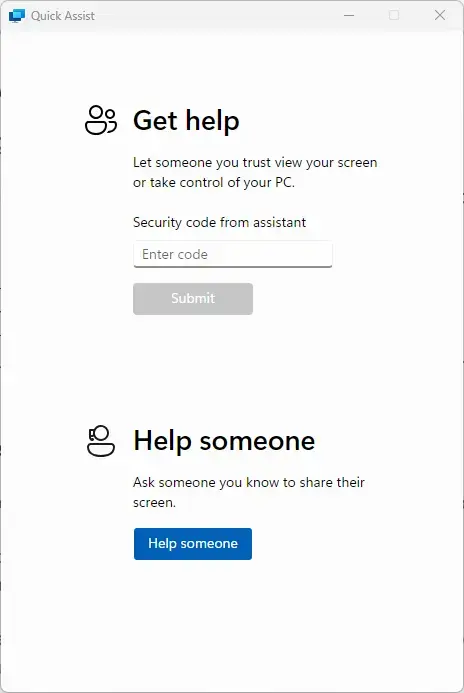
After opening Quick Assist, you’ll see two main choices:
- Get help – Click this if you want to receive help from someone.
- Help someone – Click this if you want to help another person.
If you’re helping someone else, click Help someone. You may be asked to sign in with your Microsoft account.
3. Share the Security Code
When you click Help someone, Quick Assist will create a security code. Share this code with the person you want to help. They need it to let you connect to their PC safely.
What happens? The person you’re helping uses this code to allow your connection.
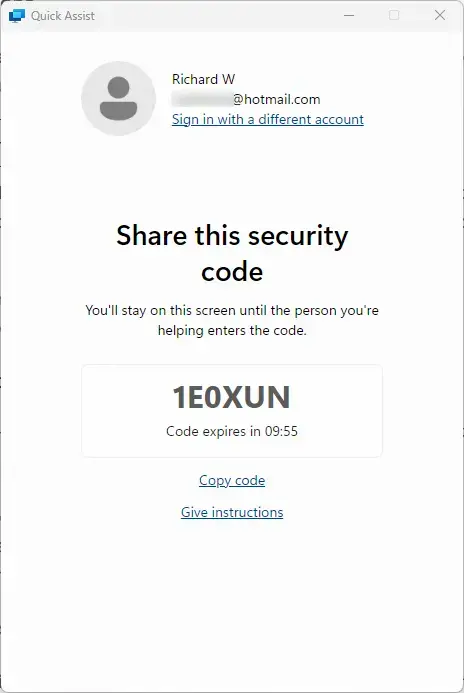
Important: Only share this code with the person you’re helping. Don’t post it online or share it with strangers.
4. The Person Getting Help Enters the Code
Tell the person you’re helping to open Quick Assist on their PC the same way you did. They should:
- Click Get help.
- Type the security code you gave them in the box labeled “Security code from assistant”.
- Click Submit.
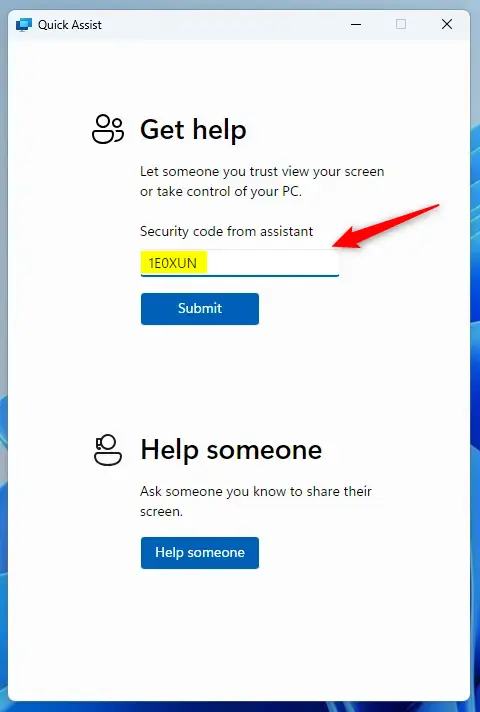

They will then see a message asking to allow screen sharing. They need to click Allow to continue.
5. Wait for the Connection to Start
After the person allows the connection, you will see their screen on your computer.
What happens next? If you chose to take full control, you can now move their mouse, open programs, and help fix problems. It’s like sitting right in front of their PC.
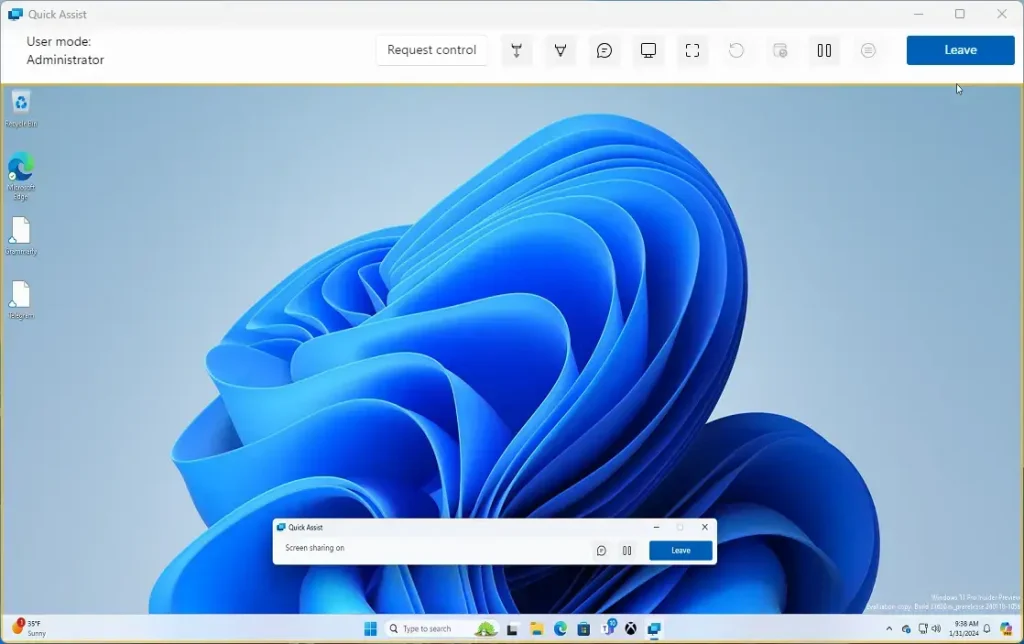
6. Use the Quick Assist Toolbar
A small toolbar will appear on your screen with these buttons:
- Pause: Temporarily stop the session.
- Annotate: Draw on the screen to explain things.
- Task Manager: Open Task Manager on the other PC.
- Restart: Restart the other PC and reconnect automatically.
- End: Stop the Quick Assist session.
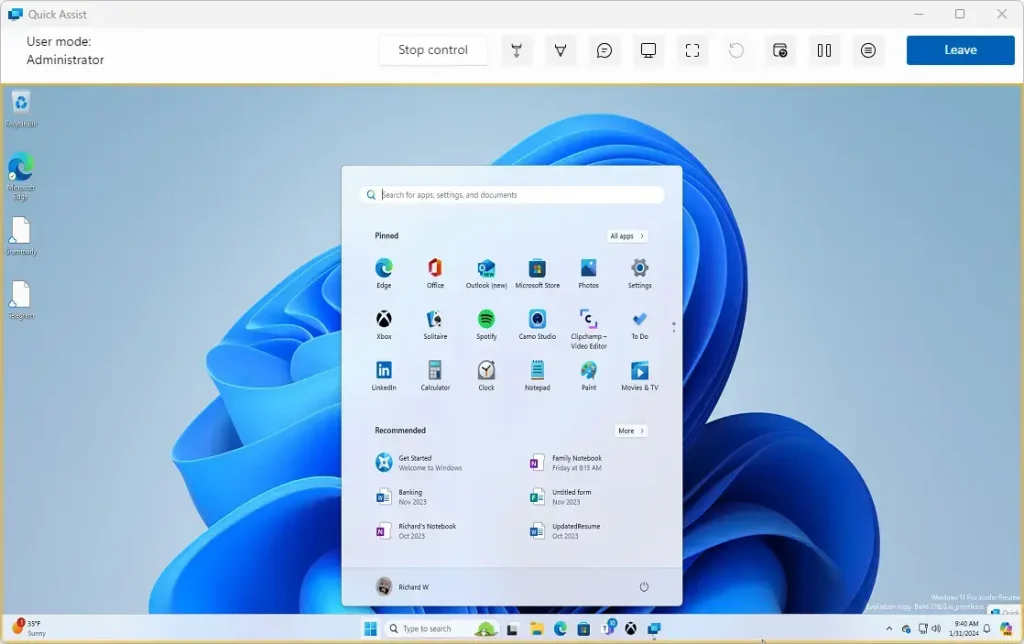
7. Ending the Session
When you’re done helping:
- Click Leave on the Quick Assist toolbar.
- Confirm by clicking End in the pop-up window.
What happens? The connection closes and the Quick Assist window shuts down.
Tips for a Smooth Quick Assist Session
- Make sure both computers have good internet to avoid interruptions.
- Close any private or sensitive windows before sharing your screen.
- Keep talking using phone or chat to explain what you’re doing.
Summary
- Quick Assist helps you give or get remote help on Windows 11 computers.
- It uses a secure code to connect safely between two PCs.
- Always keep security codes private and protect your personal information.
- Good communication and strong internet help make the session better.
- Quick Assist is a fast and easy way to help or get help from anywhere in the world.

Leave a Reply Cancel reply