How to Use Quick Assist in Windows 11

Quick Assist lets you provide or receive remote technical support for Windows 11 PCs.
This built-in Windows feature lets you share your screen or take control of another user’s computer to sort out problems. It’s super helpful if you need to lend a hand to a friend or family member with a PC issue, or if you need some expert advice yourself.
Using Quick Assist requires both computers to be running Windows 11 and connected to the internet. The process involves one user generating a security code that the other user enters to establish a secure connection.
This remote assistance capability streamlines troubleshooting, saving you the time and hassle of in-person visits.
How to Use Quick Assist
1Open Quick Assist
You can open Quick Assist in Windows 11 by searching for it in the Start menu or using a handy keyboard shortcut.
- Click the Start button (the Windows icon) on the bottom left of your screen. Or press the Windows key on your keyboard.
- Type
Quick Assistin the search box. - Click the Quick Assist app when it appears.
Shortcut tip: Press Ctrl + Windows key + Q together to open it faster.
2Start Quick Assist
Once Quick Assist is open, you’ll choose whether you need help or want to help someone else.
- Get help – Click this if you want to receive help from someone.
- Help someone – Click this if you want to help another person.
If you’re helping someone else, click Help someone. You may be asked to sign in with your Microsoft account.
3Share the Security Code
When you choose to help someone using Windows 11 Quick Assist, a security code is generated that you must share with them.
What happens? Once they have the code, the person you’re helping will use it to allow your connection.
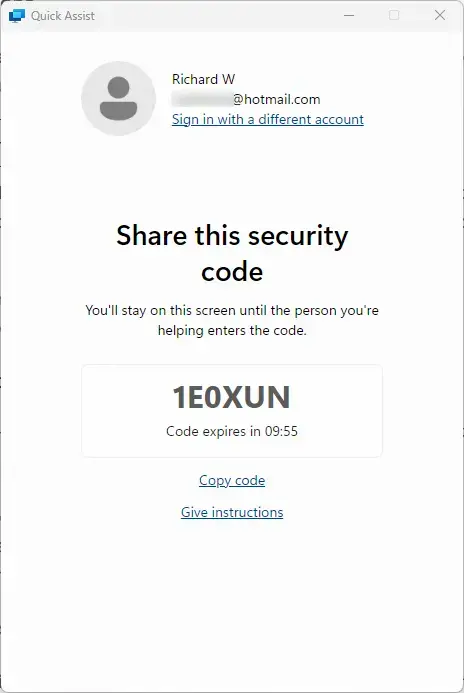
Important: Only share this code with the person you’re helping. Don’t post it online or share it with strangers.
4The Person Getting Help Enters the Code
The person receiving help needs to open Quick Assist on their Windows 11 PC, select ‘Get help,’ and then enter the security code you provided.
- Click Get help.
- Type the security code you gave them in the box labeled “Security code from assistant”.
- Click Submit.
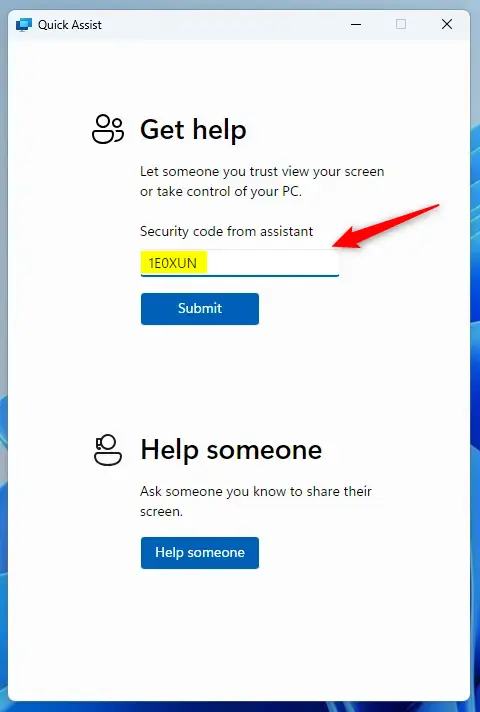

They will then see a message asking to allow screen sharing. They need to click Allow to continue.
5Wait for the Connection to Start
After the person allows the connection, you will see their screen on your computer.
What happens next? If you chose to take full control, you can now move their mouse, open programs, and help fix problems. It’s like sitting right in front of their PC.
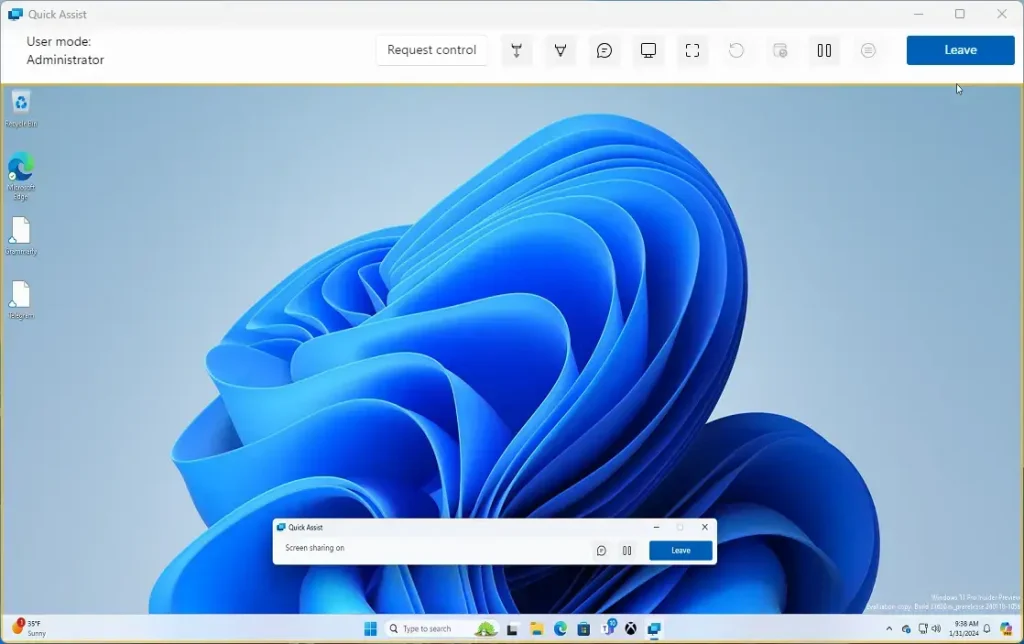
6Use the Quick Assist Toolbar
A small toolbar will appear on your screen with these buttons:
- Pause: Temporarily stop the session.
- Annotate: Draw on the screen to explain things.
- Task Manager: Open Task Manager on the other PC.
- Restart: Restart the other PC and reconnect automatically.
- End: Stop the Quick Assist session.
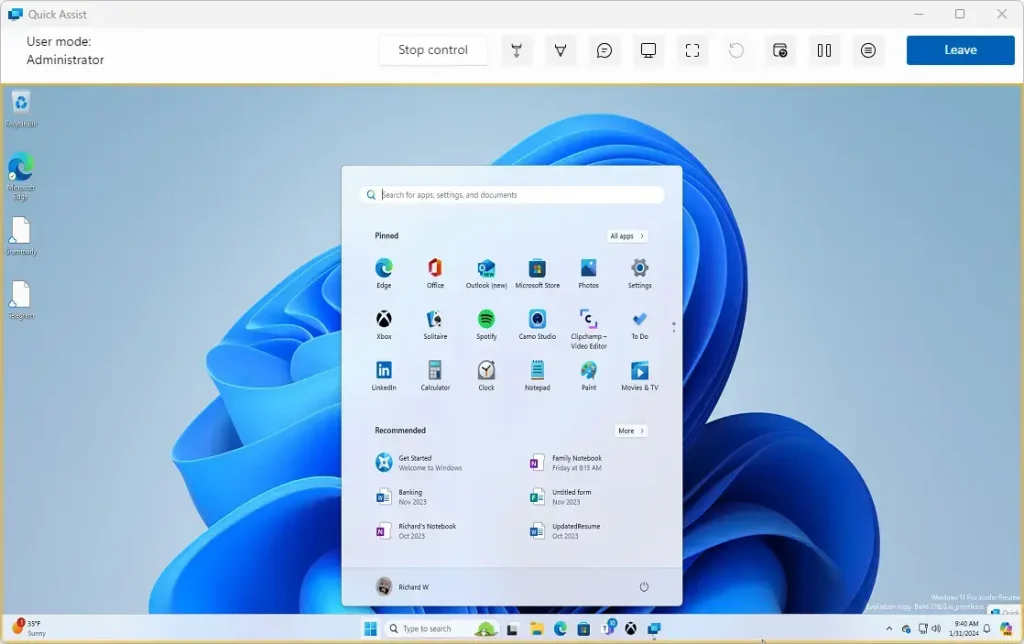
7Ending the Session
When you’re done helping:
- Click Leave on the Quick Assist toolbar.
- Confirm by clicking End in the pop-up window.
What happens? The connection closes and the Quick Assist window shuts down.
Tips for a Smooth Quick Assist Session
- Make sure both computers have good internet to avoid interruptions.
- Close any private or sensitive windows before sharing your screen.
- Keep talking using phone or chat to explain what you’re doing.
Summary
Windows 11 Quick Assist is a simple tool for giving or getting remote computer help using a secure code.- Quick Assist helps you give or get remote help on Windows 11 computers.
- It uses a secure code to connect safely between two PCs.
- Always keep security codes private and protect your personal information.
- Good communication and strong internet help make the session better.
- Quick Assist is a fast and easy way to help or get help from anywhere in the world.
Should I remove Quick Assist in 🪟 Windows 11?
Yes, you can safely remove Quick Assist from Windows 11 if you don’t plan to use it for remote help, and it can be reinstalled later from the Microsoft Store.
What is the new name for Quick Assist?
In November 2021, Microsoft announced a more business-friendly version of Quick Assist, called Remote Help.
Was this guide helpful?

About the Author
Richard
Tech Writer, IT Professional
Richard, a writer for Geek Rewind, is a tech enthusiast who loves breaking down complex IT topics into simple, easy-to-understand ideas. With years of hands-on experience in system administration and enterprise IT operations, he’s developed a knack for offering practical tips and solutions. Richard aims to make technology more accessible and actionable. He's deeply committed to the Geek Rewind community, always ready to answer questions and engage in discussions.



No comments yet — be the first to share your thoughts!