How to Update Windows 11 Drivers and Check for Driver Updates: A Complete Guide

Your computer is only as good as the software that runs its hardware. Drivers are the bridge between Windows 11 and your devices—your printer, graphics card, network adapter, and more. Without current drivers, you might experience slow performance, connection problems, or features that simply don’t work. In this guide, we’ll walk you through every way to find and install driver updates on Windows 11, so your system stays running smoothly.
Why Should You Update Your Drivers?
Drivers are small software programs that allow Windows 11 to communicate with hardware devices. Think of them as translators between your operating system and your printer, graphics card, keyboard, mouse, and other peripherals. When manufacturers release new driver versions, they often include bug fixes, performance improvements, and support for new features.
Keeping drivers updated matters because outdated drivers can cause crashes, slow your computer down, create security vulnerabilities, and prevent hardware from working at all. For example, an old graphics driver might cause games to stutter. An outdated network driver could reduce your internet speed. A printer driver that’s behind might prevent you from printing important documents.
How Often Should You Update Drivers?
Most users don’t need to update drivers every week. However, you should check for updates every few months, especially for devices you use frequently. Graphics card manufacturers like NVIDIA and AMD release driver updates more often—sometimes monthly—and gamers benefit from installing these promptly. For everyday devices like keyboards and mice, updates are less critical. If your system is working fine, you don’t necessarily need to update every driver available. Focus on devices that matter to your workflow.
Understand What Happens When You Update Drivers
Before updating, it’s helpful to know what happens. When you install a new driver, Windows 11 temporarily stops using the old driver and switches to the new one. Most of the time this process is seamless and takes seconds. Your device might briefly disconnect and reconnect—you might see your internet blink off for a moment or your monitor go black for a second. The device then starts working with the new driver. Sometimes, you’ll need to restart your computer for changes to take full effect. In rare cases, a new driver causes problems with your system. That’s why we’ll also show you how to roll back to an older driver if needed.
Method 1: Update Drivers Automatically Through Windows Update
The easiest way to update most drivers is through Windows Update, which automatically finds and installs recommended driver updates for you.
Steps to Update Drivers via Windows Update:
- Open Settings by pressing Windows key + I on your keyboard.
- Click on Windows Update in the left sidebar.
- Click the button that says Check for updates.
- Windows will search for available updates, including driver updates. This may take a minute or two.
- If updates are found, you’ll see them listed. Click Download and install or Install now.
- Wait for the installation to complete. Your computer may restart automatically.
- After restart, your drivers should be updated.
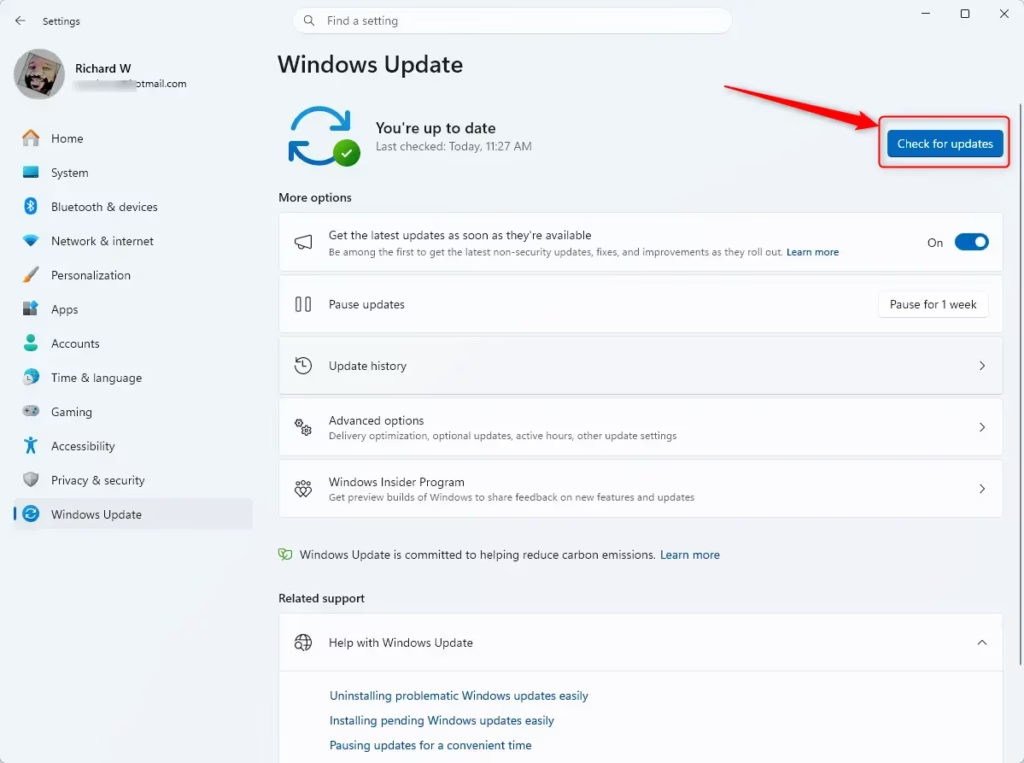
What happens: Windows Update checks with Microsoft’s servers for recommended driver updates. If new drivers are available for devices Windows recognizes, it downloads and installs them automatically. This is the simplest method for most users.
Method 2: Update Drivers Through Device Manager
Device Manager shows you every hardware device connected to your computer. You can manually check for updates for specific devices here.
Steps to Update Drivers in Device Manager:
- Right-click the Start button (Windows logo) in the bottom left.
- Select Device Manager from the menu that appears.
- In the Device Manager window, locate the device you want to update (for example, expand Display adapters to find your graphics card, or expand Network adapters to find your internet adapter).
- Right-click on the specific device.
- Select Update driver.
- A window will open asking how you want to search for drivers. Choose Search automatically for updated driver software.
- Windows will search online for the latest driver. This usually takes 30 seconds to a few minutes.
- If a new driver is found, Windows will download and install it automatically.
- You may see a message saying “The best driver software for your device is already installed” if you’re already up to date.
- Close Device Manager when finished.
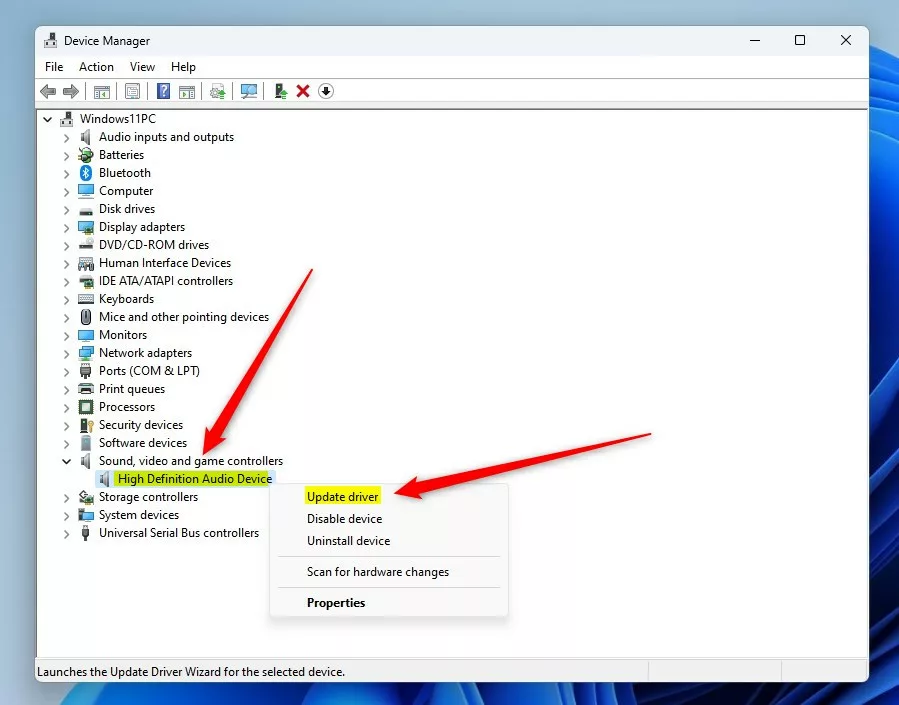
What happens: Device Manager connects to Windows Update servers and searches for drivers specifically for the device you selected. This method is helpful when you want to update just one piece of hardware without updating everything else.
Finding Specific Devices in Device Manager:
Device Manager organizes hardware into categories. Here are common ones you’ll see:
- Display adapters—your graphics card or integrated graphics
- Network adapters—your ethernet adapter or Wi-Fi card
- Sound, video and game controllers—your sound card and audio drivers
- Universal Serial Bus controllers—USB hubs and controllers
- Printers—connected printers
- Mice and other pointing devices—your mouse or trackpad
- Keyboards—your keyboard
- Bluetooth—Bluetooth adapters (if you have Bluetooth devices)
Click the small arrow next to any category to expand it and see the devices inside.
Method 3: Install Drivers From the Manufacturer’s Website
Sometimes the newest drivers aren’t available through Windows Update. For the absolute latest versions—especially for graphics cards and gaming peripherals—you may need to visit the manufacturer’s website directly.
Steps to Install Drivers From a Manufacturer:
- Visit the manufacturer’s website. Common manufacturers include:
- Graphics: NVIDIA (nvidia.com), AMD (amd.com), Intel (intel.com)
- Motherboards: ASUS (asus.com), MSI (msi.com), Gigabyte (gigabyte.com)
- Printers: HP (hp.com), Canon (canon.com), Epson (epson.com)
- Networking: Realtek (realtek.com), Intel (intel.com)
- Look for a “Support,” “Downloads,” or “Drivers” section.
- Enter your device model number. You can find this in Device Manager (right-click the device, select Properties, and look for the model name).
- Select Windows 11 as your operating system.
- Download the latest driver file to your computer (usually to your Downloads folder).
- Locate the downloaded file and double-click it to start the installer.
- Follow the on-screen instructions. Most driver installers are automatic.
- Restart your computer if prompted.
What happens: You’re downloading the driver directly from the source—the company that made the hardware. These versions are often newer than what’s available through Windows Update. The manufacturer’s installer usually handles everything automatically.
How to Check Your Current Driver Version
Before updating, you might want to know which driver version you currently have. This helps you confirm an update actually installed.
Steps to Check Driver Version:
- Open Device Manager (right-click the Start button and select Device Manager).
- Find and expand the category containing your device.
- Right-click the device and select Properties.
- Click the Driver tab.
- Look at the Driver Version field. This shows your current version.
- The Driver Date field shows when this driver was released.
- You can compare this version number to what’s available on the manufacturer’s website to see if an update is available.
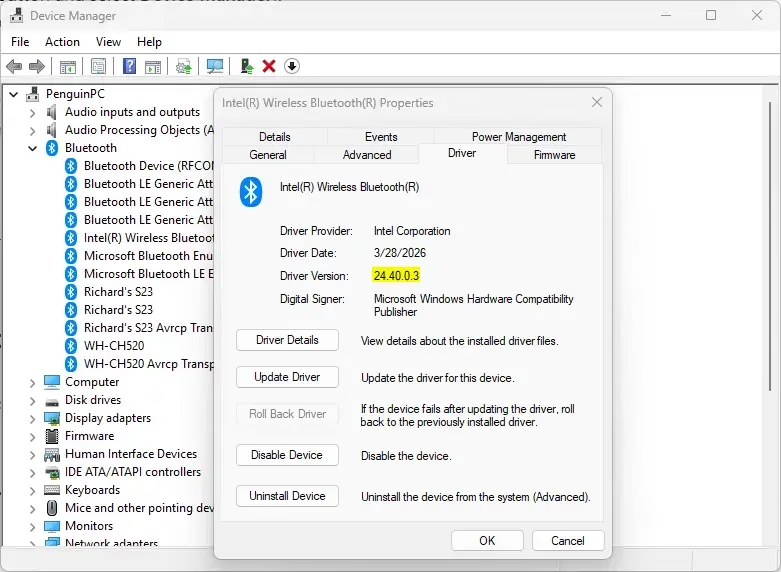
Tip: Write down your current driver version before updating. If the new driver causes problems, you’ll know exactly which version to roll back to.
Method 4: Uninstall and Reinstall a Driver
Sometimes a driver becomes corrupted and stops working properly. Uninstalling and reinstalling it often fixes the problem.
Steps to Uninstall and Reinstall a Driver:
- Open Device Manager.
- Find your device and right-click it.
- Select Uninstall device.
- A confirmation window will appear. Check the box that says Attempt to remove the driver software for this device.
- Click Uninstall.
- Windows will remove the driver. You might see your device stop working briefly.
- Restart your computer.
- After restart, Windows will automatically reinstall a basic driver for your device.
- Then follow the steps above to update the driver through Device Manager or the manufacturer’s website for the latest version.
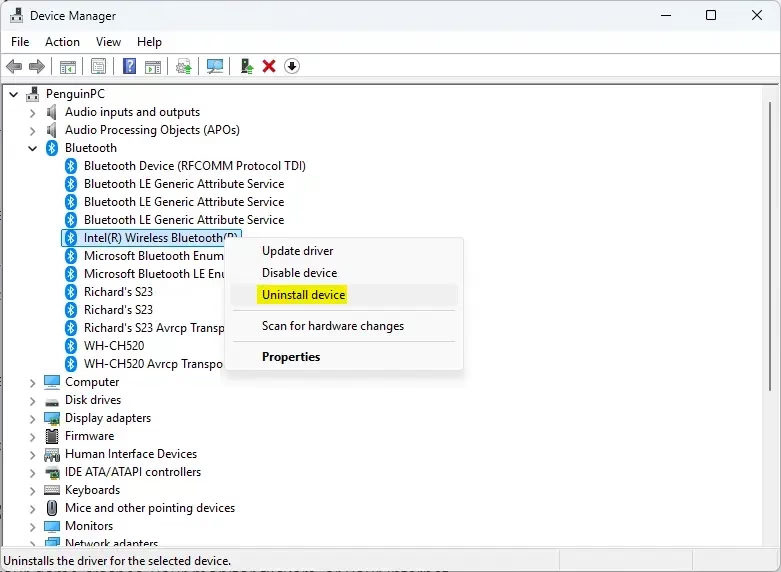
What happens: Uninstalling removes all the driver software from your system. When you restart, Windows detects the hardware again and installs a generic driver to make it work. You then install the proper driver on top of that. This process clears out any corrupted files that might be causing problems.
How to Roll Back a Driver if Updates Cause Problems
In rare cases, a new driver causes issues. Maybe your game crashes, your monitor flickers, or your internet cuts out. Windows allows you to go back to the previous driver version.
Steps to Roll Back a Driver:
- Open Device Manager.
- Right-click the device that’s causing problems.
- Select Properties.
- Click the Driver tab.
- Look for a button labeled Roll Back Driver. This button only appears if Windows has a previous version saved.
- Click Roll Back Driver.
- A confirmation window will appear explaining that you’re reverting to the previous driver version.
- Click Yes to confirm.
- Windows will uninstall the new driver and reinstall the old one.
- Restart your computer if prompted.
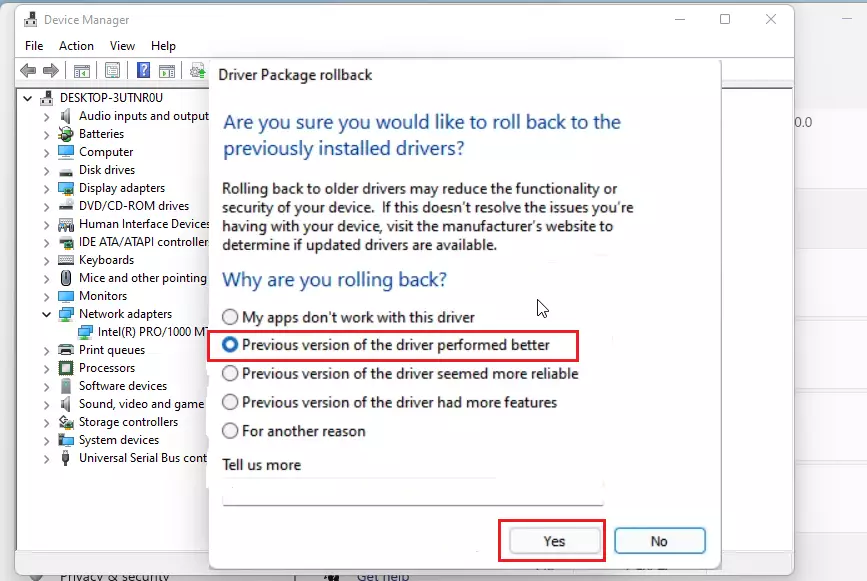
What happens: Windows keeps a copy of your previous driver in case you need to go back. Rolling back removes the problematic new driver and reinstalls the older version that was working fine. You can then wait for a new driver update that hopefully fixes the issue.
Note: The Roll Back Driver option only appears if a driver was recently updated. If you uninstalled a driver and installed a new one, you won’t be able to roll back using this method.
Update Drivers for Specific Hardware: Graphics Cards
Graphics drivers are among the most important to keep updated, especially if you play games or work with graphics-heavy applications.
Updating NVIDIA Graphics Drivers:
- Visit nvidia.com/Download/driverDetails.aspx.
- Select your graphics card model, operating system (Windows 11), and language.
- Click Search.
- Download the latest driver file.
- Run the installer and follow the prompts.
- Restart your computer.
Alternatively, NVIDIA provides a GeForce Experience application that automatically notifies you of driver updates. Download it from nvidia.com and install it for automatic update notifications.
Updating AMD Graphics Drivers:
- Visit amd.com/support.
- Enter your graphics card model.
- Select Windows 11 and download the latest driver.
- Run the installer and follow the prompts.
- Restart your computer.
AMD also offers an Adrenalin software application for easier driver management and automatic updates.
Updating Intel Graphics Drivers:
If you have integrated Intel graphics (common in laptops and budget desktops):
- Visit intel.com/content/www/en/en/support/detect.html.
- Download Intel’s Driver & Support Assistant tool.
- Run the tool—it automatically detects your system and finds available driver updates.
- Click Update for any available drivers.
- Restart when prompted.
Why graphics drivers matter: Graphics drivers affect gaming performance, video playback quality, and stability when using multiple monitors. New driver versions often include optimizations for new games and applications. Keeping them current ensures the best performance and compatibility.
Update Drivers for Network Adapters
Network drivers control your internet connection—both wired (Ethernet) and wireless (Wi-Fi). Updated network drivers can improve connection speed and stability.
Steps to Update Network Drivers:
- Open Device Manager.
- Expand the Network adapters category.
- Right-click your network adapter (usually named something like “Intel(R) Ethernet Connection” or “Realtek High Definition Audio”).
- Select Update driver.
- Choose Search automatically for updated driver software.
- Wait for the search to complete and install any available updates.
- Restart your computer.
For the latest network drivers, visit your motherboard manufacturer’s website and download drivers from there. Common manufacturers include ASUS, MSI, and Gigabyte.
What happens: An updated network driver might increase your internet speed, reduce disconnections, or fix Wi-Fi connectivity issues. Some users report noticeable speed improvements after updating network drivers.
Update Drivers for Sound and Audio
Audio drivers control your speakers, headphones, and microphone. If you’re experiencing crackling sound, audio cutting out, or a microphone not being recognized, an updated audio driver might fix it.
Steps to Update Audio Drivers:
- Open Device Manager.
- Expand Sound, video and game controllers.
- Right-click your audio device (look for “Realtek High Definition Audio” or similar).
- Select Update driver.
- Choose Search automatically for updated driver software.
- Install any available updates and restart if needed.
For the best results, visit your motherboard manufacturer’s website and download audio drivers from there, as they often have more recent versions than Windows Update offers.
Update Drivers for Printers
Printer drivers allow Windows to communicate with your printer. Without proper drivers, you might not be able to print or access advanced printer features.
Steps to Update Printer Drivers:
- Open Device Manager and expand the Printers category.
- Right-click your printer and select Update driver.
- Choose Search automatically for updated driver software.
- Alternatively, visit your printer manufacturer’s website (HP, Canon, Epson, Brother, etc.).
- Download the latest driver for your specific printer model.
- Run the installer and restart your computer.
What happens: Updated printer drivers often add support for new printers, fix printing quality issues, and provide access to advanced features like color management and finishing options.
Advanced Driver Management: Creating a System Restore Point
Before updating drivers, it’s smart to create a restore point. If something goes wrong, you can revert your system to before the update.
Steps to Create a System Restore Point:
- Press Windows key + R to open the Run dialog.
- Type systempropertiesadvanced.exe and press Enter.
- The System Properties window will open. Click the System Protection tab.
- Click the Create button.
- Give your restore point a name like “Before Graphics Driver Update” so you remember what it’s for.
- Click Create.
- Wait for the restore point to be created (usually takes 10-30 seconds).
- Click Close when finished.
What happens: Windows saves a snapshot of your system configuration, drivers, and important system files. If you need to undo driver updates later, you can restore your system to this point, and all drivers will revert to their previous versions.
Steps to Restore from a Restore Point:
- Press Windows key + R and type rstrui.exe, then press Enter.
- The System Restore window will open. Click Next.
- Select the restore point you created before updating (it will show the name and date you chose).
- Click Next.
- Review the information and click Finish.
- A warning will appear saying the process cannot be undone. Click Yes to proceed.
- Your computer will restart and restore to the selected point.
Checking for Driver Updates Regularly: Setting Up Notifications
Rather than manually checking for driver updates every month, you can set Windows to notify you automatically.
Enable Automatic Driver Update Notifications:
- Open Settings (Windows key + I).
- Click System.
- Select About.
- Look for the Advanced options button and click it.
- Scroll down to find “Drivers” or “Driver updates”.
- Toggle this setting to On to receive notifications when driver updates are available.
With this enabled, Windows will automatically notify you when new drivers are discovered, and you can install them at a convenient time.
Troubleshooting: What If a Driver Won’t Update?
Sometimes Windows can’t find updates, or an update fails. Here are common solutions.
The Device Says “Best Driver Already Installed”
This means Windows thinks you have the latest version. Try these steps:
- Visit the manufacturer’s website directly to check if a newer version is available there.
- Sometimes manufacturers release drivers before Windows Update includes them.
- Download and install the manufacturer’s version directly.
The Driver Update Installation Fails
Flag: You may need administrator privileges for these steps.
- Right-click the downloaded driver installer file.
- Select Run as administrator.
- Accept any prompts asking for permission.
- Follow the installation steps again.
If it still fails, restart your computer and try again. Sometimes Windows needs a fresh start to complete driver installations.
Device Manager Shows a Yellow Exclamation Mark
A yellow exclamation mark means the device isn’t working properly. Try this:
- Right-click the device with the yellow mark.
- Select Uninstall device.
- Check the box for “Attempt to remove the driver software for this device”.
- Click Uninstall.
- Restart your computer.
- Right-click in empty space in Device Manager and select Scan for hardware changes.
- Windows will detect the device again and install a driver.
- Update the driver to the latest version through Device Manager or the manufacturer’s website.
Professional Tool: Third-Party Driver Update Software (When Needed)
Some situations call for additional tools. While Windows built-in options cover most needs, third-party applications can help in specific scenarios.
When You Might Need Third-Party Tools:
- You have many different devices and want to update all drivers at once from a single interface.
- You’re managing multiple computers and need centralized driver updates.
- You need older driver versions for compatibility testing.
- You want detailed reports on which drivers need updates.
Popular Options Include:
- Windows Update for Business—built into Windows Pro and Enterprise editions for centralized management.
- Device Manager Plus (paid)—advanced device and driver management.
- Driver Booster (free with paid options)—automatic driver scanning and updating.
Important: Only use reputable, well-known driver update tools. Some free tools from untrusted sources can install unwanted software or outdated drivers. When in doubt, use Windows Update or manufacturer websites.
Understanding Driver Conflicts and Compatibility
Sometimes multiple drivers interact in unexpected ways. Knowing how to identify and resolve conflicts prevents headaches.
Signs of Driver Conflicts:
- Your computer crashes after a driver update.
- A device stops working after updating a different device’s driver.
- Unusual error messages appear in Device Manager (like Code 43 or Code 37).
- Your system becomes unstable or unpredictable.
Resolving Driver Conflicts:
- Note which driver update caused the problem.
- Use the Roll Back Driver feature to revert
Conclusion
Keeping your drivers updated is essential for maintaining optimal system performance and stability in Windows 11. Regularly updating your drivers helps avoid issues such as crashes, connectivity problems, and poor performance. Here are key takeaways:
- Importance of Drivers: Drivers serve as crucial intermediaries between Windows and your hardware, enabling proper functionality.
- Frequency of Updates: Aim to check for driver updates every few months, focusing on critical devices like graphics and network adapters.
- Methods for Updating: Utilize Windows Update, Device Manager, or manufacturer websites to ensure you have the latest drivers.
- Backup Your System: Create a system restore point before making updates to easily revert changes if issues arise.
- Handling Problems: Know how to roll back drivers or troubleshoot common installation issues to quickly resolve any problems that may emerge after updates.
- Consider Third-Party Tools: Use reputable third-party software for managing multiple devices or when built-in options are insufficient.
By following these guidelines, you can ensure that your Windows 11 system operates smoothly and efficiently, maximizing your hardware’s potential.
How do I update all my drivers in Windows 11?
To update all drivers in Windows 11, use Windows Update. Go to Settings > Windows Update > Advanced options > Optional updates. Here, you'll find driver updates listed under 'Driver updates.' Select the ones you want and click 'Download & install' for a comprehensive update.
Does Windows 11 automatically check for driver updates?
Yes, Windows 11 automatically checks for driver updates through Windows Update. While it prioritizes critical updates, it also periodically offers optional driver updates. You can manually check for these by navigating to Settings > Windows Update > Advanced options > Optional updates.
How do I check if all my drivers are up to date in Windows 11?
To check if all drivers are up to date in Windows 11, go to Settings > Windows Update > Advanced options > Optional updates. Any available driver updates will be listed here. If no drivers appear, your system drivers are likely current via Windows Update.
How do I see if my driver is up to date?
To check if a specific driver is up to date, open Device Manager (search for it in the Start menu). Expand the category for the device, right-click the device, and select 'Properties.' Go to the 'Driver' tab and click 'Driver Details' to see the version and date.
Was this guide helpful?

About the Author
Richard
Tech Writer, IT Professional
Richard, a writer for Geek Rewind, is a tech enthusiast who loves breaking down complex IT topics into simple, easy-to-understand ideas. With years of hands-on experience in system administration and enterprise IT operations, he’s developed a knack for offering practical tips and solutions. Richard aims to make technology more accessible and actionable. He's deeply committed to the Geek Rewind community, always ready to answer questions and engage in discussions.


No comments yet — be the first to share your thoughts!