How to Update Microsoft Store Apps on Windows 11

You update Microsoft Store apps on Windows 11 directly through the Microsoft Store application.
The Microsoft Store acts as a central hub for managing your downloaded applications on Windows, including their updates.
Keeping these apps current is vital for accessing new features, installing essential security patches, and resolving bugs. For example, Windows 11’s Microsoft Store often receives updates itself, like the recent performance enhancements rolled out in version 22309.1401.8.0, which significantly speeds up app downloads.
By ensuring your apps are up-to-date, you improve their stability, enhance performance, and safeguard your system against potential vulnerabilities.
Open the Microsoft Store, click Library, then click Get updates. For automatic updates, go to App settings and turn on App updates.
How to manually update Microsoft Store apps
Manually updating your Microsoft Store apps is a great way to ensure all your programs have the newest features and important security fixes right away.
- Open the Microsoft Store from your Taskbar or Start menu.
microsoft store on windows 11 - Click the Library icon in the bottom-left corner of the window.
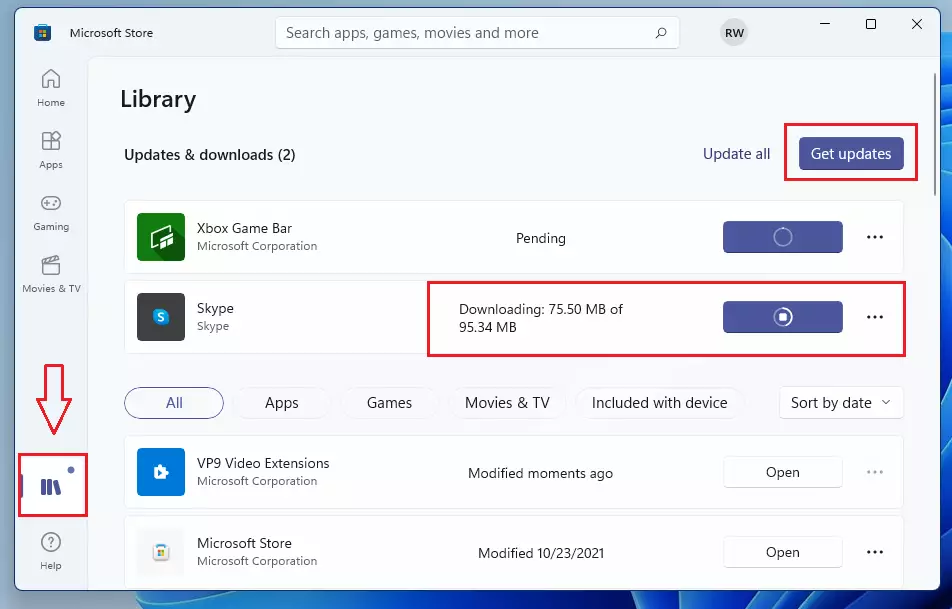
windows 11 store apps update - Click the Get updates button. This triggers the store to check for and download any pending updates.
How to set up automatic updates
Setting up automatic updates for your Microsoft Store apps means Windows takes care of everything, saving you time and making sure you always have the latest versions without lifting a finger.
- Open the Microsoft Store.
- Click your profile picture at the top right.
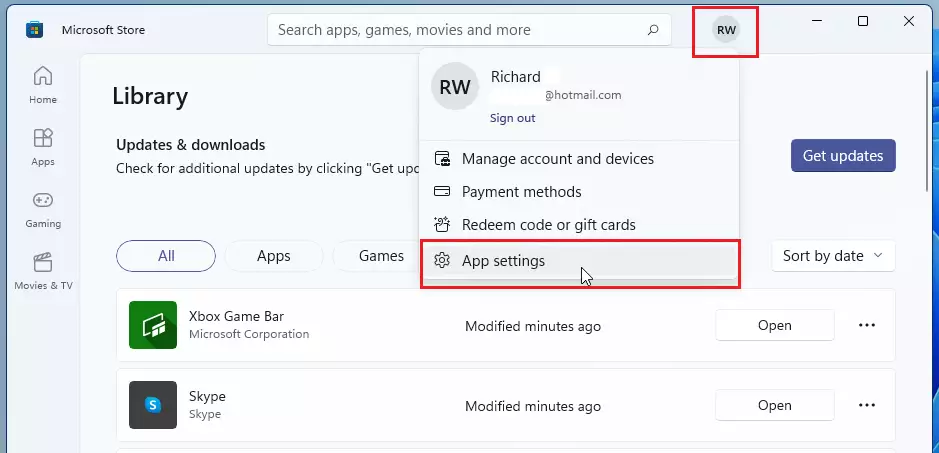
windows store apps updates - Select App settings.
- Ensure the App updates toggle is set to On.

Note: Changing system-wide settings may require admin privileges if your account is restricted.
Troubleshooting common update errors
Sometimes, the Microsoft Store fails to update apps. You might see error codes like 0x80070005 or notice that the update button is greyed out. Here is how to fix it:
1Use the WSReset command
If your Microsoft Store isn’t working right or won’t open, using the WSReset command can often fix it by clearing out temporary files without deleting your apps.
- Press Windows Key + R on your keyboard.
- Type
wsreset.exeand press Enter. - A blank command prompt window will appear. Wait for it to close automatically. The Microsoft Store will then open on its own.
2Run the Windows Update Troubleshooter
If you still have issues, use the built-in tool to repair the store.
- Go to Settings > System > Troubleshoot > Other troubleshooters.
- Find Windows Store Apps and click Run.
3PowerShell alternative
If you are an advanced user, you can force an update check via PowerShell. Requires admin privileges.
Get-AppxPackage -AllUsers | Foreach {Add-AppxPackage -DisableDevelopmentMode -Register "$($_.InstallLocation)\AppXManifest.xml"}Summary
- Updating apps fixes security risks and bugs.
- Use the Library tab to manually update your software.
- Use
wsreset.exeto fix common update errors. - Enable automatic updates in App settings to stay current without effort.
Why does the Microsoft Store say ‘Can’t connect’ when updating?
This usually happens due to a poor internet connection, a proxy setting, or a corrupted cache. Try restarting your router, checking your internet settings, or running the wsreset.exe command to clear the store cache and restore the connection.
Do I need to sign in to update apps?
Yes, you generally need to be signed in with a Microsoft account to download and update apps from the store. This links your apps to your account, ensuring you have the proper licenses to run the latest versions of your software.
Was this guide helpful?

About the Author
Richard
Tech Writer, IT Professional
Richard, a writer for Geek Rewind, is a tech enthusiast who loves breaking down complex IT topics into simple, easy-to-understand ideas. With years of hands-on experience in system administration and enterprise IT operations, he’s developed a knack for offering practical tips and solutions. Richard aims to make technology more accessible and actionable. He's deeply committed to the Geek Rewind community, always ready to answer questions and engage in discussions.




No comments yet — be the first to share your thoughts!