How to turn SmartScreen for Microsoft Edge on or off in Windows 11

You turn Microsoft Defender SmartScreen on or off in Windows 11 to control its protection against malicious websites and downloads in Microsoft Edge.
SmartScreen acts as a security feature, scanning websites, apps, and files you encounter in Edge against Microsoft’s extensive database of known threats, including phishing sites and malware. This feature helps prevent you from accidentally visiting dangerous locations or downloading harmful software.
For instance, if SmartScreen detects a URL or file that matches its threat intelligence database, it will display a warning before you proceed, safeguarding your PC. This guide shows you how to toggle this essential security layer.
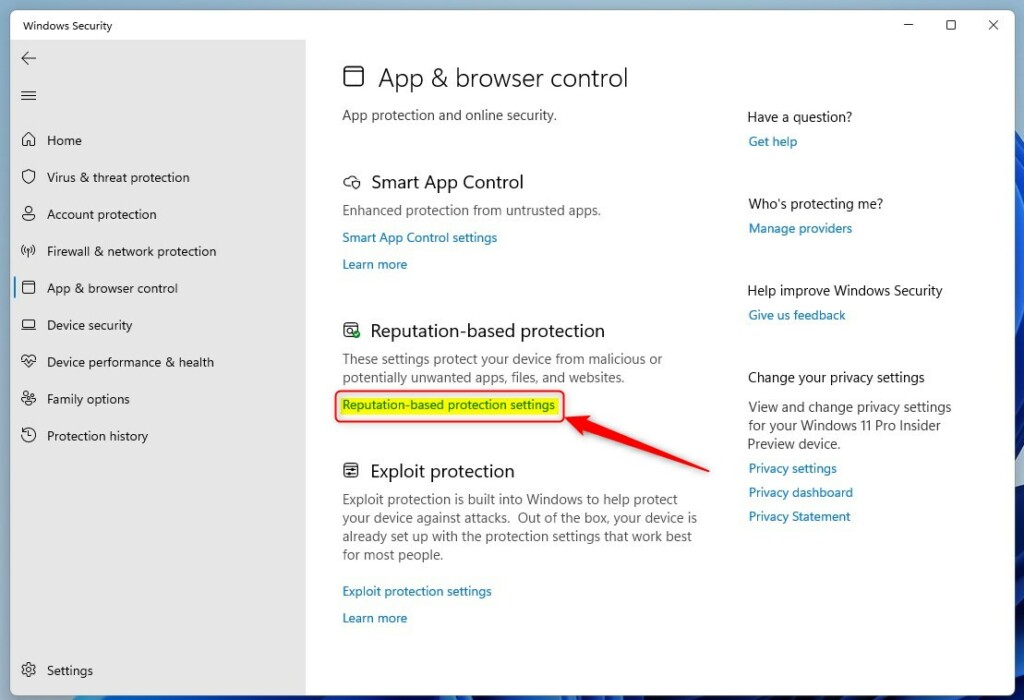
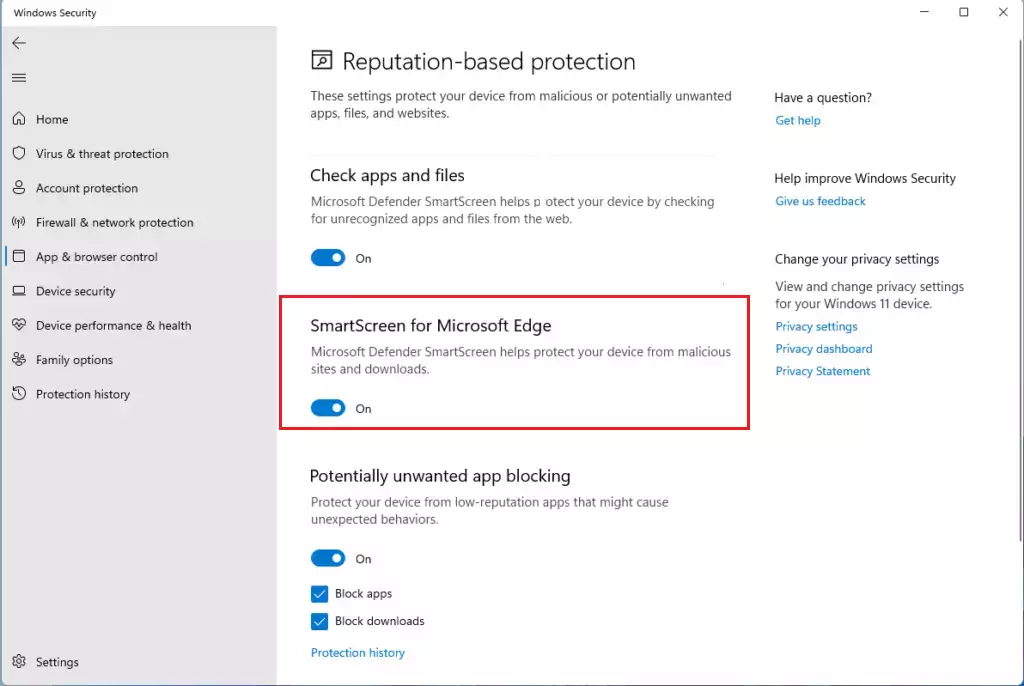
Open Windows Security, navigate to App & browser control, and then Reputation-based protection. Toggle “Check apps and files” to turn SmartScreen on or off for Microsoft Edge and app downloads.
How SmartScreen Helps in Microsoft Edge
Microsoft Defender SmartScreen acts like a security guard for your Microsoft Edge browser, helping to keep you safe online by warning you about dangerous websites and risky downloads.
SmartScreen operates quietly in the background as you browse. Here’s how it helps:
- Website Warnings: If you go to a site known for trying to steal passwords or personal info (phishing), or sites with bad software, SmartScreen shows a big warning. It tells you why it’s worried. You can usually go back to safety right away.
- Download Protection: When you try to download a file in Edge, SmartScreen checks it. If the file looks unsafe, Edge warns you. This lets you think twice before the file gets on your computer.
- Phishing Protection (Windows 11 Only): If you type your password into a bad website or app on Windows 11, SmartScreen can alert you. It might even tell you to change your password. It can also warn you if you use your Microsoft password on other unsafe sites. This is good for breaking bad habits! It also helps protect your password if you type it into apps like Notepad or Microsoft 365 programs, stopping it from being saved unsafely.
- Blocking Unwanted Apps: Some apps aren’t viruses but can be annoying. They might show too many ads, use your computer for things you didn’t agree to (like mining cryptocurrency), or add unwanted extra software. SmartScreen helps find and block these apps before they install and cause problems.
- Microsoft Store App Safety: SmartScreen also checks apps from the Microsoft Store. This adds more safety, making sure apps from the official store are also checked for safety.
How to Check and Change SmartScreen Settings
You can easily check or change your Microsoft Defender SmartScreen settings right within Windows Security, under the ‘App & browser control’ section, to make sure it’s on or off.
- Open Windows Security: Click the Start button. Type “Windows Security.” Pick the app from the list. Or, search directly for “App & browser control.”
- Go to App & browser control: When Windows Security opens, click “App & browser control” on the left side.
- Find Reputation-based protection: On the “App & browser control” screen, look for “Reputation-based protection.” Click it to see the settings.
- Change SmartScreen settings: Here, you’ll see different switches for protection.
- Check apps and files: This switch turns on SmartScreen for checking apps and files you download. Make sure it’s on for full protection.
- SmartScreen for Microsoft Edge: This is usually controlled by the “Check apps and files” switch. You might see specific settings for Edge’s browser protection here.
- Phishing protection: (Windows 11) This has more detailed settings. You can choose how strong you want the password protection to be.
- Potentially unwanted app blocking: You can choose to get alerts about these apps or block them. For most people, blocking is best.
- SmartScreen for Microsoft Store apps: This makes sure apps from the Microsoft Store also get checked for safety.
Reference:
Summary
Microsoft Defender SmartScreen is a built-in safety tool for Microsoft Edge that helps protect you from dangerous websites and downloads by using Microsoft’s threat information.
Remember, SmartScreen is a powerful tool, but it works best alongside your own vigilance. Stay aware, trust your instincts, and let SmartScreen help identify known online dangers. Happy (and safe) browsing!
Was this guide helpful?

About the Author
Richard
Tech Writer, IT Professional
Richard, a writer for Geek Rewind, is a tech enthusiast who loves breaking down complex IT topics into simple, easy-to-understand ideas. With years of hands-on experience in system administration and enterprise IT operations, he’s developed a knack for offering practical tips and solutions. Richard aims to make technology more accessible and actionable. He's deeply committed to the Geek Rewind community, always ready to answer questions and engage in discussions.


No comments yet — be the first to share your thoughts!