
What is Windows Hypervisor Platform?
Windows Hypervisor Platform is a feature in Windows 11 that lets programs like VirtualBox or QEMU run virtual machines on your PC. A virtual machine is basically a computer running inside your computer. You can use it to run another operating system, like Linux, without leaving Windows 11. It’s also great for testing software safely.
Why would you use this? When you turn on this feature, your computer’s hardware works faster to run virtual machines.
Turn On Windows Hypervisor Platform Using the Settings App
This is the easiest method. Just follow these steps:
- Open the Settings app. Click the Start button and select Settings. Or press Windows key + I on your keyboard.
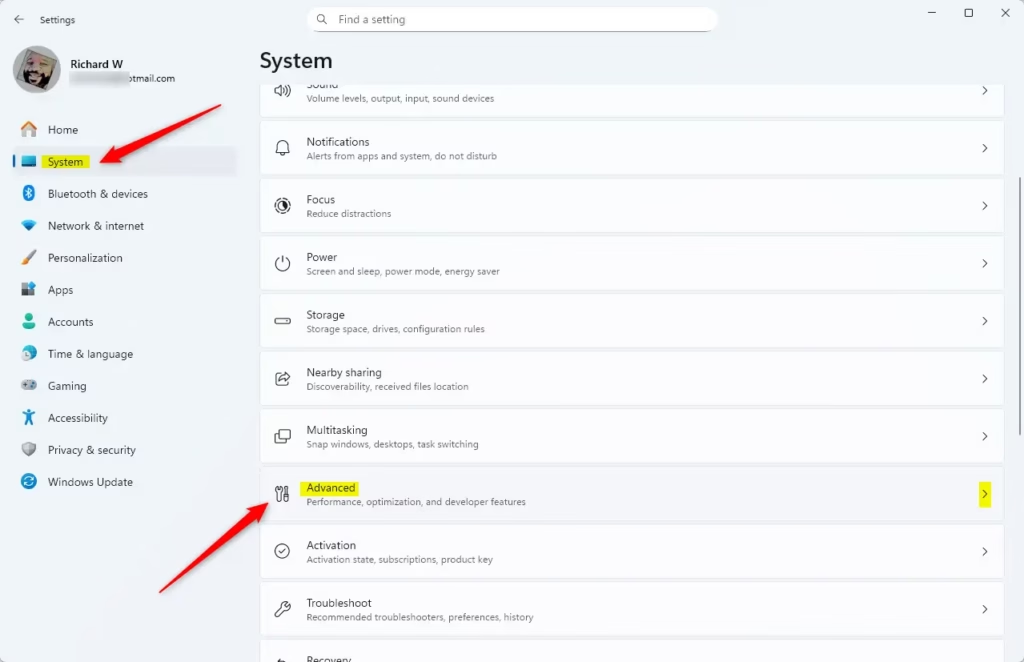
- Click System on the left side.
- Click Advanced on the right side to see more options.
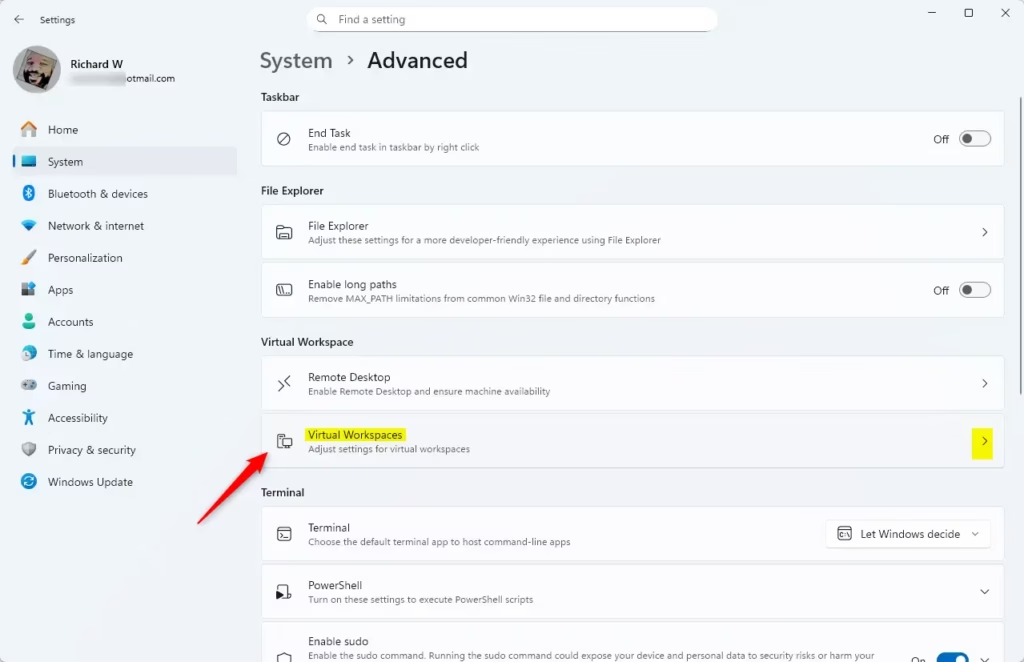
- Click on Virtual Workspaces to open it.
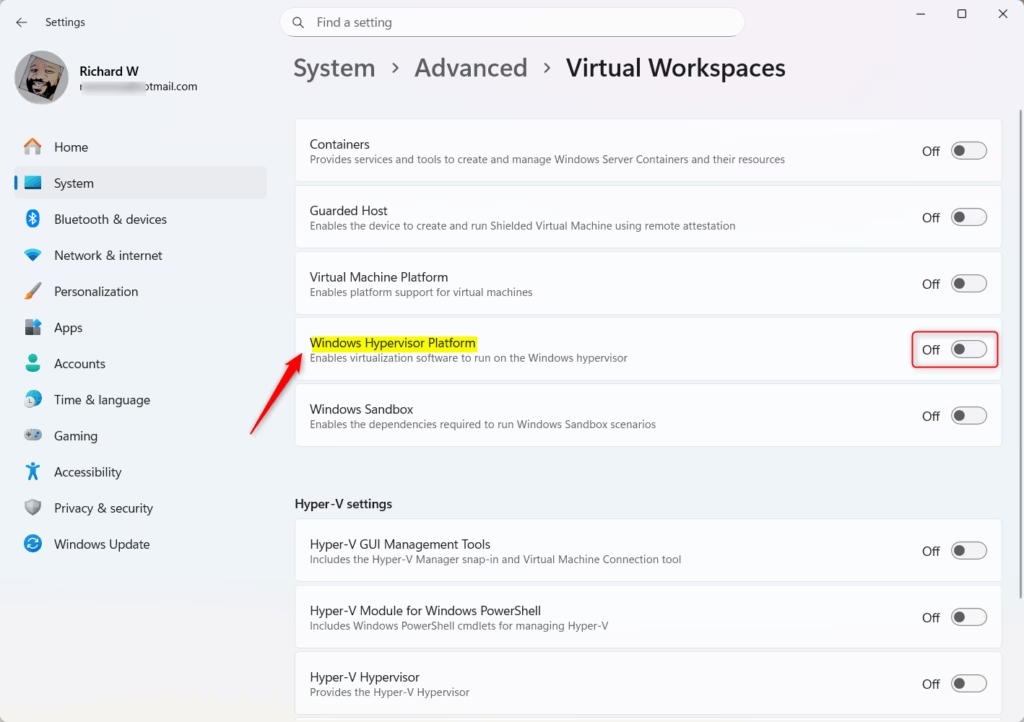
- Find the switch labeled Windows Hypervisor Platform and turn it On.
- Close the Settings app when you’re done.
Turn On Windows Hypervisor Platform Using Control Panel
Here’s another simple way to enable this feature:
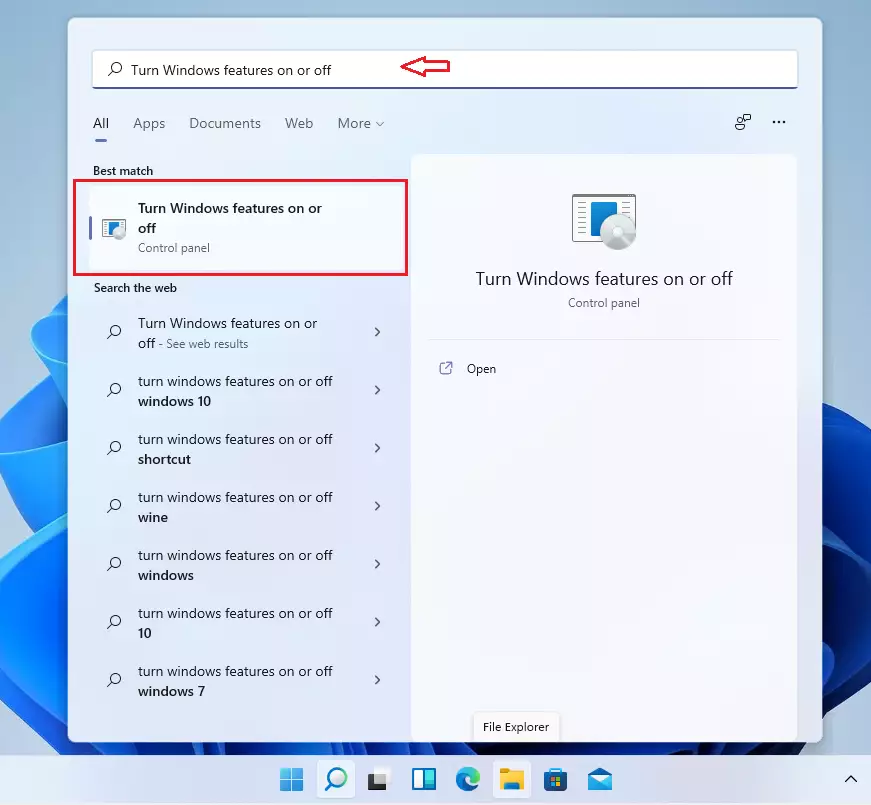
- Click Start, type “Turn Windows features on or off”, and click the matching result.
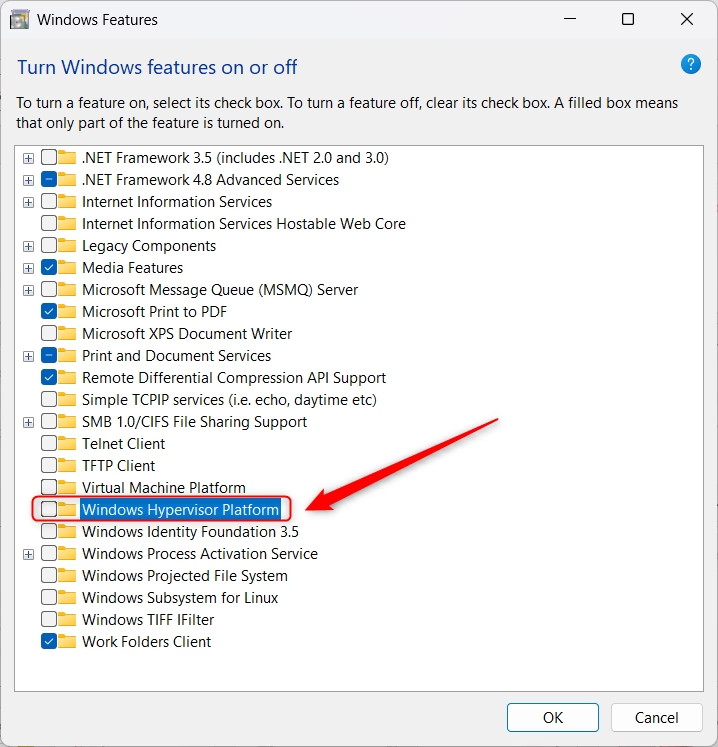
- In the Windows Features window that opens, scroll down and find Windows Hypervisor Platform.
- Check the box next to it to turn it on.
- Click OK to save.
- Your PC might ask you to restart. Go ahead and restart to apply the changes.
Turn On Windows Hypervisor Platform Using Command Prompt
⚠️ Admin privileges required
If you like using commands, try this method:
- Click Start, type Command Prompt, right-click it, and choose Run as administrator.
- Copy and paste this command, then press Enter to turn on Hypervisor Platform:
DISM /Online /Enable-Feature /FeatureName:"HypervisorPlatform"To turn it off, use this command:
DISM /Online /Disable-Feature /FeatureName:"HypervisorPlatform"Restart your computer to finish.

Turn On Windows Hypervisor Platform Using PowerShell
⚠️ Admin privileges required
PowerShell is another tool for running commands. Here’s how to use it:
- Click Start, type PowerShell, right-click it, and choose Run as administrator.
- To turn on Hypervisor Platform, type this command and press Enter:
Enable-WindowsOptionalFeature -Online -FeatureName "HypervisorPlatform"To turn it off, use:
Disable-WindowsOptionalFeature -Online -FeatureName "HypervisorPlatform"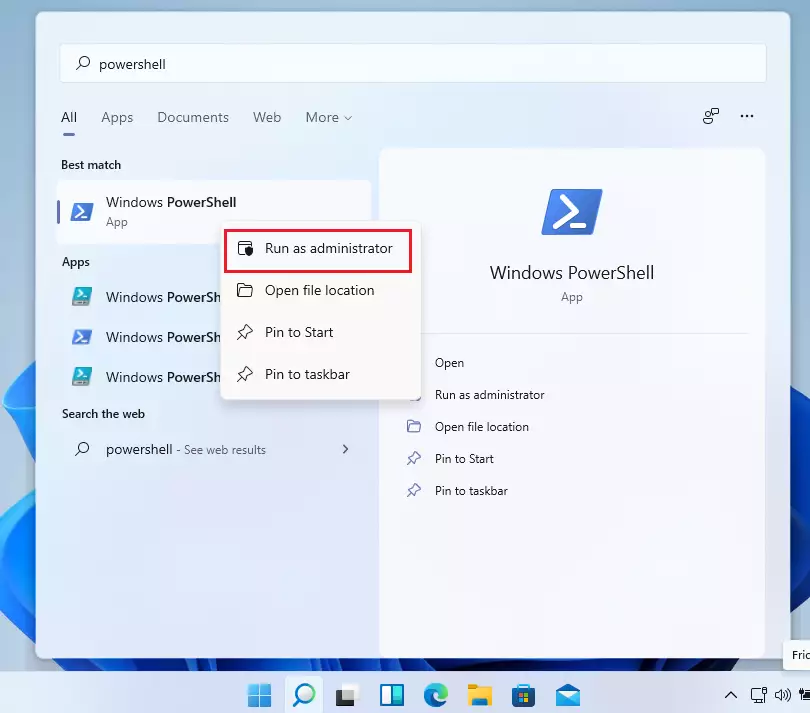
How to Create Virtual Machines Using Hyper-V Manager
After turning on Hypervisor Platform, you can create virtual machines. Here’s how:
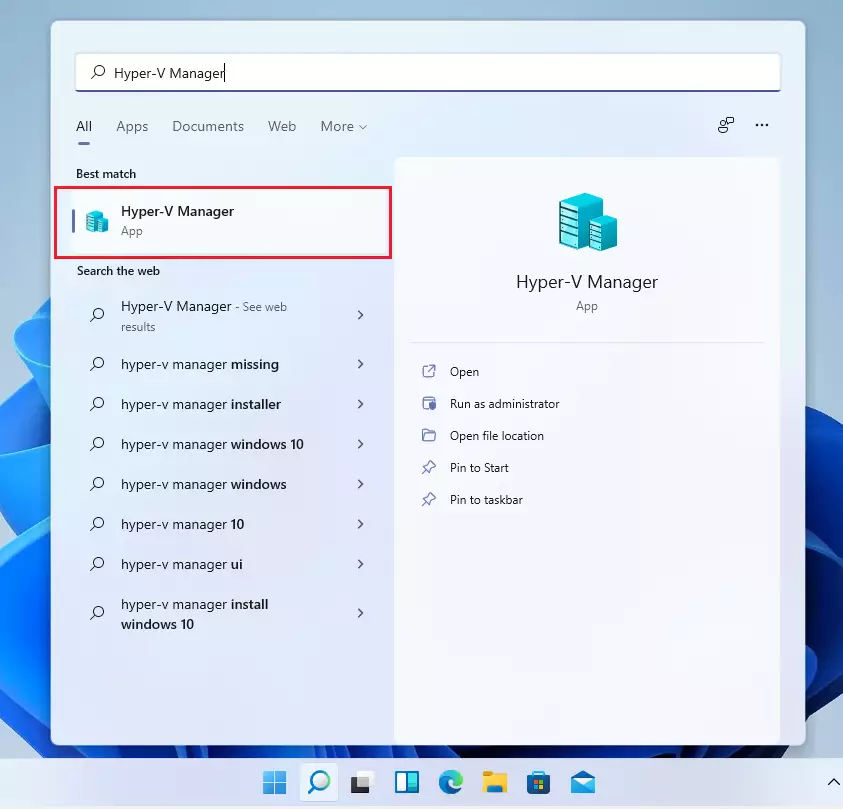
- Click Start and search for Hyper-V Manager.
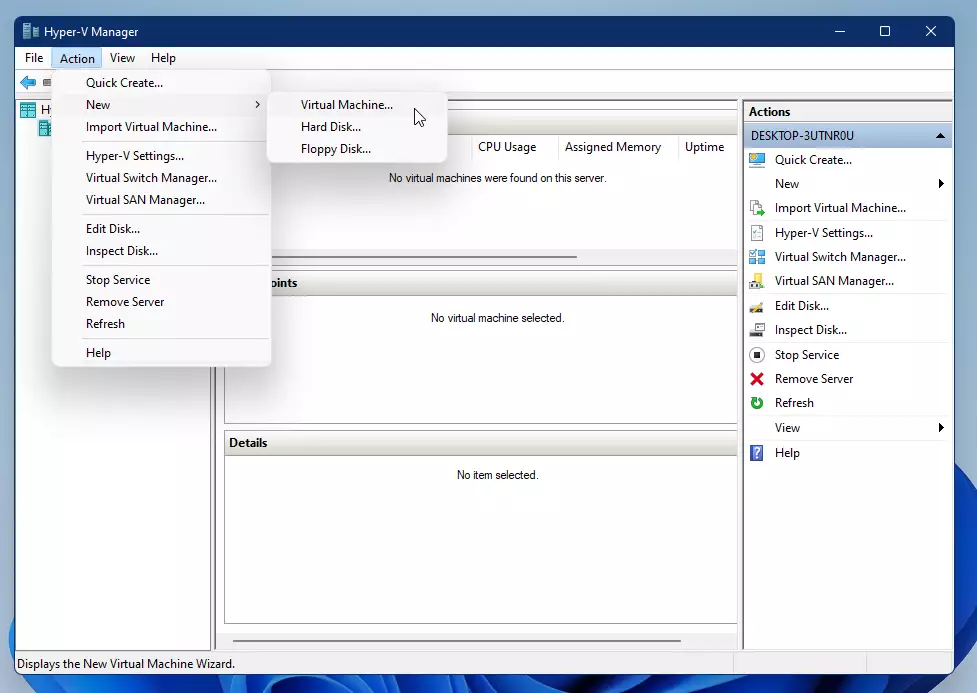
- Open the app. In the menu, click Action > New > Virtual Machine.
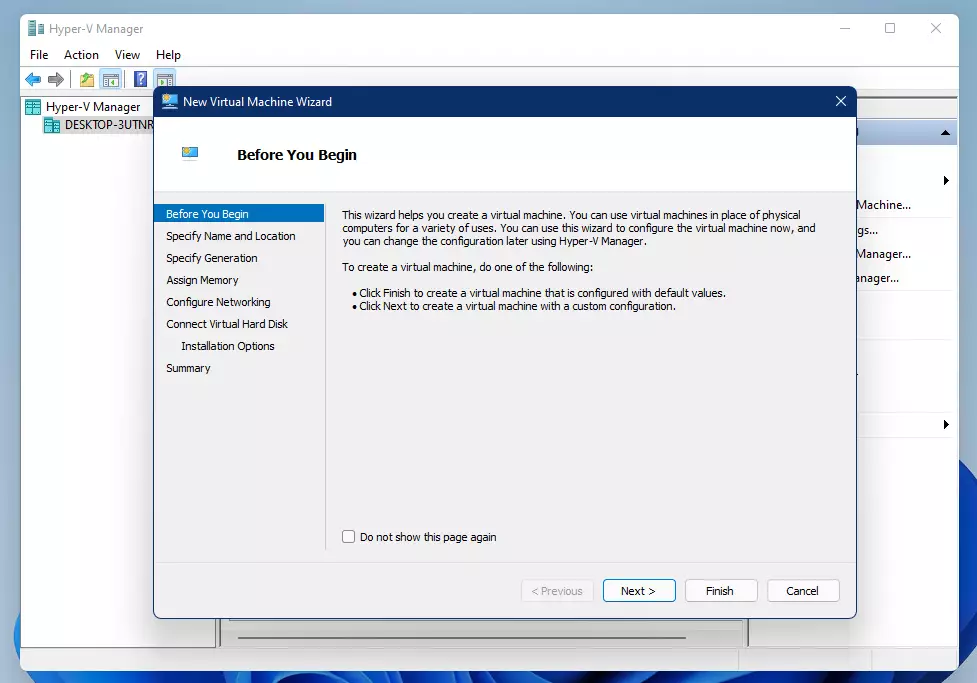
- Follow the instructions in the wizard to set up your new virtual machine.
What happens when you do this? You’ll be able to run other operating systems inside Windows 11!
Summary
- Windows Hypervisor Platform helps you run virtual machines on Windows 11.
- You can turn it on or off through Settings, Control Panel, Command Prompt, or PowerShell.
- After enabling it, you can create and manage virtual machines using Hyper-V Manager.
- This is useful if you want to try out other operating systems or test software safely.
- For more tips on Windows 11, check out Geek Rewind.


Leave a Reply